User Help System
FirmSoft User Administration
The CME Customer Center includes a self-service capability for Admin Managers (AM) / Application Admins (AA), at Registered Entities, to create and manage FirmSoft application user access, via the following roles:
|
Role / Entitlement |
Description |
Futures and Options |
BrokerTec |
EBS |
|
Order Management – Order Inquiry Only |
Users can view orders and order status, fill / aggregate fill details. |

|
|
|
|
Order Management – Order Inquiry plus Cancel |
Users can view orders, order status and cancel an individual order, group of orders, working orders and mass quotes. |
|
|
|
|
GFE Privileged Trader |
Users assigned the BrokerTec Global Front End (GFE) Privileged Trader role can view and cancel individual / multiple orders, all working orders and mass quotes for a given GFID for which they are assigned access.
Using the Scope fields, management permissions can be further restricted to specified iLink Order Entry Sessions, Accounts, Tag 50 (Operator IDs).
See also: BrokerTec GFE Order Takeover |

|
|
|
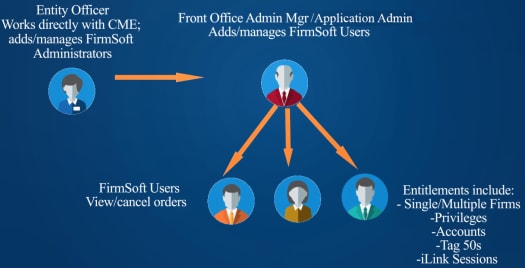
Assigning user entitlements and permissions begins with the Registered Entity's designated Entity Officer. The Entity Officer entitles their company's Front Office Admin Manager who adds and manages FirmSoft user entitlements.
AMs and AAs can use CME Customer Center - User Administration to add FirmSoft users, view user entitlements, make FirmSoft entitlements pending, and submit entity requests.
Adding FirmSoft Users
The following procedures illustrate the process to access User Administration functions to assign / add FirmSoft application entitlements for a given user.
This video provides illustrated instructions on the administration process:  FirmSoft Administration.
Prior to adding a new user entitlement the user must:
- Have a valid CME Group Login ID.
Existing users with an active CME Group Login ID can be assigned entitlements directly.
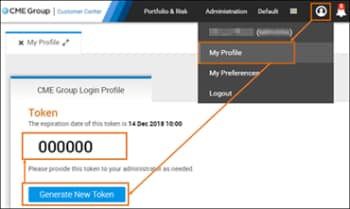
- New users (including users with a recently created CME Group Login ID) may be required to generate and provide a temporary token to the firm's admin manager.
To obtain a token, select My Profile > Generate New Token. The token is valid for seven days.
Before using application functions, Admin Managers and Application Admins must initially add individual application roles to themselves (example: FirmSoft) via User Administration process.
- From the CME Customer Center menu, select Administration > User Administration.

- Before adding new entitlements, CME Group recommends searching existing users to ensure users don't have existing permissions.
To add user entitlements, go to step 3.
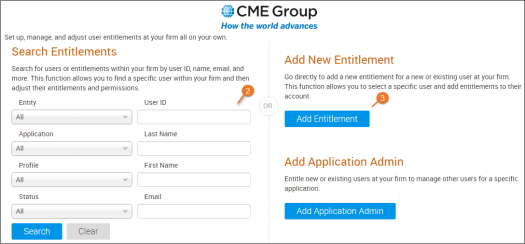
Example: Searching all FirmSoft users.
From the Application drop-down menu, select FirmSoft.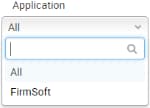
If the user is not found, go Back then go to Step 3 (below).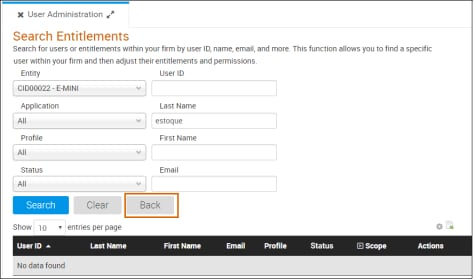
If the user is found, select their name to manage entitlements.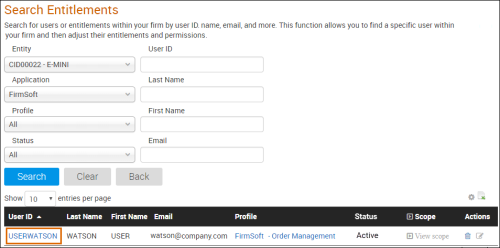
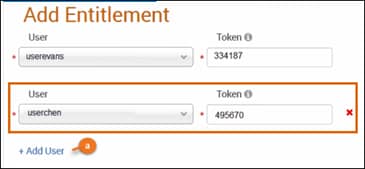
- On the Add Entitlement page, specify the entitlements.
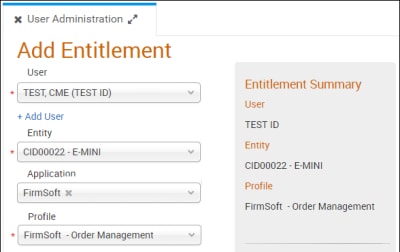
For new application users without existing entitlements, enter the token provided by the requesting user. Note: For additional information see: Generate a Token for Application Administrators
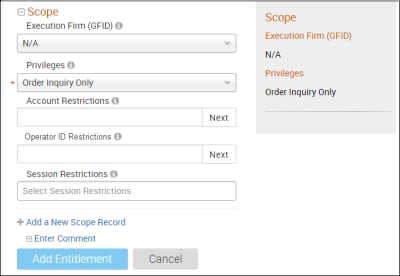
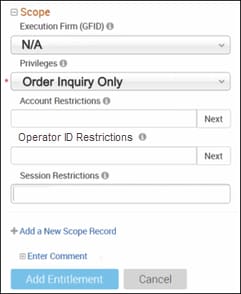
Scope: Additional application permission and associations (e.g. clearing, trading firm, GFID, exchange).
Selecting N/A grants access to all GFIDs, at the Registered Entity.
Futures & Options
No entry (blank): The user may access all accounts available to the firm.
No entry (blank) - The user may access all Globex Operator IDs available to the firm. Note: Account / Operator ID Restrictions: Separate multiple entries with a comma
No entry (blank) - The user may access all iLink Session IDs available to the firm. |
- To complete entitlement assignment, select Add Entitlement.
For added security, enter your password, then select Submit.
A confirmation appears and an email is sent to the Admin Manager(s), Application Admin(s) and added user(s).

- The entitlement has been added successfully - The user profile page appears with the updated profile and user entitlement. A confirmation email is sent to the Admin Managers, Application Admins and users.
- The entitlement requested already exists - No new entitlement is added. Confirm whether the proposed entitlement information is correct, then resubmit with updates.
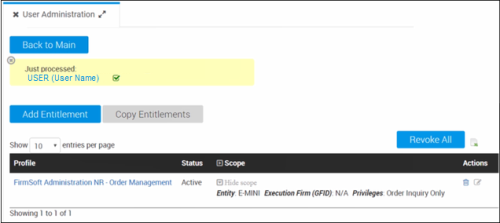
Additional options:
- Add User: Assign the selected entitlements to additional users.
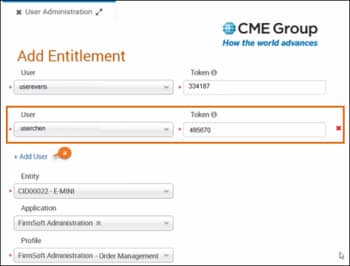
- Add New Scope Record: For the additional User(s), assign entitlements for the same Entity, Application and Profile.
- Enter Comment: Additional notes about the user entitlement.
Viewing Application Users
Clearing firms can use the Search Entitlements function to view a list of application users and their assigned application entitlements.
- To view application users in the User Administration function:
- From the User Administration page > Search Entitlements enter the following information:
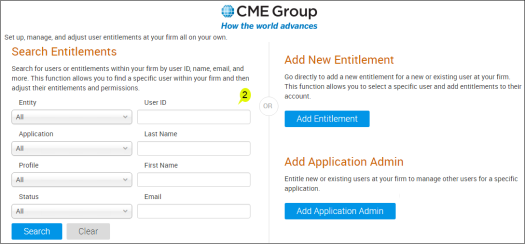
- Application: FirmSoft
- Profile: FirmSoft Administration - Order Management
Status is optional.
- Click Search.
A list of application users and their assigned entitlements appears in the lower pane of the Search Entitlements page.
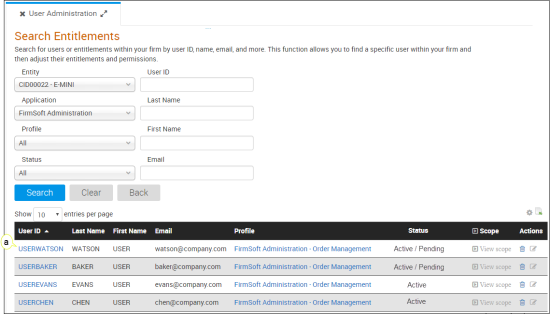
- To Add or Remove columns select Settings (
 , above the user list)
 - Status:
- All: The default search for columns containing
- Active: User profile(s) contains only active profiles
- Pending; User profile(s) contains pending profiles to review and activate
- Active / Pending: User has multiple profiles, including pending and active
- To sort the list select column heading.
- The application user list can be exported as a spreadsheet by selecting the spreadsheet (
 ) icon.
The file is saved to the default browser download location.
Managing FirmSoft Entitlements
From the User Administration function, authorized firm admins can manage user entitlements and FirmSoft application permissions, including entity, Execution Firm / GFID, permissions to view and / or cancel orders.
- To manage FirmSoft Entitlements:
- From the Search Entitlements page, search for a FirmSoft application user (by Entity, Application, Profile, User).
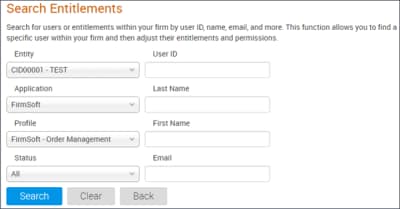
Authorized User IDs and assigned entitlements will appear in a list with options to manage the User Profile.
- For a given User ID, select a User ID or expand the Scopeto perform additional actions:
- Select the linked User ID: View detailed application entitlements for the selected user.
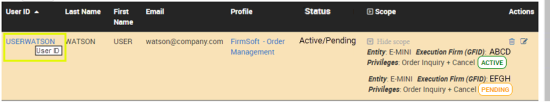
- View (Expand) Scope (
 ) to view detailed application entitlements and perform additional functions; delete (
 ), update (
 ), make pending (
 ), or revoke (
 ) entitlements.
 - Edit (
 ) to access the Edit Entitlements screen and manage a user's FirmSoft entitlements.

- From the Edit Entitlement screen the status of individual entitlements are indicated (
 /
/  ) with additional functions to manage entitlements:
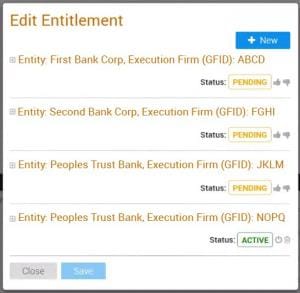
The Expanded Entitlement screen displays entity configuration details.
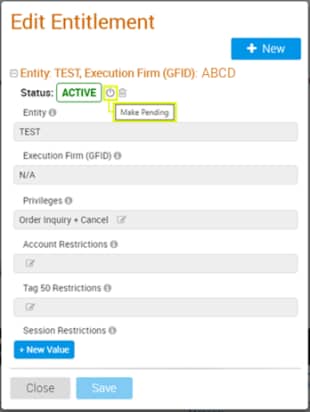
- Create a new (
 ) FirmSoft entitlement configuration for the selected user.
 - Make Pending (): Temporarily deactivate users' listed entitlement(s) and displays a pending confirmation dialog

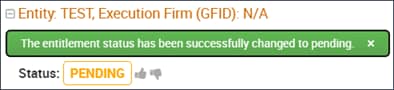 indicating the selection.
 - Make Active (
 ) directly from the Edit Entitlement screen, which displays dialog confirmation the selection.
 - Delete (
 ) the selected entity configuration.
 - Add a Session Restriction (
 ), which enables entitlements for a specific Session ID
 - Edit (): Enable additional Privileges, Account, Tag 50 / Order Entry Session access.
- Settings (): add / remove columns


