User Help System
Order Entry / iLink Sessions
iLink Order Entry is the path by which client systems connect to and transact business on the CME Globex platform; sending and receiving session and business layer messages between the client system and CME Group.
A valid iLink session consists of:
- SenderCompID
- Session ID (characters 1-3)
- Globex Firm ID (characters 4-6)
- Fault Tolerance Indicator (character 7)
See also: SenderCompID / iLink - Fault Tolerance.
Note: Using self-service functions, users can create a SenderComp [a concatenation of the Globex Firm ID (GFID), Order Entry Session (Session ID) and a Fault Tolerance Indicator (FTI)], to submit production environment orders.
The FTI is not managed in Request Center (ESS), but it can be submitted in messages.
See also: Cancel on Behalf - SenderCompID / iLink Order Entry - Fault Tolerance.
Using the Order Entry Sessions function, authorized users can create and manage iLink order entry Convenience Gateway (CGW) or Market Segment Gateway (MSGW) sessions to send and receive order messages.
Accessing Order Entry / iLink Sessions
The following instructions illustrate the process to access Futures and Options - Order Entry / iLink Sessions to view and manage market participant identifiers and their exchange / clearing firm associations.
Request Center (ESS) includes information to create and identify CGW sessions enabled for seven day trading (7D).
see also:
- Filtering order entry sessions for 7 Day CGW sessions
- Creating CGW order entry sessions enabled for 7 day
- From the CME Customer Center menu select Administration or Default > Request Center (ESS).

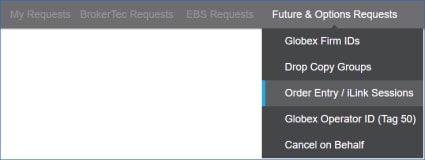
- From the Futures & Options Requests menu, select Order Entry / iLink Sessions.
- If you have access to more than one AG / Registered Entity, select from the menu.
If you have access to just one Administration Group (AG) it is selected automatically.

Authorized Users
- Request Center - iLink Sessions - Full Access: Create and manage Order Entry / iLink sessions.
- Request Center - iLink Sessions - Read Only: View Order Entry / iLink sessions and status.
- Clearing FirmAdmin Manager: Create and manage Order Entry / iLink sessions.
Manage user permissions to access order entry / iLink self-service functions.
Order Entry / iLink Session Functions
- Create a Order Entry / iLink Sessions
- View submitted request status - View all activity, including requests that require review and decision.
- Edit / delete Order Entry / iLink Sessions
- Secure Order Entry / iLink Sessions: Generate security keys to secure iLink Order Entry sessions.
- Manage Order Entry / iLink Session Permissions: Manage Registered Entity user permissions to create and manage sessions.
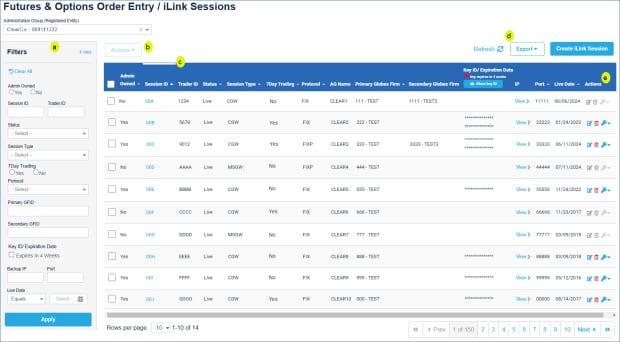
- Admin Owned: Indicates the order entry session is registered to the administration group (registered entity).
If the registered entity is not the admin owner, Expire or Edit is not available.
- Session ID: Select to view session details
- Trader ID: Individual / ATS operator ID
- Status
- Session Type: View CGW or MSGW sessions in the list
- 7Day Trading: Identifies iLink order entry CGW sessions availability for weekday (indicated by No) or weekend 7D (indicated by Yes) trading.
- Protocol: default selection - Binary (FIXP); iLink supports binary order entry messaging protocols.
- Primary GFID
- Secondary GFID
- Key ID / Expiration Date: Select to view order entry sessions that will expire in the next four weeks
- IP: IP and Port information is unique per order entry session and used to establish connectivity
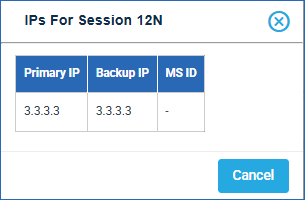
- Port: IP and Port information is unique per order entry session and used to establish connectivity
- Live Date
- Key ID/Expiration Date :
- Show
 :
: - Hide
 :
: - Key Expiring:

- Manage Keys/Actions: Generate/Delete/Download keys to secure order entry sessions
- Sort columns: Select column headings to sort in ascending (
 )/descending (
 ) order.
 - Export
 : Export the list of sessions to CSV / Excel / PDF format
 - Actions:
- Edit
 : Update primary / secondary Globex firm, front end system selection, live date, background, delete session.
 - Delete

- Manage Keys
 : Manage secure login functions; generate, delete, download HMAC codes.
See also: Securing Order Entry Sessions instructions
iLink Order Entry Sessions Self-Service Permissions
The Request Center (ESS) includes a function for Clearing Firm Admin Managers to manage Registered Entities' administratively owned GFIDs; allowing authorized users to create order entry sessions without clearing firm review.
To request CME Globex Firm ID (GFID) ownership transfer and permission to directly create and manage iLink Sessions, contact your clearing firm.
- To manage iLink Session Self-Service:
- From the Request Center (ESS) menu, select Preferences.

- If you manage more than one entity, select from the Registered Entity menu, otherwise the Entity is selected.
Appears only for registered entities that represent the clearing firm.
- On the screen that appears, select the iLink Sessions tab.
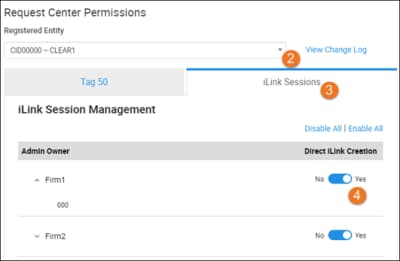
A list of available Admin Owners appears.
To view affected Session IDs, expand a selection.
- For a given Admin Owner, select Direct iLink Creation: Yes.
- Yes: Authorized trading firm users can directly create, edit and / or delete iLink Sessions, without clearing firm approval.
- No: Authorized trading firm users can directly create, edit and / or delete iLink Sessions, after clearing firm Admin Manager approval.
- Admin Manager approval is required, individually, for each Order Entry / iLink Session request.
- If the iLink session request includes more than one GFID (route-throughs), all affected clearing firms must approve each request.
Route-through requests, not approved by all clearing firms, will be rejected.
Note: Permissions updates are effective immediately.
View Change Log
To view detailed updates, select View Change Log.
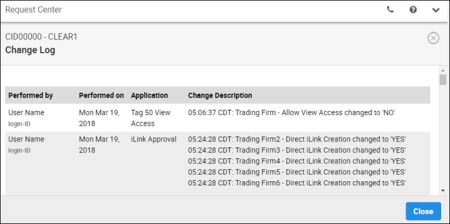
Available details:
- User
- Date
- Application / Service
- Time
- Description


