User Help System
Creating an EBS Globex User Signature
The following instructions illustrate the process to create EBS Globex User Signatures (GUS), which identify the person or algo operator authorized to submit orders for a specific GFID, assign product entitlements and limits.
The ability to create and submit a GUS and available fields is dependent on the selected GFID and user's assigned permissions.
|
Create / Submit |
Admin Approval |
|
|
Bilateral |
P |
P |
|
Prime Customer |
P |
|
|
Prime of Prime Broker |
P |
|
|
Prime of Prime Customer |
P |
|
- To create an EBS Globex User Signature:
- From the EBS GUS page, select Create Globex User Signature, then specify:
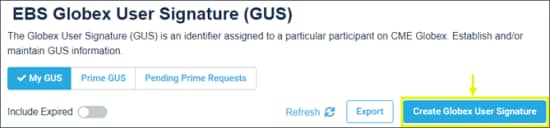
Steps to create a GUS:
Step 1: GUS Information - identifies the person / algo operator, type, entity information / relationships, trading venue.
Step 2: Order Entry Products - specify available products available for the GFID & GUS, including maximum order size.
Example: Entitle an entire Product Group, individual products or FX Spot+ products.
Step 3: Market Data Products - request to receive security definition, market status data for the selections.
Step 4: Confirm - review all information on a summary screen before submitting.
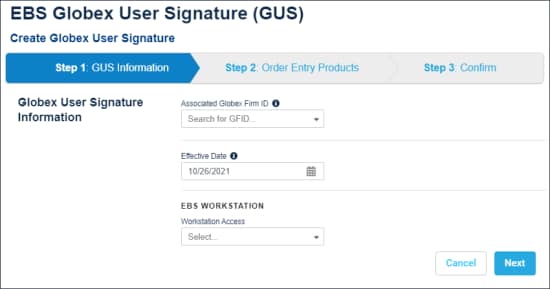
- Associated Globex Firm ID: Select the GFID (maximum 32 character) to associate with the GUS person / algo operator.
Available fields may vary, based on selected GFID and credit parent relationship (GFIDs associated with Prime Customer, Prime of Prime Broker or Prime-of-Prime Customer).
After selecting the GFID, additional GFID details appear.
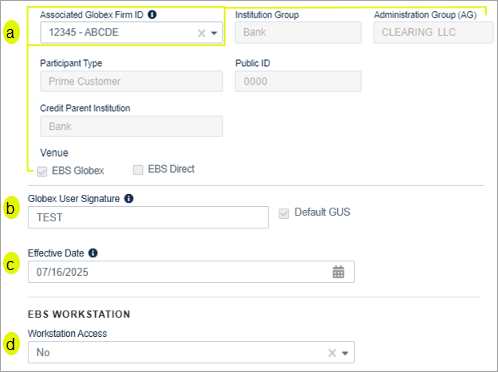
- Institution Group: legally related participants, as defined by CME Group.
- Administration Group (AG)
- Participant Type: Bilateral, Sponsored, Self-Prime (more information is available on the CME Group Client Systems Wiki)
- Public ID - Unique 4-digit ID which the public recognizes the firm as.
- Credit Parent Institution
- EBS Globex
- EBS Direct: If the GFID is a Tri-Party Participant and trades EBS Direct (only) through a Tri-party agreement with a bank, the bank is responsible for the settlement of deals traded by the GFID.
- Globex User Signature: Enter three alphanumeric characters that are unique within the GFID.
Note: This field will not be available for requests that require credit parent administrator review; GFIDs associated with Prime Customer, Prime of Prime Broker or Prime -of -Prime Customer. After submitting, contact the credit parent to review and approve.
- Effective Date: After approval (if applicable, e.g. Prime-of-Prime Customer) the GUS will available on the specified date (default is today).
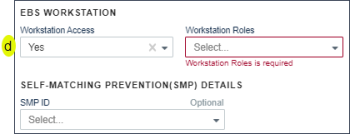
- EBS Workstation: Specify if the person / algo operator requires EBS Workstation access, then enter contact information associated with the GUS:
- Yes: Select a Workstation Role:View Only or Trader
(Optional) Enter a Self Match Prevention (SMP) ID, which allows market participants to prevent the matching of orders for accounts with common ownership, within and across different Globex Firm IDs and clearing firms.
See also: CME Globex Self- Match Prevention Functionality - Frequently Asked Questions
- Contact
- CME Group Login ID: As you enter, suggested matches appear in a list.
To associate an ID with the entity for the first time, select Add a new CME Group Login ID, then enter the ID and authentication token, which the user previously provided to you or an admin user.
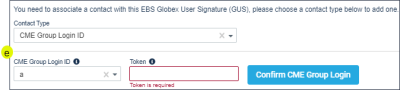
After Confirming the CME Group Login ID, the registered user's name and email address appears below.
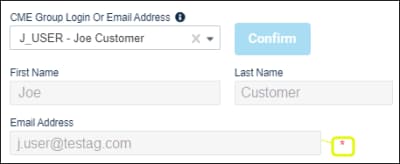
*: If the GUS requires approval from a prime bank:
Prior to creating the GUS the email address [including email domain(s)] must be associated with the registered entity and prime bank. The prime bank parent administrator must review / approve GUS creation / edit requests.
Registration is established via the CME Customer Center Self-Service Form, available from Global Account Management.
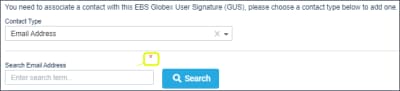
- Email address: Use the Search button to confirm the email address is registered with the user's CME Group Login.
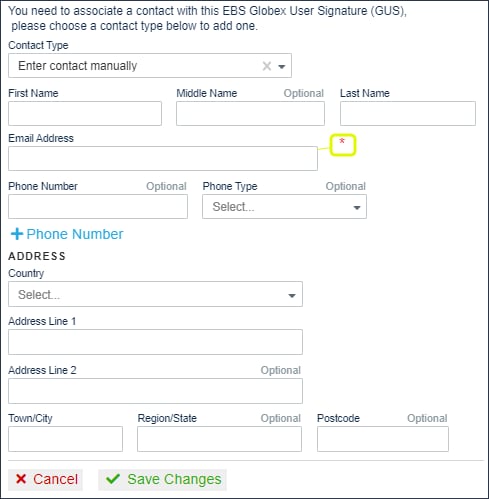
- Contact information: Enter contact information and Address details, then select Save Changes.
- Select Next, proceed to Step 2: Order Entry Products and Short Code; appears when a MiFID regulated product is enabled.
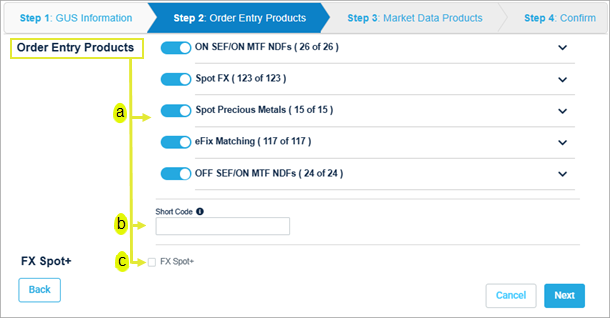
- Select order entry products to enable.
Expand to view individual products and/or enter maximum permitted order size.
- Select (
 )/ Deselect (
 ) All / Individual products.
 - Expand (
 ) / Collapse (
 ): View and assign individual products within a group.
- Short Code: Required when MiFID regulated products are enabled (e.g. On SEF/ On MTF NDFs, Off SEF/On MTF NDFs).
The short code identifies the person or ATS operator responsible as the financial / executing decision maker, on each order and associates a GUS with Personally Identifiable Information (PII) which is required for regulatory purposes.
Short Codes are mapped to the person's national ID and must be unique within the GFID. Each GFID can be associated with multiple GUS, and each GUS will have a unique associated short code.
Only one individual / natural person short code may be associated with a given Operator ID and GUS; additional person short codes may be registered using a separate GUS for each. One or more short codes may be associated with an Operator ID which represents an individual overseeing the administration and operation of an ATS.
- A natural person GUS with access to the order book may only be used by the identified person and may not be used by any other natural person entity user and may not be used for orders entered by an ATS. It is used on order messages in lieu of a personal identifier.
- For algorithmic systems, register one or more short codes for a GFID and GUS. The short code must meet the following conditions:
- unique for each set of code or trading strategy that constitutes the algorithm.
- used consistently when referring to the algorithm or version of the algorithm once assigned.
- unique over time.
Note: As part of the product entitlement process for a GUS / Trader to be allowed to trade MiFID regulated products, Participants must submit PII information. Failure to submit PII data will result in the GUS / Trader not being allowed to trade. For details see the following:
- PII Data Submission User Guide
- Personally Identifiable Information (PII) instructions
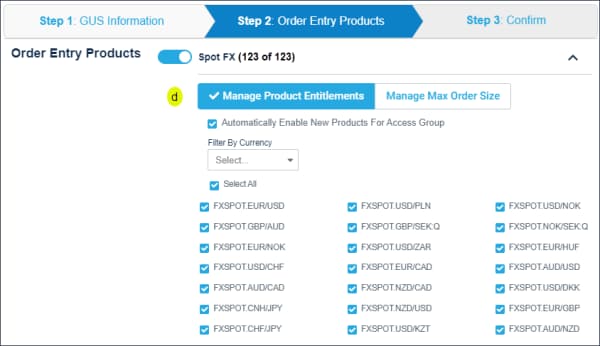
- Manage Product Entitlements: Select / deselect products; use the filter to view products for a particular currency / metal.
- Manage Max Order Size: Enter a value, then select Apply.
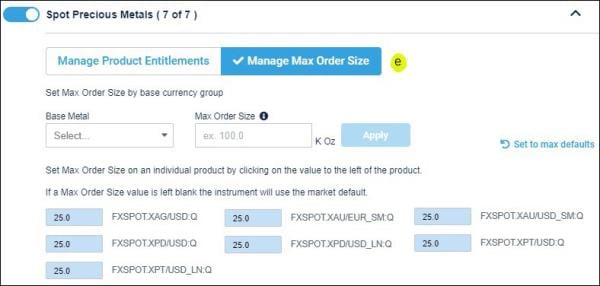
Max Order Size is specified in currency or weight:
- Currency: Currency: by millions of the selected currency (e.g. Currency 25 = maximum order size of 25 million GBP).
- Spot Precious Metals: by thousand ounce units (e.g. Ounces 20 = maximum order size of 20 thousand ounces of gold).
To enter a max order size for multiple products, select the Base Metal / Currency, then enter a value and select Apply.
Selections are automatically selected based on order entry products from the previous page.
Market data products can be selected / removed, as necessary.
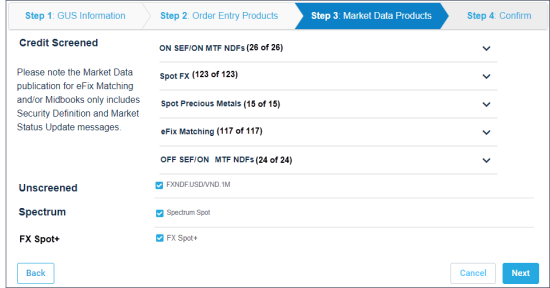
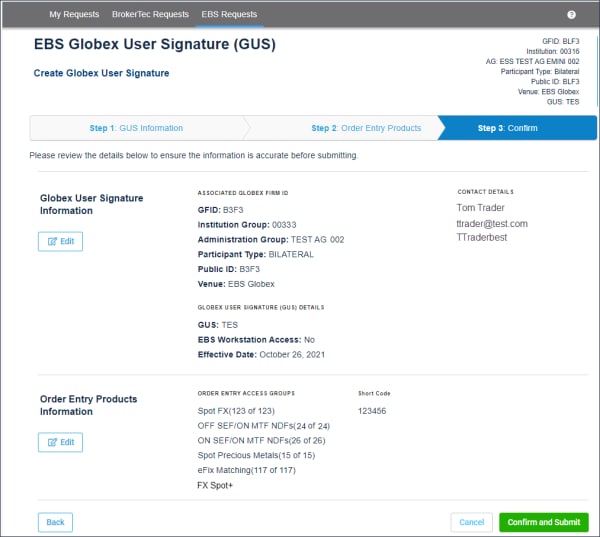
Requests for which the GFID is the credit parent or bilateral firm are available for immediate use.
Requests for GFIDs that are Prime-Customer, Prime-of-Prime Broker or Prime-of-Prime Customer require credit parent administrator review.
Confirmation and Notification
After Submitting: A screen notification appears and an email is sent to the admin user.

Request details are viewable on the My Requests (ESS) tab. If approval is required, contact the credit parent administrator to review the submitted request.


