User Help System
EBS Globex User Signature
Using the EBS Requests - Globex User Signatures (GUS) function, authorized users can create and manage EBS Globex User Signatures (also known as Trader ID), which identify persons or algo operators authorized to manage EBS Globex Firm ID (GFID) market participant details and submit trades for the GFID and entity.
Note: A GUS can be associated to multiple GFIDs; however, only one GUS and GFID association can be created per request.
A company can have more than one GFID and GUS for each venue / market.
Accessing EBS Globex User Signature
The following instructions illustrate the process to access the EBS Globex User Signatures (GUS) function.
- To access EBS Globex User Signature:
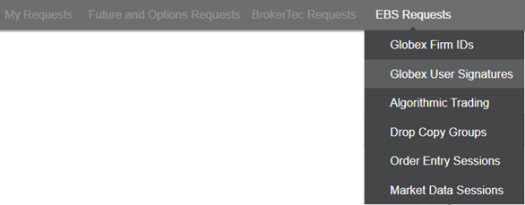
From the Request Center (ESS) menu, select EBS Requests > Globex User Signatures.
If you have administrator entitlements for more than one entity, select the Administration Group (Registered Entity) to manage from the drop-down menu.

On the list of GUS identifiers, a header bar displays the currently selected AG/Registered Entity.
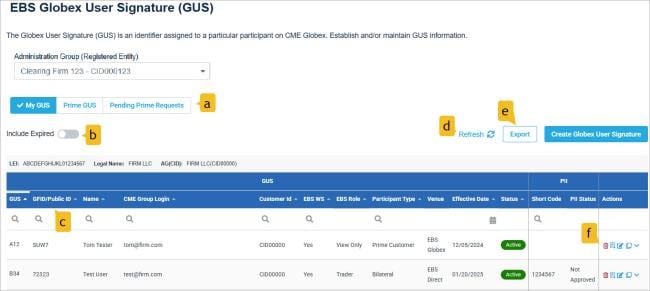
EBS GUS Functions
After creating a GFID and GUS, create order entry sessions to transmit orders and handle order related messages.
- Expire EBS Globex User Signature (
 ): the selected GUS, including associated registered algorithms.
- Filter

- My GUS: GUSs associated with Administrative Groups (AG) and their related GFIDs, which the user has permission to view / manage.
- Prime GUS: GUSs associated with Administrative Groups (AG) and their credit parent GFIDs, which the user has permission to view / manage.
- Include Expired: View all GUSs, including expired.
- Search / Filter: Enter search criteria in the top row, results update as you type, or select the column heading to sort by ascending / descending order.
- Refresh: Reload the page to view added, updated, deleted GUSs.
- Export : Export the list of GUSs to a .csv format file. To export specific records, first enter search criteria in column headings.
- Actions:
-
 : Expire the selected GUS, including associated registered algorithms.
-
 : Export the selected GUS details as csv file.
 -
 : Edit GUS details (GUS Information / order entry products / market data products).
 -
 : Clone an existing user's configuration for a new user.
 -
 : View summary GUS details, without accessing edit mode.


