User Help System
Creating ClearPort Account
CME ClearPort provides Brokers, Dual-Sided Submitters, Traders, and Asset Managers an application to enter and submit off-exchange deals for clearing through CME Group.
An authorized  clearing firm account administrator can use Account Management Service (AMS) functions to create and manage accounts for entering privately-negotiated over-the counter (OTC) transactions into CME ClearPort.
Prospective CME ClearPort market participants (individual, clearing firm, brokerage firm, trading firm) must complete the following to receive access to CME ClearPort clearing services.
- Create and register a CME Group Login ID to authenticate access to CME Group applications and services.
- (if applicable) Confirm that the associated clearing firm / front-end provider / Independent Software Vendor (ISV) is enabled for products that will be used for CME ClearPort.
- Complete and submit the CME ClearPort Services Registration.
- Complete and submit the OTC Clearing Account Registration.
Users will receive notification when access is authorized; when Account Management Service is available for account creation.
Note: Additional setup may be required (see below examples):
-Products - (e.g. CBOT Treasury Invoice Swaps, CME IRS).
-Firms - Associated firms must be setup and enabled for the same products and clearing firm associations as the account.
-Users creating and managing accounts must have entitlements to add accounts for a firm.
See also: CME ClearPort
For additional assistance, contact Global Account Management.
Refer to the below instructions to use Account Management Service to create and activate an account entitled for CME ClearPort market types.
- Identify account settings and their relationship to the clearing member.
- Select the Service (ClearPort Clearing) and account details.

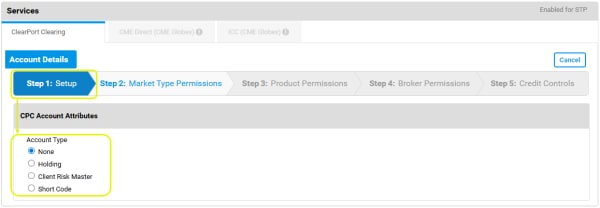
- Setup - Select the account attribute / type.
- Market Type Permissions - Assign Market types for products the account can trade.
- Product Permissions - Select individual products associated with the selected market types.
- Broker & Dual-Sided Submitter Permissions - Specify firms that can submit trades.
- Credit Controls - Specify risk value and long / short quantity limits.
- To create a CME ClearPort account:
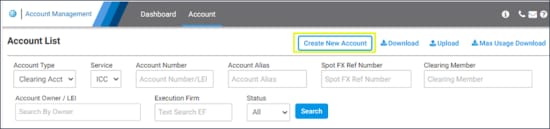
Note: Account Management Service is accessible from the CME Customer Center - Portfolio & Risk menu.
Note: Required fields are indicated by a red asterisk (*).
The Clearing Account Settings pane includes a button  to minimize its appearance.
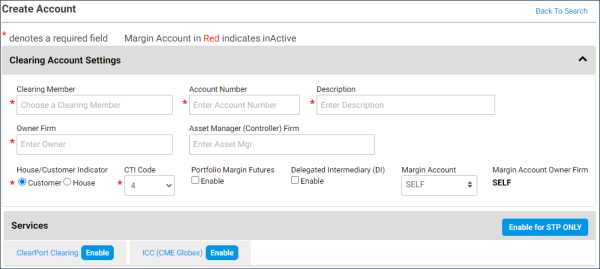
Clearing Account Settings:
- Clearing Member*: Clearing members assume financial and performance responsibility for all transactions executed through them and cleared by CME Clearing whether it is for the account of a customer, member, or their own account.
- Account Number*: Up to 20 characters. The alphanumeric identifier for the account that is unique at the firm.
Do not use the following special characters in the first, second or last position.
|
@ |
at |
|
% |
percent |
|
^ |
caret |
|
& |
ampersand |
|
( |
left parentheses |
|
) |
right parentheses |
|
_ |
underscore |
|
= |
equal |
|
{ |
left brace |
|
} |
right brace |
|
[ |
left bracket |
|
] |
right bracket |
|
| |
vertical bar |
|
\ |
backslash |
|
: |
colon |
|
; |
semi colon |
|
" |
double quote |
|
' |
single quote |
|
< |
less than |
|
> |
greater than |
|
, |
comma |
|
. |
period |

|
space |
- Description*: User specified identification details.
- Owner Firm*: The Trading firm or LEI owner of this account. If the clearing account is designated as Delegated Intermediary (DI); specify by the clearing member firm. Additional details are inherited from Trading Account Owner.
DI (parent) accounts cannot be updated via Bulk upload.
- Asset Manager (Controller) Firm: Enter the name in the field; available choices appear based on the partially entered name.
For DI and sub-accounts: If an asset manager firm is assigned to the clearing account, trading sub-accounts cannot be created and the DI selection will not be available. - House / Customer Indicator*: Indicates whether the account represents customer segregated funds or house funds.
- CTI Code*: CTI1 - An individual member trading for her or her own account, CTI2 - A member firm trading for its proprietary account, CTI3 - A member firm trading for another member, CTI4 - All other individuals.
- Portfolio Margin Futures: Enables the account for the Portfolio Margining program for futures.
- Delegated Intermediary: Specified by the clearing member firm administrator, instead of Asset Manager.
- Margin Account / Margin Account Owner Firm: Enables customer accounts to aggregate trades to calculate OTC trade cross-account margin offsets. The Margin Account Owner Firm specifies the registered owner firm.
- SELF: Non-CME ClearPort accounts use Self, which assigns the same account number as the owner.
- Specify Margin Account: Associate accounts with clearing member, beneficial owner, designated margin account.
- Margin multiple accounts to same owner firm: For CME ClearPort accounts only, multiple accounts, with different Owner Firms, can use the same Margin Account.
The accounts must be associated with the same Clearing Member and the Owner Firms for both accounts must use the same LEI.
Edit the account, then select the Owner Firm from the Margin Account field.

- None: Default selection
- Holding: Allows Asset managers to submit swap sides that will be subsequently reallocated or given up. If selected, the account cannot be a Delegated Intermediary (DI).
- If selected, the account cannot be a Delegated Intermediary (DI).
- Client Risk Master: Allows FCM brokers & dual-sided submitters to enter Block trades and EFRP's for multiple clients using a single CRMA account for subsequent allocation or give-up.
- Enables submitting customer Block or EFRP trades into a single account for post-trade allocation. These accounts are only permitted for brokers registered under an Exchange Clearing Member Firm; cannot be used by non-clearing firm brokers (see: Client Risk Master).
- Short Code: Allows Brokers & Dual-Sided Submitters to submit Block trades and EFRP's for trading firms not registered with CME ClearPort. A separate account must be used for each trading firm.
- Enables Brokers & Dual-Sided Submitters to submit customer Block or EFRP trades for a single end-client trading firm. The identity of the client must be referenced in the Account Description but the firm will not need to register themselves. These accounts may be used by users registered for ClearPort / CME Direct and permitted to submit trades on behalf of the account (see: Short Code Accounts).
For the list of Markets, select the Risk Method and Access Type (and additional options, if applicable).
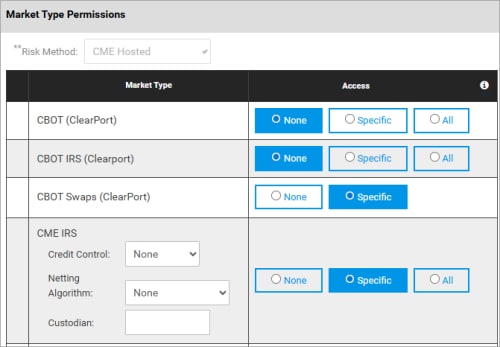
- None: Submitting orders for this Market Type, including all Products is restricted.
- Specific: Requires selection of individual product permissions
Example: Selecting CME IRS requires additional selections:
- Credit Control - Check limits, Autoclear, Force Claim
- Netting Algorithm - Analyzes orders that could be closed or reduced in notional value by offsetting trades between participants. The results of the netting run are then sent back to each participant for confirmation. If cleared, the central counterparty will execute the compression, including risk checks.
Options:
- None
- CustomerID
- Standard
- Coupon Blending CustomerID
- Coupon Blending Standard
-Custodian - Specify the entity that holds assets for initial / variation margin.
- All: Enable order submission for all products in the selected market type.
Note: Specific and All, requires setting credit and long / short quantity limits; configured with the Credit Controls function.
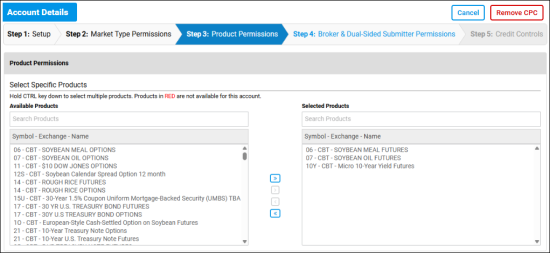
- (If Specific was selected for at least one product in the previous step) Select Step 3: Product Permissions.
From the Available Products, add product(s) the account will be permitted to trade.
Note: To find a specific product, enter the symbol or name (including partial) in the search field.
- Add
 / Add All
  to the Selected Products list
 - Remove:
 / Remove All:
  from the Selected Products list.
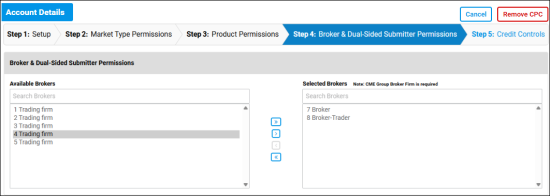
- Select Step 4: Broker & Dual-Sided Submitter Permissions, then specify trading participants authorized to operate this account.
- Add / Add All to the Selected Brokers list
- Remove: / Remove All: from the Selected Brokers list.
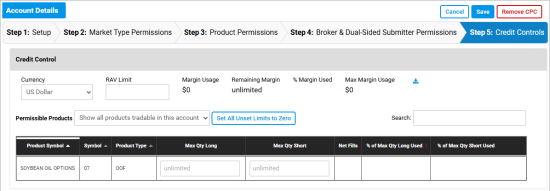
- Currency - select the currency denomination
- RAV Limit (Risk Asset Value) - (required) The entered amount is denominated by millions in the selected currency.
- Max Qty Long / Short - The default is unlimited. Pending entries are indicated by green.

Additional Options
- Permissible Products - Show all products tradable in this account / Show Products with individual limits - Show products with specific limits.
- Set All Unset Limits to Zero: Enters 0 for all Max Qty Long / Max Qty Short fields not already entered.
- Search - Filter to products that match the entered symbol and/or name.
Additional Information
- Margin Usage - Amount (of the RAV limit) used.
- Remaining Margin - Of the total available RAV limit.
- % Margin Used - Margin Usage expressed as a percentage of RAV limit.
- Max Margin Usage - Maximum utilization for the day. View available credit to determine if action is necessary.
- Export Max Margin Usage Report(
 ) - View historical Max Margin usage and end of day RAV limits.
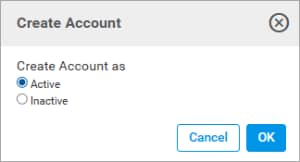
- Select Save, then finalize account creation by creating as Active or Inactive .
Additional Services: To enable CME Direct, ICC (CME Globex), Straight-Through Processing, Spot FX/Spot FX+], see Create New Account - Services.


