User Help System
Application Layout
CME ClearPort initially opens with a blank screen. Before submitting deals and to view market activity, select from available Market Components.
- To access market components select the Add New(
 ) menu
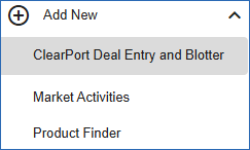 (lower-left).
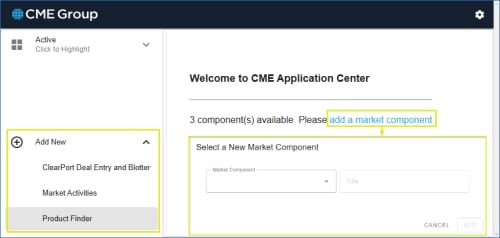
Available components
- ClearPort Deal Entry and Blotter:
- Deal Entry - Enter new / proposed deals.
- Blotter - View submitted deals, clearing status of previous submissions and matched-trade activity.
- Block Trades: For blocks and invoice blocks, view recent market activity (example: product, price, quantity) for the current day or past 10 days.
- Product Finder: Browse a list of available products / contracts that can be added to the Deal Entry screen.
Additional methods to add components:
A. From the home page select add a market component.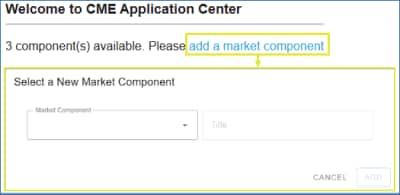
or
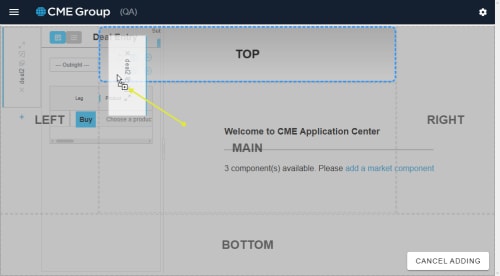
B. From an open market component, select the blue + (add new) icon, then select the component and panel location. 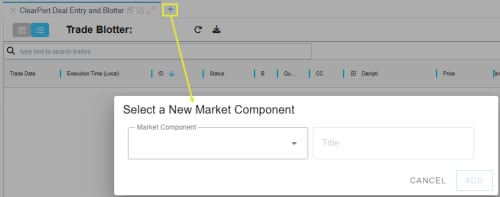
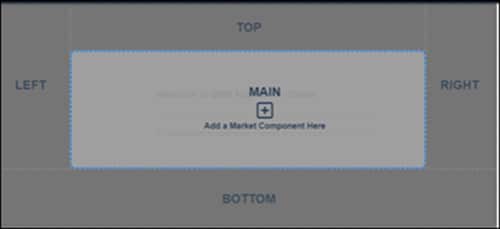
Panel location / tab:
- MAIN / TOP / BOTTOM:
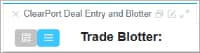
- LEFT:
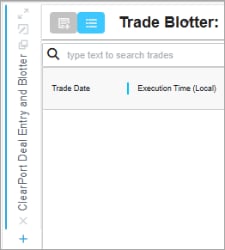 /RIGHT: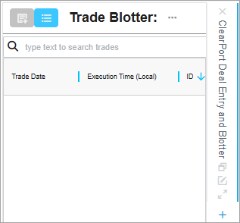
Multiple market components placed in the same panel are organized in a tabbed layout, including multiple versions of the same market component.
Select active market component: From the top-left corner, select Active ( ), then select a component.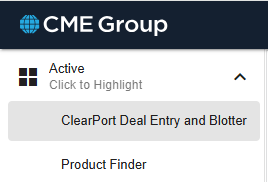
Market Component Options
Select from additional options to customize the layout.
- Close (
 ) the market component.
 - Drag market components to another panel.
- Popout(
 ): Open market component in a separate browser (or back to main
  ).
). - Edit tab: To identify multiple versions of the same component, enter a custom Title by selecting Edit Tab (
 ).
).

- Full screen(
 ): Maximize the viewable area of the tab (Undo: select
  or press ESC / F11 on the keyboard).
 - Select a New Market Component: From an open market component, select the blue + (add new) icon, then select a component and location.
Settings
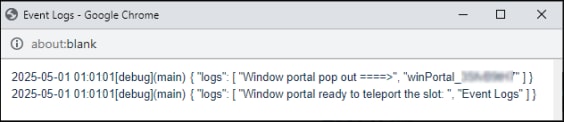
Settings are included to customize appearance, view system events, view additional information, or logout. From the top-right area, select settings ( ).
).
- Theme: Adjust screen appearance; Light, Dark, Dark Blue.
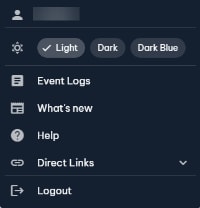
- What's New: Shows new functionality documented in the user help system.
- Help: Opens the user help system.
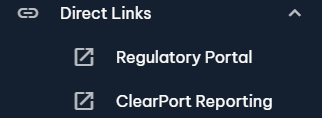
- Direct Links: Provides links directly to the Regulatory portal and ClearPort Reporting.
- Logout (
 ): Exits the current CME ClearPort session and returns to the main CME Platform page.
An additional option is available to logout completely from the CME Customer Center menu and applications.


