User Help System
Block Trades
Use the Block Trades component to view a record of Block / Invoice Block trades reported to the market, and add a deal for the same or similar product and contract terms.
- To access Block Trades:
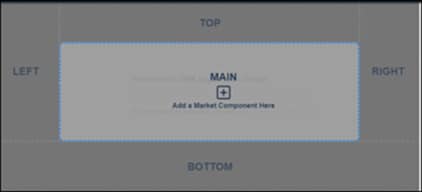
- From the home page, select Add a Market Component > Block Trades, then select the screen area for placement.
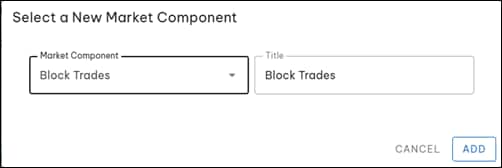
An optional Title can be used to identify the component.
- Select a screen panel.
Multiple instances appear can be placed in different screen panel or arranged in the same screen panel in a tabbed layout.
Block Trades Interface
From the Block Trades screen, the following functions are available:

- Deal Date: To view activity for the selected date select the drop-down menu. Activity is available for the past 10 days.
- Text Filter: Filter activity by search criteria. Partial entries will update the list as entered.
- Refresh Activities: (
 ) Updates the screen with the latest deal activity.
 - Export / Download (
 ): Export (download) displayed market activity as a .csv format file.
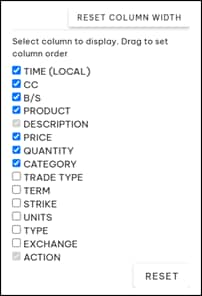
 - CUSTOMIZE: Use the customize column feature to select visible columns and change the column ordering. Select a column to display, and drag a column to change the order. Use the menu to reset column widths, column selections, and column order to default settings.
- Column Heading Filter (
 ): From the column heading, select to view specific activity or sorted data.
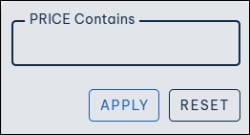
<Column Name> Contains - Enter a value to filter the column (e.g., PRICE Contains) and select Apply. Select Reset to clear the filter. A highlighted icon ( ) indicates that filtered results are shown.
Sort: Select the arrow ( ) to switch column sorting from ascending (
 ) to descending (
 ) order.
- Add to Trade (
 - Drag): To add an instrument from the list:
Select and drag () the instrument to the Trade Entry screen > Product field.
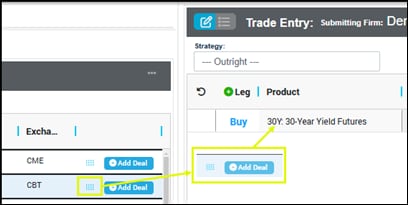
- Product fields will update with contract and settlement data.
- Add Deal: Select to add the deal to the Trade Entry screen with the selected product / instrument automatically entered.
Before selecting Add Deal, ensure the Trade Entry & Blotter function is open.
Note: Continue to enter Trade details; including trade type, strategy, additional products / product legs


