User Help System
Trade Blotter
Use the Trade Blotter to view top of day transactions that have been entered and submitted to the CME Group clearing house, review allocation and manage pending deals. Data is available for up to two years.
Accessing the Trade Blotter
- To access the Trade Blotter:
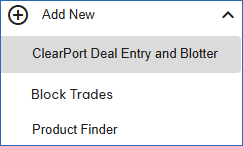
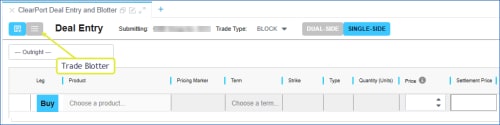
- From the top menu, select Add a Market Component > ClearPort Deal Entry & Blotter, then select the Blotter (
 ).
).
 >
> 
An optional Title can be used to identify the component.
- Select the screen area for placement.
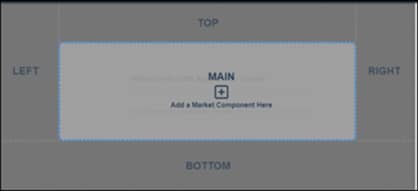
The screen defaults to a top of day view in descending date order. Selection fields are available to sort and filter results.
Heading and Search Options
The Trade Blotter interface is divided into two separate tabs to improve navigation and consists of the following functions:
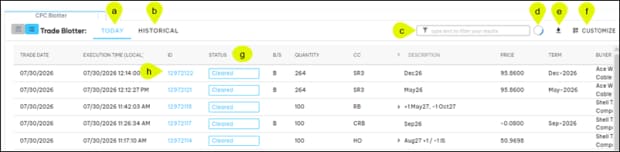
- TODAY: Exclusively displays top-of-day trades.
- HISTORICAL: Allows you to search for both top-of-day and historical trades. The search criteria fields can be expanded or collapsed as needed to maximize screen space. When using the Historical blotter, your generated trade list and specific search criteria will remain intact even if you toggle back and forth between the Today and Historical tabs. The active criteria used to generate your results is clearly displayed.
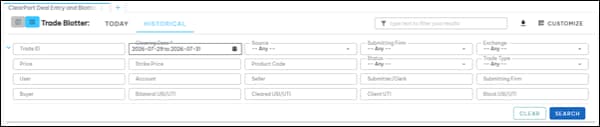
 Search fields
- Trade ID: The Exchange’s internal ID number assigned to the transaction.
- Clearing Date: The date the transaction cleared. A range of dates can be selected.
- Source: System used to enter the deal.
- http V 1.2 - transaction entered through an API version.
- http V 2.0 - transaction entered through an API version.
- MQ - transaction entered through an API version.
- Gui - transaction entered through the CME ClearPort front end interface.
- Novation - transaction entered via novation.
- Gui V 2.0 - transaction entered through the CME ClearPort front end interface version 2.0.
- Kafka - transaction entered via Kafka.
- Exchange: Exchange / Clearing Organization where the deal was executed.
- Price: Price (Percent of Par) per individual unit in the contract.
- Strike Price: Options contract strike price.
- Product Code: The product code of the instrument.
- Status: Deal status.
- Trade Type: OTC trade type.
See also: Entering a Deal - Trade Type
- User: User name related to an account or a deal.
- Account: Executing account mnemonic as agreed between the broker and the clearing member firm.
- Seller: The Principal company that is Selling the product.
- Submitter/Clerk: Submitter or Clerk identifier.
- Submitting Firm: Identifier of the firm submitting the deal.
- Buyer: The Principal company that is Buying the product.
- Bilateral USI / UTI (Unique Swap Identifier / Unique Trade Identifier) - OPNT trades only: Bilateral unique swap identifier for OPNT Trades or EFR/EOO Trades which are reported to the CME SDR.
- Cleared USI / UTI (Unique Swap Identifier / Unique Trade Identifier - OPNT trades only: Assigned after trade has been cleared. As allocations are cleared, the USI / UTI is assigned.
- Client UTI: Unique client specified deal identifier.
- Block USI / UTI (Unique Swap Identifier / Unique Trade Identifier): A trade / leg level identifier used to tie together allocations of the same Bunched Order.
- Text Filtering: Both Today and Historical blotters feature a text filter field, allowing you to further narrow down your currently displayed results.
- Reload -
 /
/  : Update the trade blotter to show trades from today.
 - Download Blotter -
 : Export and download your trade data as a CSV file directly from either blotter tab.
 - CUSTOMIZE Column Settings: Use the customize column feature to select visible columns and change the column ordering. Any changes made to your column preferences are automatically reflected in both blotters.
- Sort (
 ) - ascending / descending order or filter columns by selection and select Apply. Select Reset to clear filtered results.
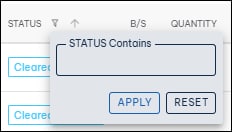
- ID: Select the blue ID to view submitted deal details.
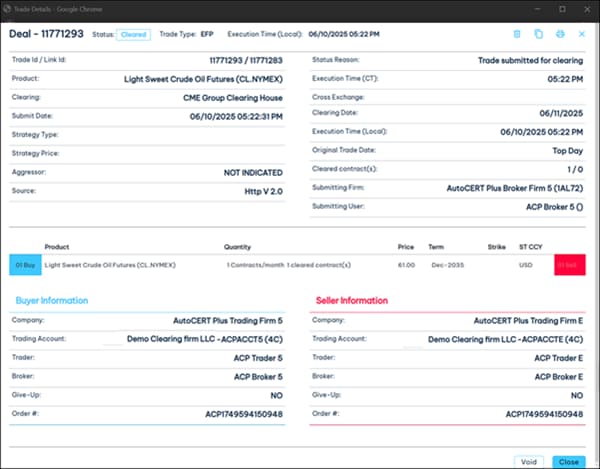
Trade Details
- Void: For single-sided deals, if both submitting parties agree, only the Global Command Center (GCC) can void a matched trade on the day it was matched or claimed.
- Copy (
 ): Opens the Deal Entry screen with selected details as the basis to enter a new deal.
 - Print (
 ): Formats the Trade Details into a printable layout and opens the print dialog.
 - Close Window (
 ): Closes the trade details dialog.


