User Help System
Product Finder
Use the Product Finder to search for a product by its name or product code. Product information includes the base series, instruments, contract period, and availability for Block trades.
When a product is found, it can be directly added to the Trade Entry market component for single-sided deals.
Prior to accessing CME ClearPort, a firm administrator assigns order entry product permissions using the Account Management Service application.
Accessing the Product Finder
- To access the Product Finder (Market Component):
- From the top menu, select Add a Market Component > Product Finder.
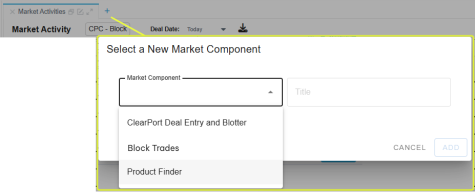
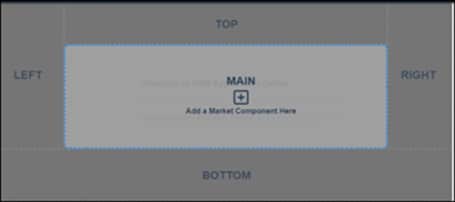
- Select the screen area for placement.
An optional title can be used to identify the component.
Note: An additional Product Finder can be selected from the market components menu.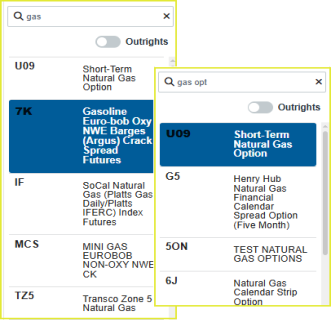
Select the slider button to filter by either Outrights or Spreads.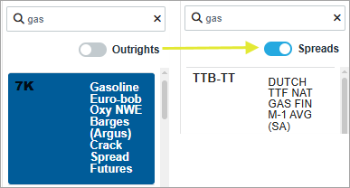
Searching for Products
The following instructions illustrates how to search for a product to view product information, as well as select a product for deal entry.
- To search for Products:
- From the Product Finder market component, enter product code, name or scroll the list, then select a product.
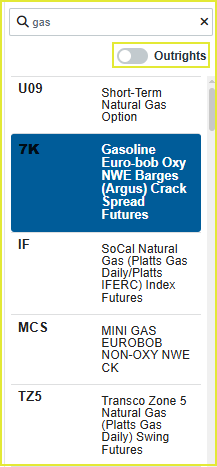
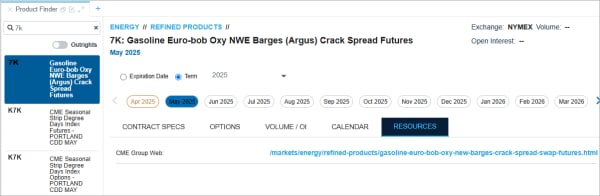
Information for the selected product appears on the right panel.
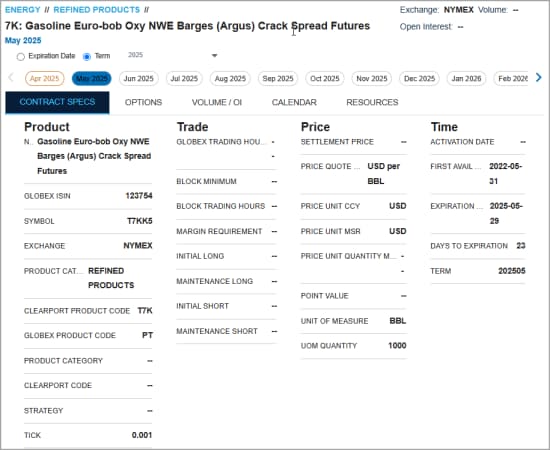
Note: To view additional product options and product information, select from the available tabs.
- The selected product can be added directly to Deal Entry by dragging the selected contract / instrument term to the Deal Entry - Product panel (If necessary, popout (
 ) into a separate screen or arrange components in different areas,).
Product fields will update with contract and settlement data.
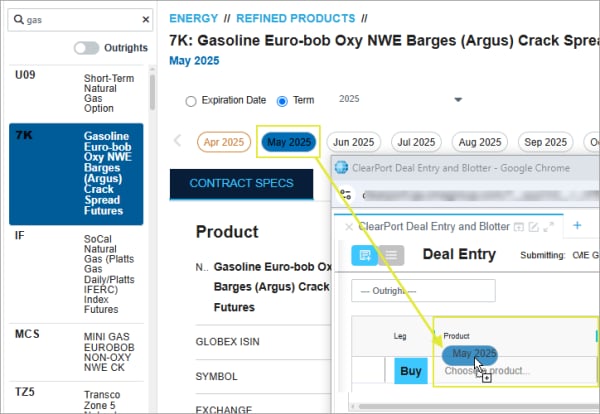
Note: Ensure both market components are open and in different screen panels 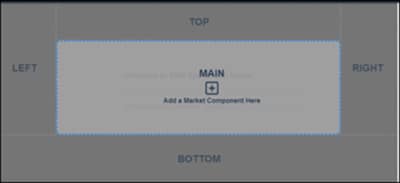 (e.g Deal Entry & Blotter - Main panel, Product Finder - Top panel
Product Finder - Product Information
The Product Finder consists of the following functions and product information:
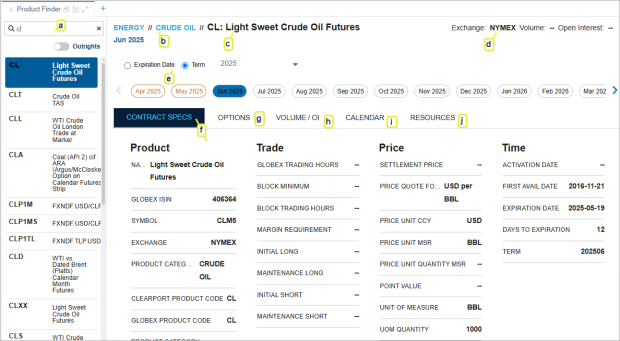
- Search: Find or enter the product / instrument code or product name; available selections update as you type.
- Product Symbol and Name: Shows the Globex product name, symbol, and term.
- Asset Class: Product Group.
- Exchange: NYMEX, COMEX, CME, CBO, GME.
- Expiration Date/Term: Select the slider to display contracts by expiry or term. For Term, select a year in the drop-down menu to view all available contract terms.
- Contract Specs : Additional contract information organized by Product, Price, Trade, and Time. See also
Product
- NAME: Product name.
- GLOBEX ISIN: ISIN code number to identify the product.
- SYMBOL: Product ticker symbol (e.g., CLM5 - crude oil futures June 2025).
- EXCHANGE: NYMEX, COMEX, CME, CBO, GME.
- PRODUCT CATEGORY: Asset class.
- CLEARPORT PRODUCT CODE: Product code for clearing (e.g., CL).
- GLOBEX PRODUCT CODE: Exchange product code for trading (e.g., CL).
- PRODUCT CATEGORY: Asset class.
- CLEARPORT CODE:Product code for CME ClearPort.
- STRATEGY: Strategy type.
- TICK: Size of one price increment.
Trade
- GLOBEX TRADING HOURS: Open trading hours on Globex.
- BLOCK MINIMUM: Minimum size required for a transaction.
- BLOCK TRADING HOURS: Time when Block trades can be submitted.
- Exchange: NYMEX, COMEX, CME, CBO, GME.
- INITIAL LONG: Initial margin to open a long position.
- MAINTENANCE LONG: Minimum level of margin to hold a long position.
- INITIAL SHORT: Initial margin to open a short position.
- MAINTENANCE SHORT: Minimum level of margin to hold a short position.
Price
- SETTLEMENT PRICE: Current settlement price.
- PRICE QUOTATION FORMAT: How prices are quoted (e.g., U.S. dollars and cents per barrel)
- PRICE UNIT CCY: Price unit of measure currency.
- PRICE UNIT MSR: Unit of measure of the quoted price.
- PRICE UNIT QUANTITY MSR:Unit of measure of the quantity.
- POINT VALUE: Size of one price change in the underlying asset.
- UNIT OF MEASURE: How the contract is priced (e.g., dollars per barrel).
- UOM QUANTITY: Contract size.
Time
- ACTIVATION DATE: When the contract is available.
- FIRST AVAIL DATE: First date available for trading.
- EXPIRATION DATE: Date the contract expires.
- DAYS TO EXPIRATION: Days until the contract expires.
- TERM: Contract expiry.
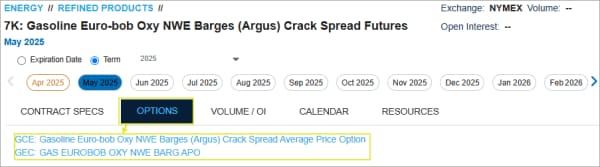
- Options: List of available options for a futures contract. Select an options term to open a Product Finder to view the options product information.
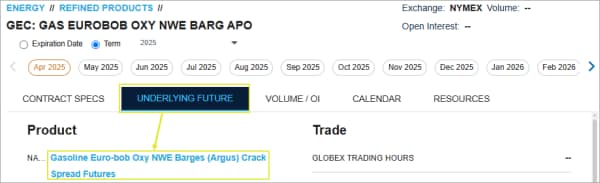
Underlying Future: Select the underlying futures tab, then select the product NAME to go back to the Options tab of the Product Finder.
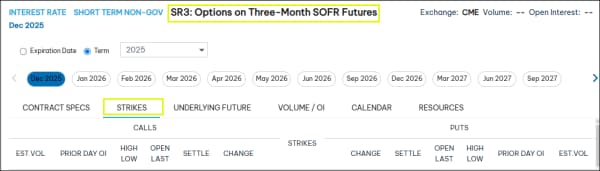
Strikes: Shows strike prices and premium prices for calls and puts when an options product and term are selected in the Product Finder.
- Volume /OI: Total volume and open interest for the contract term.
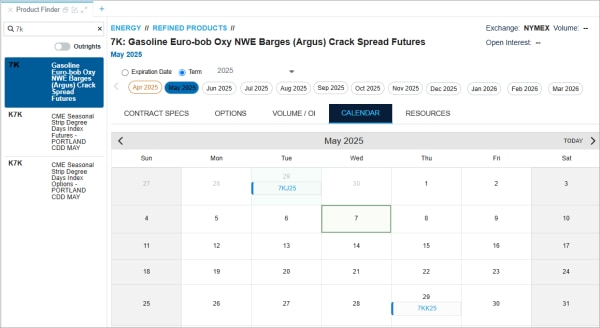
- Calendar: Some product details will include a Calendar icon, to view product information and important dates (e.g., contract expiration).
- Resources: Links to additional product information on the cmegroup.com website