User Help System
Creating iLink Order Entry Session
Use the iLink Sessions function to create new order entry sessions that can access the market to enter, modify and cancel orders and receive confirmations.
The creation process consists of the following steps:

- To create a new iLink Session:
 ).
).
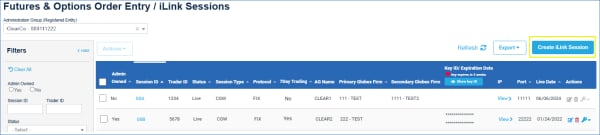
- On the screen that appears, enter new session details.

- Administration Group (Registered Entity): Determines available Globex Firms
- Primary Globex Firm/Secondary Globex Firm
If CGW is selected, review 7 Day Trading (below).
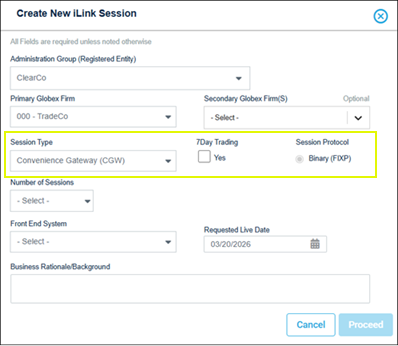
- 7Day Trading: Applicable for CGW type only - Select if the iLink session will be used for 7 day trading.
- Session Protocol: (default) Binary (FIXP) - FIX Performance - supports simple session layer management; no session-level information (e.g. headers) required
- Number of Sessions: The number of available sessions cannot be more than allocated to an entity (Globex Firm). iLink session creation may incur a fee.
Upon submitting, a fee acknowledgment indicates the amount per session and total.
- Front End System: Applications for which the iLink session is authorized.
Note: To manage available system selections, see Request Center (ESS) - Front End System.
- Requested Live Date: See also Request Status
- Business Rationale / Background
- Upon completion of required data, click Proceed.
An acknowledgment message appears, indicating Port Activation Charges (PAC), if applicable, for the requested session.

- If you agree with the setup details and fee, click Submit.
A notification banner appears, indicating successful request submission. An email is sent to the designated clearing firm administrator for a decision.

Sessions will appear in the list, with a CME Group assigned Session ID.
Additional session information provided is used to configure the client trading system(s).
Request Status
Submitted requests appear on the Order Entry / iLink page with In-Progress status and My Requests > Approvals tab (Description: Create Session, Status: Open).
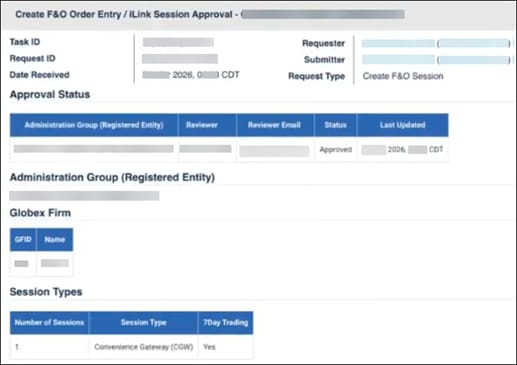
Upon successful creation and approval of session details request status updates to Approved, then Completed.
- Requests submitted before 12:00 p.m. CT are processed and will be effective the same day.
- Requests submitted after 12:00 p.m. CT will be effective the next business day.
- Updates to session protocols are processed at 4:00 p.m. CT.
An email and message is sent to the requestor at submission and completion.
After clearing firm administrator review (if iLink Order Entry session approval is required), session details will be available on the Order Entry / iLink sessions page.
Downloading Session Keys
Once generated, secure key information is available for download.
- To download an existing HMAC authentication key:
- From the CME Customer Center, navigate to: Request Center (ESS) > Globex Requests > iLink Sessions, then select a Registered Entity.
If you have access to only one entity, a list of iLink Sessions will appear.
- Select the iLink session, which activates the Actions for Selected Sessions menu.

- From the menu, select Download Keys.

- On the Generate New Keys dialog, select Download All Keys.

The user's multi-factor authenticated credentials are evaluated, to verify the requestor's identity. A cryptographically random key pair is generated; consisting of an Access Key ID and a Secret Keysecure ID.
The screen refreshes to include the Key ID, confirmation banner appears, email confirmation is sent to the registered address and the request is added to My Requests.

- If not downloaded (to the default browser directory), select Download All Keys, to access a text file, that contains the secure (private) key.
The file is named with the following pattern: iLink_Session_Access_Secure Key_Download_yyyy-dd-mm.
- From the saved file, view the corresponding Secure Key, which is used for securing Order Entry access and transactions.


