User Help System
Getting Started
Use the Risk Monitor service to access a monitoring dashboard, to view and access audit details, and monitor limit usage.
Additional links are available to directly access Account Management Service (AMS) and Entity Risk Management (ERM) to view and edit related details.
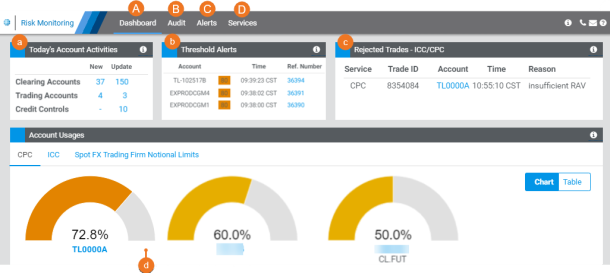
- Dashboard: View a summary of Account / Entity Activities.
- Today’s Account Activities: View a count of new and updated Accounts or Credit controls performed top day.
Note: Trading Account information is viewable by Trading Risk administrators only.
- Threshold alerts: View a list of most recent ICC and / or Spot FX alerts.
- Rejected trades: View rejected CME ClearPort trades.
- Accounts Usage: View the top five accounts and entity usage in charts; in descending order.
If the top five chart usage is over 50%, additional charts will appear.
In the Table view, all account and entity details appear.
- Audit Trail: View an Audit Trail for all related activity performed in AMS and ERM.
- Account Management Services: Accounts, Trade Type Restrictions
- Entity Risk Management: ICC Policy and Alerts, ICC Product Restrictions Policy, User Max Qty Limit, Trade Type Restriction, Spot FX
- Alerts: Search and view a list of ICC and / or SPOT FX alerts by Clearing Firm, Execution Firm or Service.
- Services: Directly access AMS and ERM.
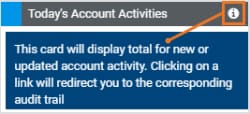
For additional details of information and activity in the application cards, select the tooltip.
Accessing Risk Monitor
Clearing Firm, Trading Firms, and Execution Firm users with a valid CME Group Login can access the Risk Monitor application. Entitlements are coordinated through Global Account Management.
- To access Risk Monitor:
- Navigate to cmegroup.com, select the Login / Profile icon (
 ), then select CME Customer Center (single sign on).

- On the page that appears, login using your CME Group Login ID and Password, then select Login.
- From the Portfolio & Risk tab, select Risk Monitor.

Note: For issues logging in or accessing Risk Monitor, contact Enterprise Application & System Entitlements (EASE).


