User Help System
Using Orders Card
The Orders Card always displays in the Workspace and offers a dedicated space where all order flow occurs. Use Orders Cards to view all in-progress (active) and completed (terminal) orders. Bid/Offer and BUY/SELL orders that are submitted with Request Forms, can be modified prior to sending, and amended, pinned, and / or canceled while still active in the market.
Two types of elements appear in the Orders Card:
- Forms (can be edited prior to submission)
- Order Status tiles track and manage the status of a submitted order
- Active Order
- Terminal Order (Filled, Expired, Canceled)
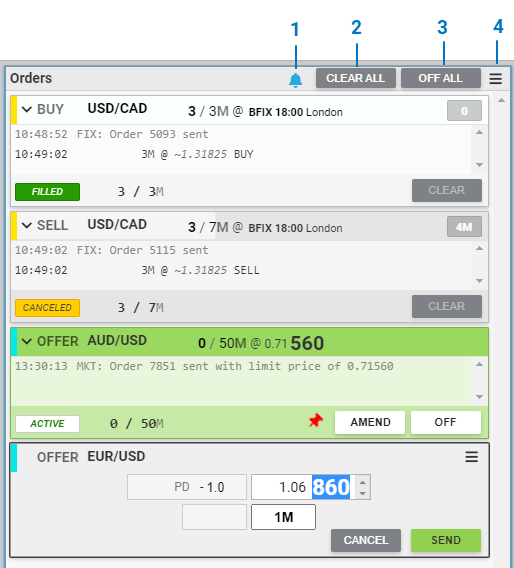
| Number | Description |
|---|---|
| 1 | Audio Alerts option |
| 2 | CLEAR ALL: Removes all individual order status tiles in Terminal State from the Orders Card |
| 3 | OFF ALL: Cancels all Order-Views in Active State that are not pinned |
| 4 |
Menu : Expand All / Collapse All, P key options |
Access IOC/FOK options from the Buy/Sell order form menu, or use the <list> key on the EBS Keypad.
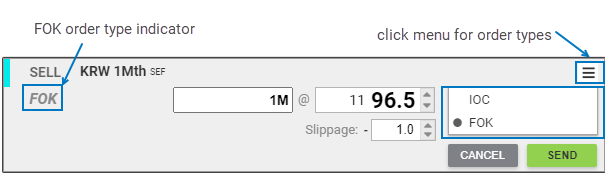
Manage default IOC/FOK and Buy/Sell form settings for specific instruments from the Instruments tab within User Preferences.
NOTE: For details on using Iceberg orders, refer to Iceberg Orders.
The segment to which an order was sent is indicated by the color of the stripe in the left corner of the Order pane. Colors indicators are : light blue for EBS Market, green for EBS Direct, yellow for EBS eFix, and dark blue for FX Spot +
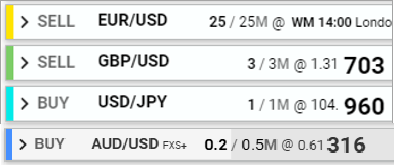
Minimize Active/Completed order elements by double-clicking on the order header or using <shift> then <-> (minus sign) key combination on the EBS Keypad.
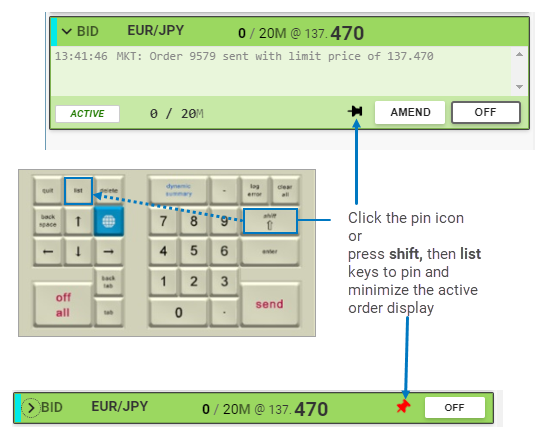
Use <shift> then <list> keys on Keypad to pin and minimize active Bid and Offer orders, which effectively turns the orders in Resting Orders (which are protected from <Off All> function and have to be canceled individually or using the super all off key combination <shift >+ <off all> on the keypad).