User Help System
BID/OFFER Form
Use the Bid/Offer Form to review and edit Standard and Iceberg Bid and Offer orders (Good till Canceled, "GTC") before submitting them to EBS Market. Bid and Offer orders are only supported for EBS Market.
- To open a BID/OFFER Form
With focus on active price card,
- via EBS Keypad: press <bid>/<offer> keys (or ICE BID / ICE OFFER keys if configured to open Iceberg Orders, see Setting User Preferences)
- via mouse: clicking on BID or OFFER buttons
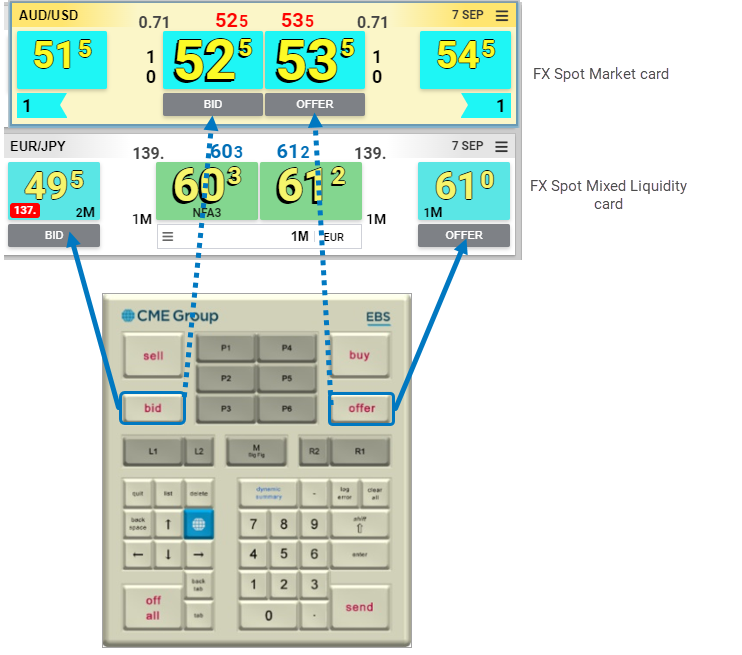
For BID/OFFER Form the Big Figure and Pips displayed are those that existed in the Price panel at the time you activated the BID/OFFER function. The form refreshes when users press a price button or the keypad BID/OFFER buttons whenever a BID/OFFER Form is already open from this card.
Note: The quantity input value does not refresh regardless of whether it was edited.
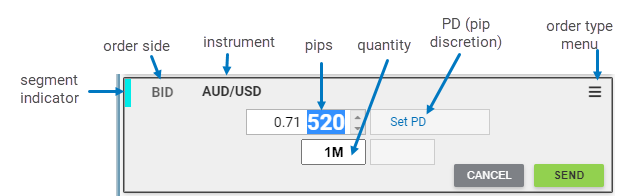
- To navigate a BID/OFFER order via keypad:
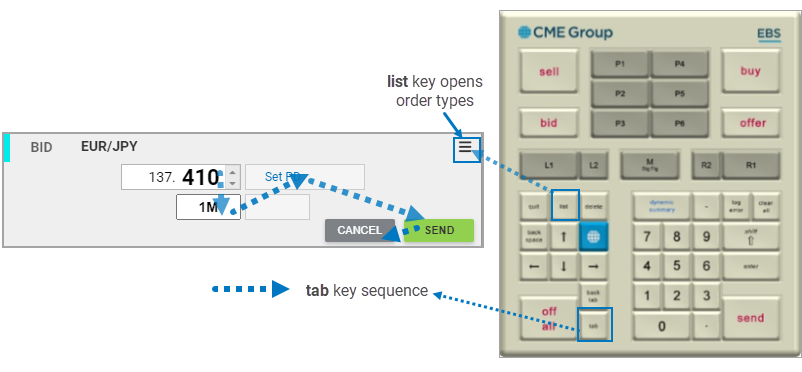
- <tab> the forward tabbing sequence for the panel is as follows: Pips > Size > Set PD > SEND > CANCEL
- <back tab>: the reverse tabbing sequence also includes the “Big Figure” field.
- <up>/down arrows increment price (or quantity) up and down when focus is in those fields; toggle between order types when menu options are in focus
- <list> opens order type options when focus is on menu icon
- <enter> confirms edits / selections to price, PD, quantity field, and order type menu
- <send> submits order to market
- <quit> exits the form without submitting the order
Editing Quantity, Price (pips), and Big Fig
- To edit quantity, price (pips), and big fig
- via EBS Keypad or keyboard: <up> / <down> arrows to increase/decrease the value, <numeric> keys to enter specific value
- via mouse: use the scroll wheel to increase/decrease the value
For details on the Quantity, Price, and Big Fig parameters, see the sections below.
Bid/Offer Quantity
Valid input characters are:
- 0 1 2 3 4 5 6 7 8 9 . K k M m B b
- K, k, M, m, B and b considered valid only as a suffix (last character in the sequence)
- K or k - for Thousands
- M or m for Millions
- B or b for Billions
Price (pips)
Valid input characters:
- 0, 1, 2, 3, 4, 5, 6, 7, 8, 9
- Invalid characters are ignored and not displayed on screen when entered
Price (big fig)
- To move focus to the big figure field when using EBS Keypad
- Press <big fig> key or <back tab> from Pips field.
Valid input characters are:
- 0, 1, 2, 3, 4, 5, 6, 7, 8, 9 and '.'
- Invalid characters are ignored and not displayed on the screen when entered
- The big fig field can contain up to seven characters
- When focus shifts to the big fig field, the last digit of the pre-populated value is highlighted
Select the entire value using the mouse or <shift>/<Ctrl> + <side arrows> keys on the keypad or keyboard.
To Increment/Decrement Big Fig Field
The value of the big fig changes by +/-1 when increased or decreased.
Changing Bid/Offer Order Type
The Bid/Offer form opens to a Standard order by default.
- To change the Order type:
- via keypad:
- configure L1 and R1 Keys on EBS Keypad to automatically open Iceberg orders, see Setting User Preferences
- use <shift> + <dynamic summary> keys shortcut on EBS Keypad
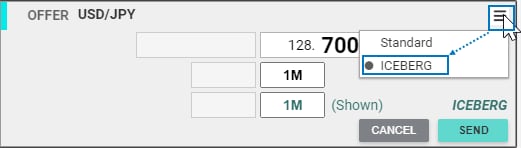
- via mouse: select order type from Order Form Menu