User Help System
Terminal Order-View
The Terminal order status is an element hosted within the Orders Card, and provides information about Filled, Canceled, and Expired orders, where "Terminal" is a state in an order's life-cycle in which an order is no longer active.
Filled
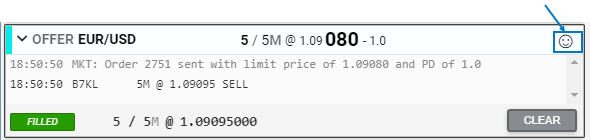
A filled order status means that order has been fully filled for the entire requested amount and is indicated in green. There may be one or multiple trades information depending on how the order was filled.

Canceled
When an order isn't filled at all or is only partially filled, then gets canceled by the user, the canceled indicator appears orange.
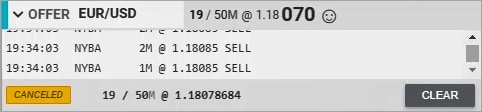
When an order is unexpected canceled due to a system reject, the canceled indicator appears in red.

Expired
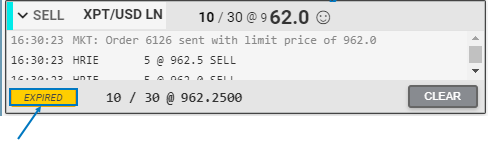
When an IOC or FOK order isn't filled at all or is only partially filled and then Expires the status will be indicated as "Expired."
Price Improvement (smiley face icon)
A smiley face icon displays in the header when the fill price is better than the requested price.
- To clear a specific terminal order view from the Orders card
With terminal card in focus
- via EBS Keypad: press <quit>
- via mouse: click CLEAR
- via keyboard: click esc
- To clear all terminal order views from the Orders card
- via EBS Keypad: press <clear all> from anywhere in Workspace
- via mouse: click CLEAR ALL on the Orders Card
Terminal Order View Layout
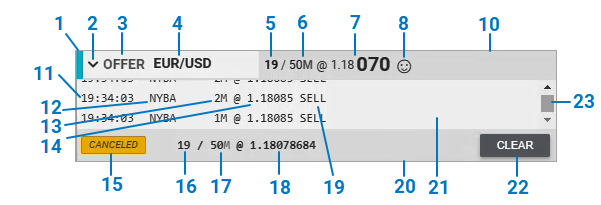
| Number | Description |
|---|---|
| Header (10) | |
| 1 | Market Segment indicator -Green for EBS Direct, Blue for EBS Market, Golden for eFix |
| 2 | Collapse/Expand button navigates between the 2 views |
| 3 | Side indicator |
| 4 | Ccy Label |
| 5 | Order filled quantity, in abbreviated format |
| 6 | Requested quantity in abbreviated format |
| 7 | Requested price |
| 8 | Smiley Icon (in case of price improvement) |
| Body: List box (21) contains the list of deals filled in the order, each deal includes: | |
| 11 | Time of matched trade |
| 12 | Counterparty Code |
| 13 | Single Trade filled quantity (quantity that was matched in each trade |
| 14 | Single Trade filled Price (ER) |
| 19 | Buy/Sell indicator to identify whether the user bought or sold |
| 23 | Scroll Bar (for multiple lines of matched trades. can scroll when there are more than 2 LPs |
| Footer (20) | |
| 15 | Status Indicator (Expired/Filled/Cancelled) |
| 16 | Accumulated filled quantity (total quantity that was matched) |
| 17 | Requested quantity |
| 18 | Weighted Average filled Price for the Order |
| 22 | Clear button- clears the card from view |


