User Help System
Order Status View
The Order Status View is an element hosted within an Orders Card that provides information on the progress of a submitted order, where "Active" is a state in the life-cycle of an order in which a submitted order can be matched (unlike a "terminal" state order in which the order can no longer be matched).
BID/OFFER (not BUY/SELL) orders trigger the Active Order-View, which users can pin or cancel (by selecting the OFF button).
Active Order View Layout
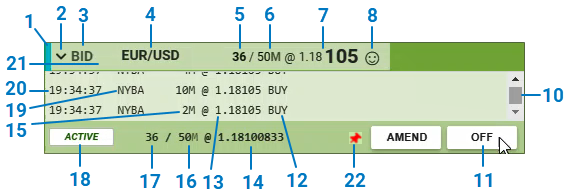
The Active order-View has the following elements:
| Number | Description |
|---|---|
| 1 | Segment Indicator |
| 2 | Collapse/Expand chevron icon |
| 3 | Side Indicator – BUY/SELL/BID/OFFER |
| 4 | Instrument Name |
| 5 | Total filled quantity (abbreviated format) – Total quantity of matched ERs - Execution Report |
| 6 | Requested quantity (abbreviated format) |
| 7 | Requested Price |
| 8 | Smiley icon – Displayed when Filled Price (14) is better than Requested Price (7) |
| 10 | Scroll bar |
| 11 | 'OFF' button – To cancel the Active order |
| 12 | Trade direction |
| 13 | Trade price |
| 14 | Order weighted average fill price (with precision = 8) |
| 15 | Trade size |
| 16 | Requested quantity (abbreviated format) |
| 17 | Total filled quantity (abbreviated format) |
| 18 | Status label |
| 19 | Counterparty code |
| 20 | Trade (hh:mm:ss) |
| 21 | Filled quantity progress bar |
| 22 | Pin icon (displays only on mouse over) |
Users can collapse an Active Order View.
- To collapse an Active Order View
- Press <shift>+<-> Keyboard shortcut when focus is on the Order Status tile.
- Double click Active Order View header
- Single click on the collapse/expand chevron icon

Pinning Orders
Active-Orders may be pinned to provide them exemption from the OFF ALL key.
The pin icon displays (in black) in the Active Order-View when users mouse hover over an Order.
- To pin an active order
- Click the black pin icon to trigger the OFF ALL protection. Red pin icon displays once order has been pinned.
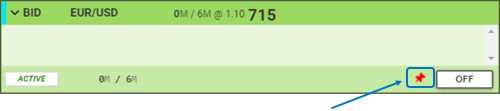
- Click the red pin icon to cancel the protection.
Canceling Active Order
An Active order can be canceled in any of the following ways:
via Keypad:
- <esc> when focus is on an Active order
- <enter> when focus is on an Active order OFF button (this is default focus when navigating to specific order)
- <off all> to cancel all non-pinned orders
- <shift>+<off all> to cancel all orders including pinned orders (super all off function)
via mouse:
- Click the 'OFF' button in the Order-View
- Click 'OFF ALL' button in the Orders-Card header when Order-View is not pinned
- Click 'SUPER OFF ALL' button in the Workspace header Which will cancel all orders including pinned orders
When the Order-View terminates, the order can no longer be matched and the view changes to Terminal state.
Note: The application can terminate Active Order-View automatically upon failovers or disconnections.


