User Help System
General Preferences
Use General Preferences to define actions for entering and displaying orders.
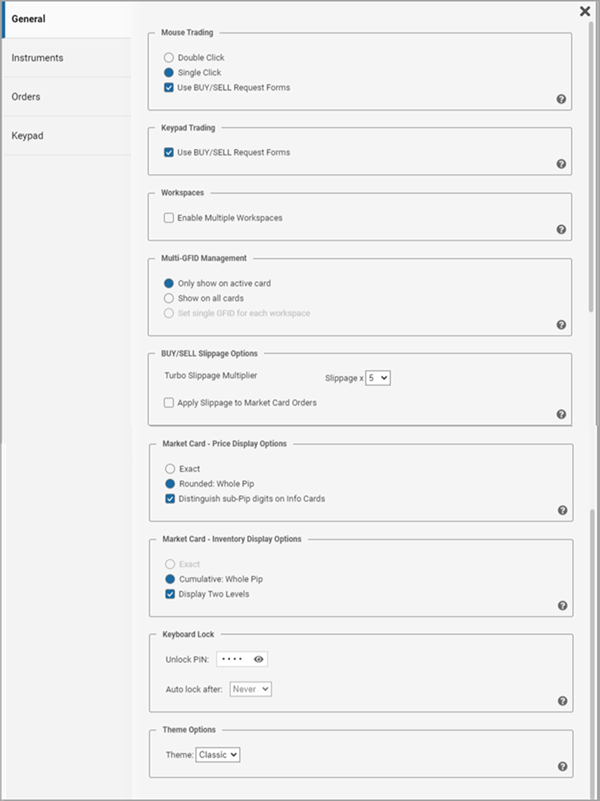
Mouse Trading
- Choose whether a double- or single- mouse click on a price in a trading card triggers action.
- To be able to modify order parameters for BUY/SELL orders prior to submission, select Use BUY/SELL Request Forms. If left unchecked, clicking a price immediately submits an order with default settings.
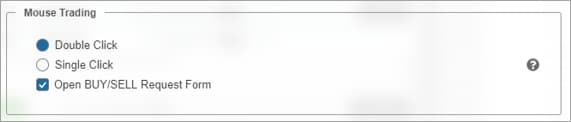
Keypad Trading
- Check the Use BUY/SELL Request Forms option to be able to review and/or edit a BUY/SELL order prior to submitting. Not checking this option enables orders to be sent with default values using a single Keypad key.
Workspaces
Users with access can select the Enable the Multiple Workspaces option to create and manage additional workspaces with added cards. See Multiple Workspaces for more information.

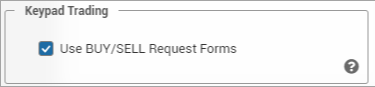
Multi-GFID Management
Note: This option only appears for users with more one GFID assigned to the same Trader ID. See Multi GFID Management for more information.
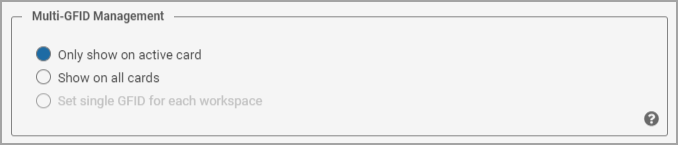
BUY/SELL Slippage Options
Slippage and Turbo Slippage are two different markups applied to BUY/SELL orders. Select a generic multiplier by which Slippage is multiplied to define the Turbo Slippage. Users can define Slippage per instrument and see resulting Turbo slippage under individual Instrument Preferences.
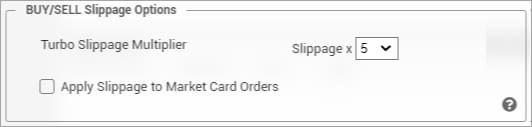
Note: Users can disable Slippage for orders launched from a Market Card.
Market Card – Price Display Options
Configure how prices will appear on EBS Market and information cards:
- Exact: Displays sub-pip price elements in small font on EBS Market cards
- Rounded: Hides any sub-pip price elements and rounds value to whole pip
- Distinguish sub-Pip digits on Info Cards: Displays sub-pip prices on Trader Deals, EBS Deals, and Market Data cards
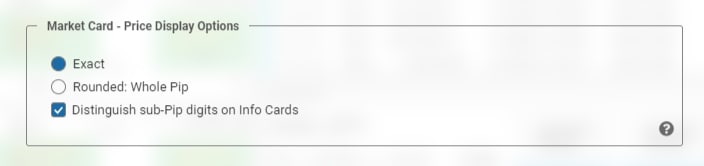
Note: Changing the setting from Exact to Rounded will trigger changes to the Display settings (will reset to Cumulative: Whole Pip) and Order Form Default Price settings (will reset to whole Pip). See relevant sections of User Preferences for more details.

Note: Changing back from Rounded to Exact will not trigger changes, but will trigger this Warning:

Users are strongly advised to check their settings to make sure they match their expectations.
Market Card – Inventory Display Options
Configure how the Inventory (available for matching) displays on Market Price Cards throughout the application.
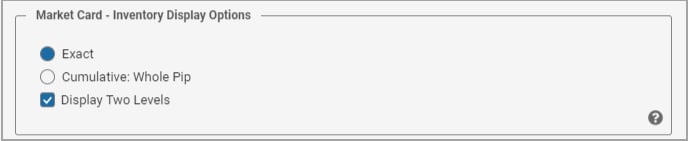
Configuration is a two-step process:
Configure how the inventory (ToB Depth) displays
Select one of the two options to define how to display sizes available for matching (ToB Depth):
- Exact: Displays the exact Size available for matching at the Best Dealable top of book price.
- Cumulative: Whole Pip Displays the cumulative Size available for matching from the Best Dealable top of book price out to the next whole pip price.
Show/Hide the 2nd Level Inventory (Best Dealable +/- 1 pip Amount)
Specify whether to display or hide available inventory at the 2nd best price level after Top of Book. Depending on Exact/Cumulative settings this may either mean +/- minimum available increment or +/- 1 Full Pip Increment.
Keyboard Lock
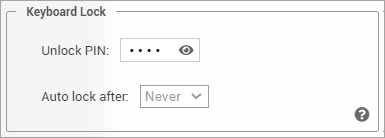
Use the Keyboard Lock property to lock input from a Keypad, mouse, or keyboard to prevent accidental order entry. When locked, a trading session remains open and resting orders remain active. Configure an Unlock PIN number to unlock input. The Keyboard Lock feature is designed to work in combination with the end user security controls deployed and managed by an organization.
Theme Options
Users can switch between Classic and new Dark Themes. This system option will use the settings from your OS app mode settings and display either in Classic (Light) or Dark Mode depending on chosen colors setting.



