User Help System
Multi-GFID Management
The Multi-GFID Management option in General Preferences is enabled by default for users with more than one GFID (Globex Firm ID) assigned to the same Username.
Note: By default each trading card is assigned its own GFID which can be changed.
- To change the GFID for a card
- From the GFID menu at the top of the card, select a GFID.
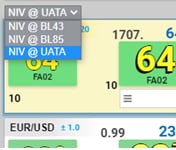
Note: For existing users, the last known selection from existing GFID selector in the top right will be applied to every individual card during the upgrade.
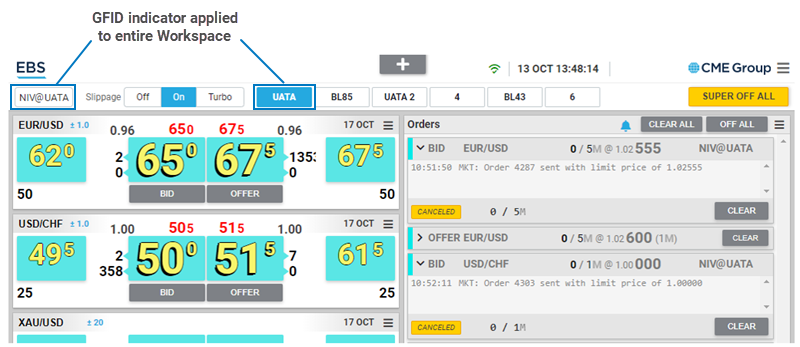
Users can choose to show the GFID indicator on the active card only or all cards. For users with enabled multiple Workspaces, there is additional option to a specific GFID to an entire Workspace.
Only show on active card (default)
This option displays the GFID indicator for the active (yellow) trading card only. It saves screen space when space is at a premium, such as on smaller monitors.
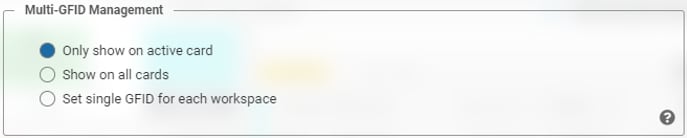
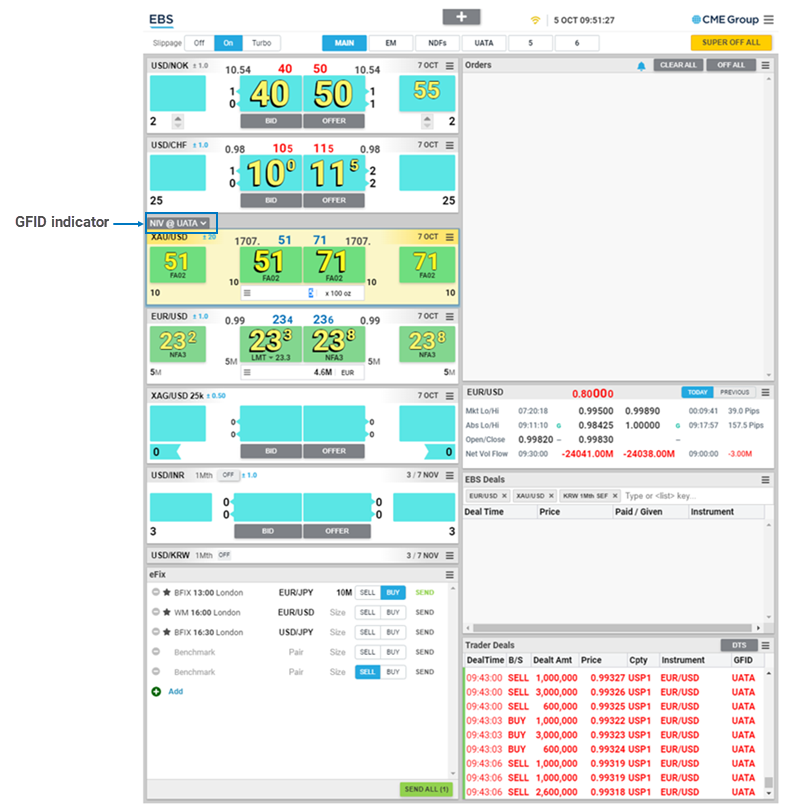
Show on all cards
This option displays the GFID indicator for all trading cards
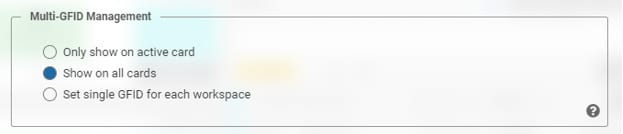
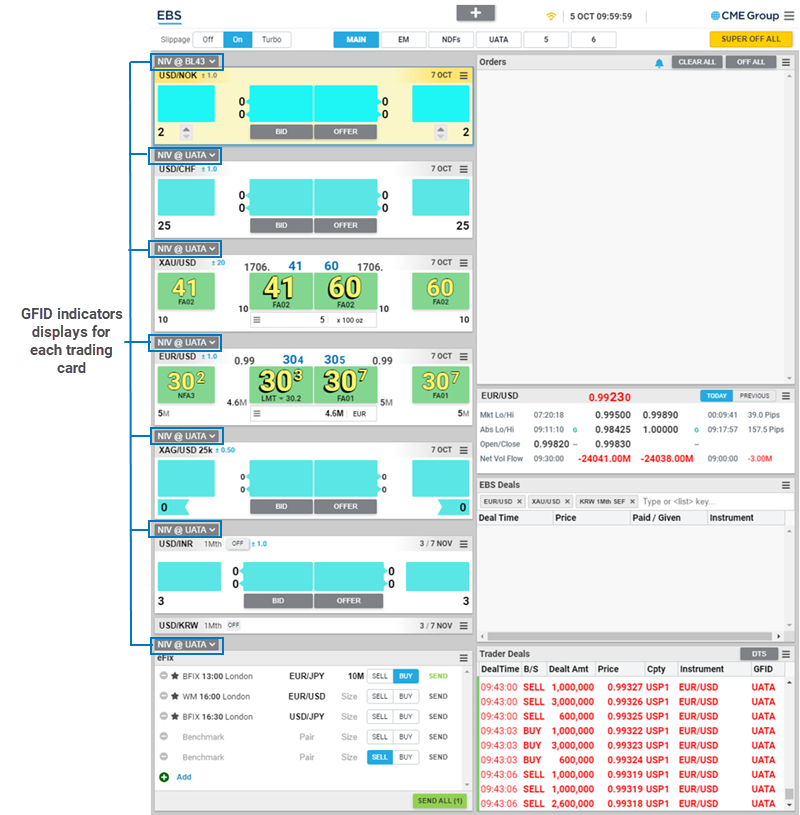
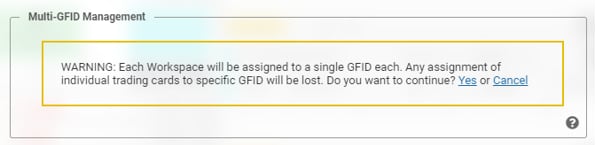
Set single GFID for each workspace
Use this options to allocate all Trading Cards on each of up to 6 Workspaces to specific GFID using the GFID-selector under Workspace section.
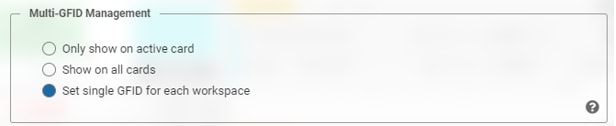
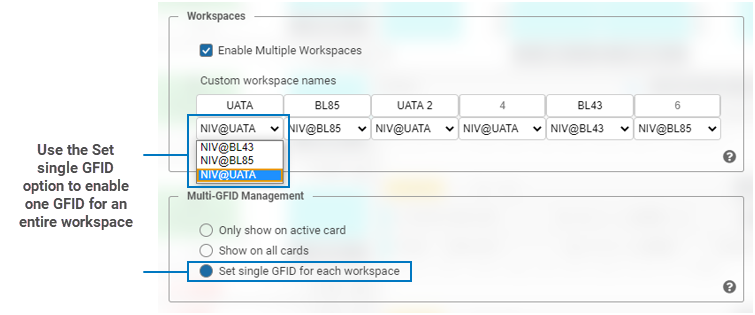
Note: When switching from individual card allocation to workspace allocation user will loose old GFID allocation.
When GFID is allocated to specific Workspace a label at the top left corner is indicating which GFID is allocated to this Workspace (this is in the same place as GFID dropdown on current version)