User Help System
Build FX and F&O Portfolios Manually and Calculate Margin
These instructions cover how to build a portfolio manually, add products and trades, and margin. For omnibus/parent portfolio, see Omnibus Portfolio.
Building a portfolio manually is aided by a build wizard--prompting users to create the portfolio by building positions or trades in eligible instruments. You may then immediately add trade details and view margin requirements.

- To build a portfolio manually:
- Select +New Portfolio > +Enter.
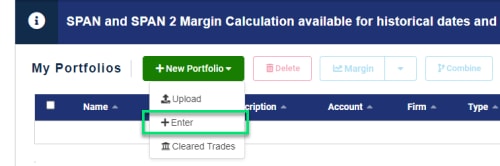
- In the wizard's 1. Portfolio Details tab:
- Enter a Portfolio Name, Firm ID, Account ID, and Description (optional).
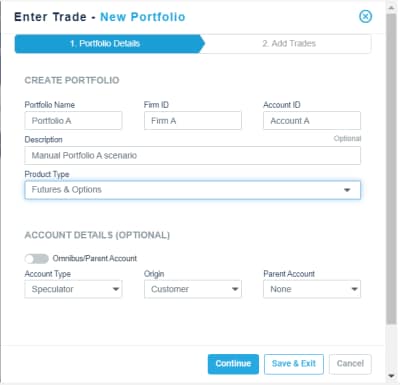
- Select Product Type (FX or Futures & Options).
- Enter a Portfolio Name, Firm ID, Account ID, and Description (optional).
- Optional Steps for Account Details:
- Select the Account Type (Speculator, Hedge, or Member).
- Select the Origin (House or Customer).
- Select the Parent Account if this is a child account (for F&O portfolios only).
- Select Continue. (The Save & Exit and Cancel exits the form.)
- Use the instructions below to create either an F&O or FX portfolio.
- To manually add trades for Futures or Options:
- When creating the portfolio, be sure to select Futures & Options for the Product Type.

- In the wizard's 2. Add Trades tab, identify products details for trades in this portfolio:
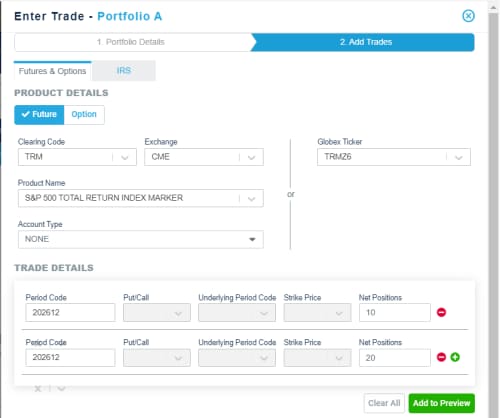
- Select Future or Option.
- Choose how to enter Product Details:
- Left Side - Begin to enter the Product Name or Clearing Code and select from the narrowed list; this automatically populates the other fields in this form.
OR - Right Side - Use the drop-down or enter the Globex Ticker symbol (example TRMZ6) to automatically populate the left side fields.
- Left Side - Begin to enter the Product Name or Clearing Code and select from the narrowed list; this automatically populates the other fields in this form.
- Enter the Trade Details (one or more trades).
- Use the drop-down or enter Period Code (when product matures) and Net Positions.
- For Options, also enter relevant Put/Call and Strike details.
- Use the + to add rows for the named Product and identify additional Period Codes and Net Positions quantity. (Use the - to remove a row.)
- Select Add to Preview to save entries to the Trade Preview section and clear the product and trade details fields. (The Clear All will erase all entries without adding to Trade Preview.)
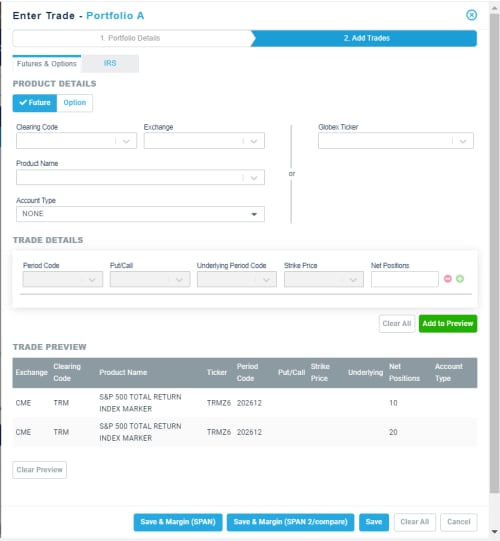
- If desired, add more products and its trade details to this portfolio by repeating Steps a - d above.
- Select Save & Margin (SPAN) or Save & Margin (SPAN 2/compare) to close and save the form and obtain the latest end of day margin requirements. (The Save option will save without margining; Clear All removes all product details entered thus far; Cancel closes the form without saving.)
The newly added Portfolio appears as a row in the My Portfolio grid (top of screen). A selected portfolio (appears in blue row) and shows its trades in the Trades grid (bottom of screen).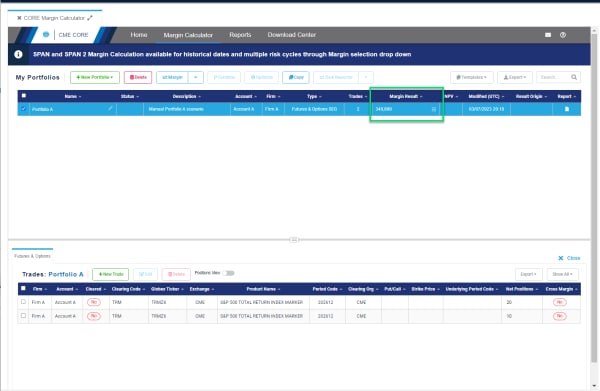
Note: To see more details on margining, see SPAN and SPAN 2 Framework.
- To manually add trades for FX:
- When creating the portfolio, be sure to select FX for the Product Type.

- In the wizard's 2. Add Trades tab, identify products details for trades in this portfolio:
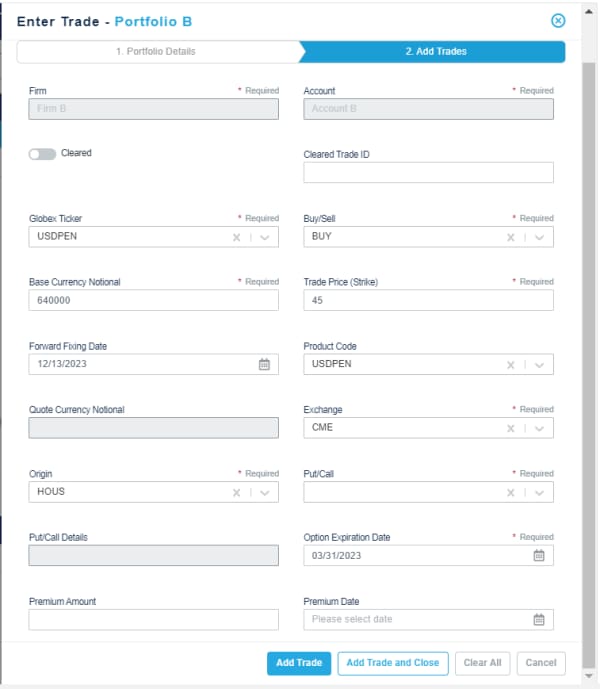
- If Cleared, select slider and enter the Cleared Trade ID.
- Enter/Select the following:
- Globex Ticker
- Buyer/Sell
- Base Currency Notional
- Trade Price (Strike)
- Forward Fixing Date
- Product Code
- Quote Currency Notional
- Exchange
- Origin
- Put/Call Details
- Option Expiration Date
- Premium Amount
- Premium Date
- Select Add Trade. (Add Trade and Close will add the trade and close the build wizard.)
- Check the newly added FX portfolio and select Margin.
The margin result appears for the FX portfolio:
Note: Message "Margining in progress..." appears momentarily. The default will be for SPAN framework, day prior and EOD settings.
Note: If you enter a date in the past (e.g., a year prior) and your trades include products that did not exist at that time, the system will display validation errors. Therefore, be sure to enter valid trades for products that existed at the point in time for which you want margin calculated. This is best accomplished by uploading trades from a .CSV file. The build wizard's 2. Add Trades is only applicable to products that exist today.


