User Help System
Upload Portfolio for FX and F&O
These instructions cover how to upload a portfolio from a .CSV file that contains details of trades.
You can build a portfolio using a spreadsheet. Simply download a .CSV template from CME CORE, populate it with product and trade details, upload completed .CSV file to CME CORE and view margin requirements.

- To upload a portfolio:
- Download a template (.cvs format) and populate with data.
- Select a template such as Futures and Options from the Templates drop-down menu.
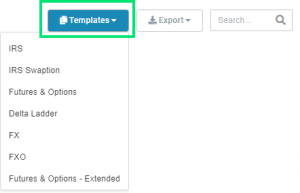
- Open the downloaded template and populate with your portfolio, products and trade details. CORE has auto-fill logic for fields left blank in this template. It is suggested users either supply the Globex Ticker Symbol in field E and leave blank fields F - K or populate clearing code product data in fields G - K and leave blank fields E - F.
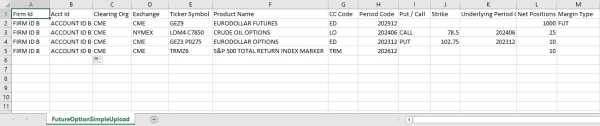
- Save the .CSV file.
- Select a template such as Futures and Options from the Templates drop-down menu.
- Upload saved file to CME CORE and margin. Users can also choose to drag and drop portfolios directly into the portfolio grid instead of selecting New Portfolio --> Upload.
- Select +New Portfolio > Upload.
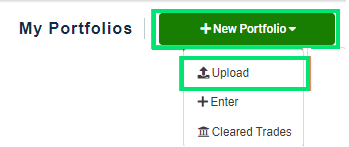
- Select the saved file and select Open. The system creates a new portfolio from the uploaded file and validates the data.
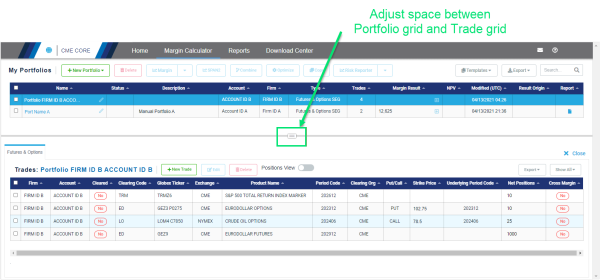
- Adjust the space between portfolio grid and trades grid as needed to see the trades details.
Note: Portfolio validation errors show a warning symbol in the "Status" field. Hovering the mouse over the warning symbol shows a message that identifies the error. When a portfolio is margined, the products with errors are excluded from the total margin.
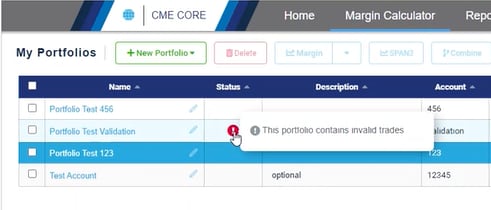
- Select +New Portfolio > Upload.
- Check the box in the first column for the portfolio and select the drop-menu for Margin.
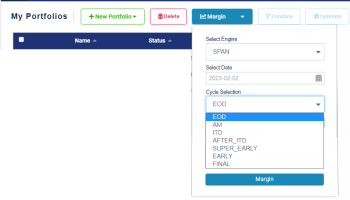
- Select Engine (SPAN or SPAN2 frameworks).
- Select the Date (defaults to prior day; can be up to 18 months prior).
- Select the Cycle Selection (defaults to EOD).
Cycle Name within CME Core SPAN File Cycle Code Approximate Timestamp of Risk Data AM “.a” ~10:00 AM CT ITD “.i” ~11:00 AM CT AFTER_ITD “.ai” ~1:00 PM CT SUPER_EARLY “.be” ~2:00 PM CT EARLY “.e” ~3:00 PM CT FINAL “.s” ~4:30 PM CT EOD “.c” ~5:45 PM CT - Select Margin.
Note: Message "Margining in progress..." appears momentarily. If you do not use the Margin drop-down (simply selecting Margin from the My Portfolio menu) the default will be for SPAN framework, EOD, prior day.
Note: If you enter a date in the past (e.g., a year prior) and your trades include products that did not exist at that time, the system will display validation errors. Therefore, be sure to enter valid trades for products that existed at the point in time for which you want margin calculated. This is best accomplished by uploading trades from a .CSV file.


