User Help System
Omnibus Portfolio
These instructions cover how to build and manage omnibus portfolios.
An omnibus portfolio structure is comprised of a parent portfolio and 0, 1 or many child accounts. First create the parent, then create linked children, add products/trades, then margin.

- To build an omnibus portfolio PARENT account:
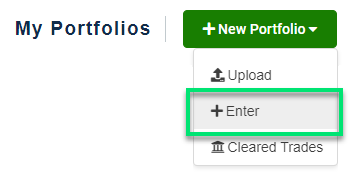
- Select +New Portfolio > Enter from the FX and F&O Calculator screen.
- In the wizard's 1. Portfolio Details:
- Enter a Portfolio Name, Firm ID, Account ID, Description.
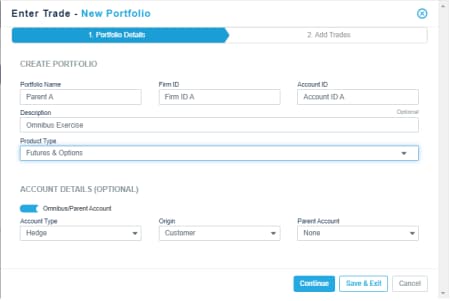
- Select Futures and Options for Product Type.
- Activate the slider for Omnibus/Parent Account.
- Select the Account Type and Origin.
- If this a fully disclosed omnibus portfolio (parent has no naked positions):
- Select Save and Exit
- Follow instructions for creating a child account (below entitled "To build a omnibus portfolio CHILD account"). Child positions should not be expressed in the parent portfolio.
- If this is an undisclosed or partially disclosed omnibus portfolio:
- Select Continue.
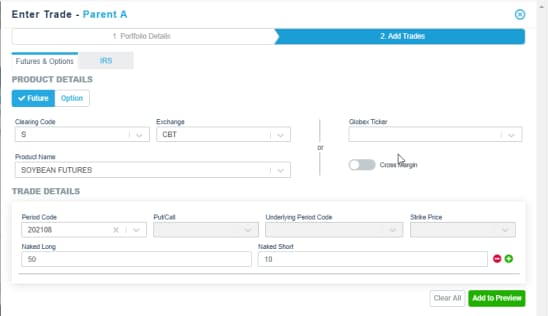
- In the wizard's 2. Add Trades tab, identify products and trades for this parent positions and select Add to Preview. Parent positions are represented as "Naked Long" or "Naked Short" quantities.
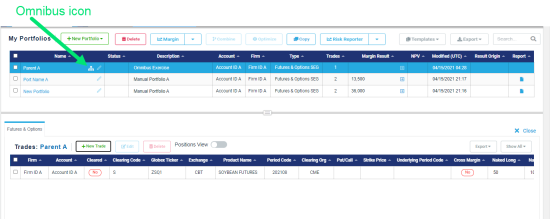
- Select Save to exit the wizard. The omnibus icon appears on the right of the portfolio name.
- Enter a Portfolio Name, Firm ID, Account ID, Description.
- To build a omnibus portfolio CHILD account:
- Select +New Portfolio > Enter from the FX and F&O Margin Calculator screen.:
- In the wizard's 1. Portfolio Details tab for this child account:
- Enter a Portfolio Name, Firm ID, Account ID, Description . Ensure the Firm ID of the child matches that of the parent.
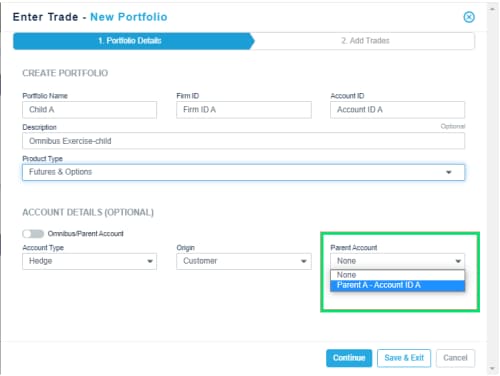
- Select Futures and Options for Product Type.
- Select the Account Type and Origin.
- Select the Parent Account from the drop-down menu to link this child account to the appropriate parent account. (The Firm ID determines what parent accounts appear in the drop-down menu).
- Select Continue.
- Enter a Portfolio Name, Firm ID, Account ID, Description . Ensure the Firm ID of the child matches that of the parent.
- In the wizard's 2. Add Trades tab:
- Identify products and trades for this child's positions. Note that child account quantities are expected to be entered as net positions, unlike the naked position of the parent account.
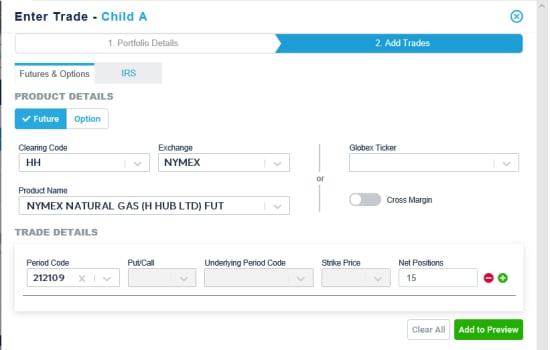
- Select Add to Preview.
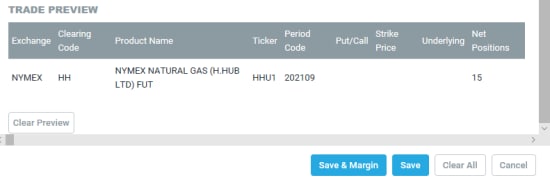
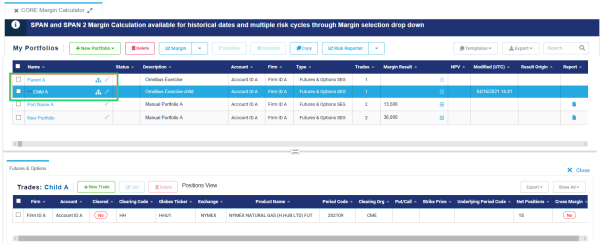
- Select Save once all trades have been entered. The portfolio grid shows the linked parent and child account:
- Identify products and trades for this child's positions. Note that child account quantities are expected to be entered as net positions, unlike the naked position of the parent account.
- To retrieve margin results for omnibus PARENT and CHILD portfolios:
- Check the boxes for the parent and child portfolio. Since child account margin impacts the parent account, margining a child account in isolation will also re-margin the parent account.
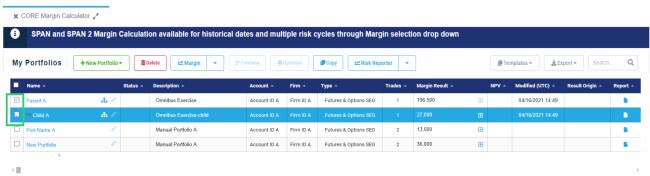
- Select Margin.
Notes:
- When opening an omnibus parent account, CME CORE first presents the parent naked positions.
- If the portfolio has been margined, the aggregate parent+child positions can be viewed in the parent by selecting the "Positions View" slider in the Trades grid.
- To help users better manage parent/child portfolios, CME CORE presents warning messages in the "Status" field when the user edits parent or child positions. This warning error is intended to call out stale margin results for portfolio where edits have occurred.


