User Help System
Editing a Globex Firm ID
Using the Edit function, authorized firm users can update the Firm Name and/or update exchange / clearing firm mappings.
- From the Futures & Options Requests - Globex Firm ID page, select a GFID (checkbox), then select Edit (
 ).
).
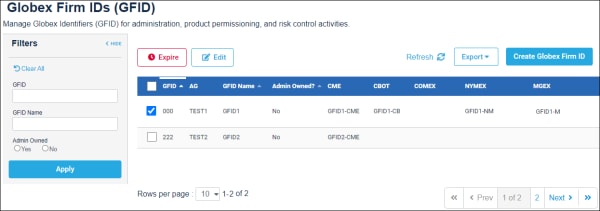
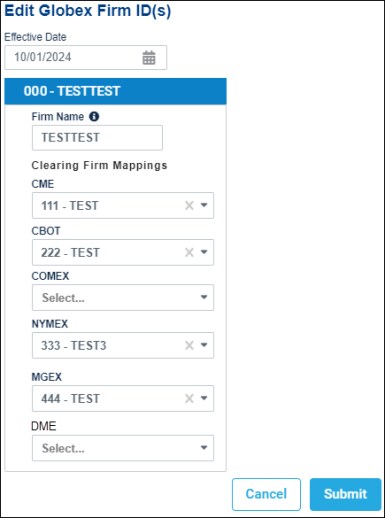
- On the screen that appears, update GFID details, then select Submit.
- Firm Name
- Specify additional mappings or update:
- Select another clearing firm
- Remove (x)] clearing firm mappings
Note: To enable additional clearing firm selections, see Preferences > Clearing Firms. or Clearing Firm Mapping.
A notification banner appears and email notification is sent to the requestor and admin manager.

Note: When editing GFID details, Exchange > Clearing Firm Mapping deletion does not require review.
Expiring a Globex Firm ID
Using the Edit function, authorized firm users can expire unused GFIDs and associate Session IDs with a new GFID.
- From the Futures & Options Requests - Globex Firm ID page, select a GFID (checkbox), then select Expire (
 ).
).
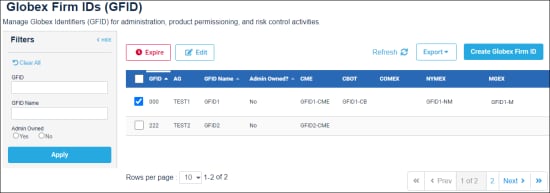
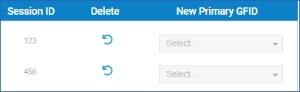
- Prior to expiring a GFID, assign Session IDs to a New Primary GFID.
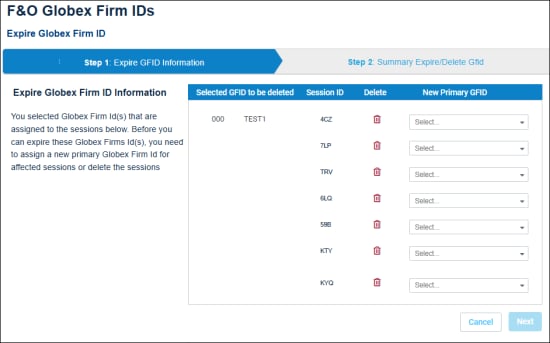
Note: Session IDs that are no longer used can be Deleted ( ).
).
The Session ID will appear in gray and the icon updates to restore ( ).
).
- After updating Primary GFID and/or deleting, select Next (
 ), then Confirm and Submit.
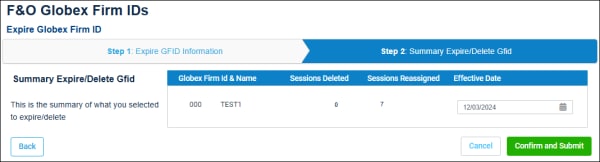
A confirmation banner appears and email is sent to the requestor and clearing firm admin manager.
Updates will be effective on Friday at 4:00 p.m. CT.



