User Help System
Cloning an existing Globex User Signature:
The following instructions illustrate the process to clone an existing Globex User Signature (GUS) as the basis to create a new GUS. This process reuses entity and configuration information and reduces the effort to create a new GUS.
Example: A new user joins a team that manages EBS trades for a given GFID.
- To Clone an EBS GUS:
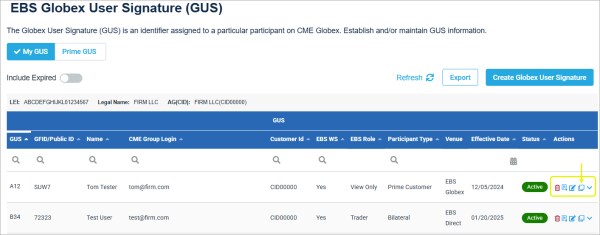
- From the Globex User Signature page, select the clone (
 ) icon (in the Actions column) for an existing GUS to copy.
Use the above fields for additional details on specifying GUS details.
- Step 1: GUS Information
Some details from the existing GUS are copied as the basis for the clone.
Globex User Signature: Specify a new and unique Globex User Signature name.
EBS Workstation access
(optional) Self-Match Prevention
Contact Information: Select and Confirm contact details for the person responsible for the new GUS:
- CME Group Login ID: Select existing or Add a new CME Group Login ID
Note: To complete setup, the administrative user cloning a GUS must obtain the person's CME Group Login ID and Token.
CME Group or the admin user will never ask for the associated password.
- Email address, previously registered with CME Group.
- Contact information, including address details.
- Select Next, then review Step 2: Order Entry Products. and the Short Code (an identifier of the individual responsible for trading decisions, required for certain products).
Products can be deselected as needed.
- Select Next, then review Step 3: Market Data Products.
Automatically selected based on associated Order Entry Products.
If EBS Workstation - view-only access is selected this is not available.
- Select Next, review, then Confirm and Submit.


