User Help System
Getting Started
The AutoCert+ tool is an automated testing tool for validating application functionality. It provides a web interface for using CME Group certification scenarios.
To facilitate the process of connecting a customer application to CME Globex, CME Group provides a dedicated certification environment to allow customers to test their systems before they complete certification.
This
Accessing and Navigating AutoCert+
- To access and navigate AutoCert+:
- Log into the automated certification tool.
- Review general AutoCert+ test suite navigation and general interview information.
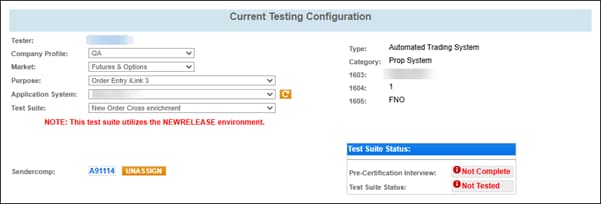
- To access the AutoCert+ iLink C-Cross R-Cross test suite, select the following settings on the Current Testing Configuration screen.
- Company Name: Select a company profile.
- Market: Select Futures & Options.
- Purpose: Select Order Entry iLink 3 or Order Entry iLink 3 CGW
- Application System: Select a test system. Use the refresh (
 ) button to update the list to include recently created Application Systems.
 - Test Suite: Select New Order Cross enrichment or New Order Cross Enrichment for CGW.
- API ID: Select an API ID and click Assign.
- Complete the Interview for this test suite.
- Complete the applicable test cases in the Test Suite.
- Complete the certification process from the Post Certification tab.


