User Help System
Request Reports in FADB
Clearing firm administrators use report features to search for registration, system entitlements, and system details for their clearing firm.
- Clearing Firm Mapping - Identifies the Clearing Exchange and Clearing Member affiliated with a particular Globex firm.
- Session IDs - A three-character alpha numeric string identifier. It is the logical connection to CME Globex for order entry based on the FIX protocol.
- Firm Registered Contacts - A registered primary or secondary firm administrator or risk administrator.
- Cancel on Disconnect - Lists Session / Trader ID pairs for which Cancel on Disconnect (COD) is enabled.
- Firm Admin Dashboard User - Lists FADB users.
- Messaging Surcharge Contacts - Lists clearing or Globex firm contacts authorized to receive emailed MEP related surcharge notifications.
- Outbound Contacts - Lists outbound GCC contacts (categorized by error trade or technical contacts) for the selected firm.
- To request a report:
- Select the Reports tab.

- Select a Report from the drop-down list.
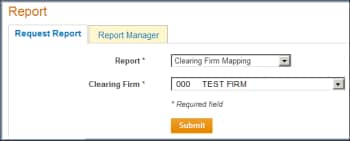
- Select Submit.
The report appears on the Report Manager tab.
After the report status changes from requested to ready, select the Report Name or Status link.
- Select Open to open the file, or Save to specify a location to store the file.
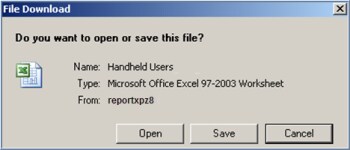
The report displays in a Microsoft Excel workbook.
- To view previously requested reports:
- To view previously requested reports, select the Report Manager tab.
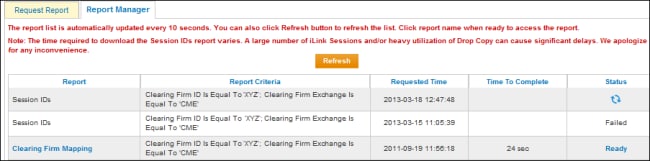
- The list is automatically updated every ten seconds. To manually refresh the list, select the Refresh button.
Reports can be accessed for up to two weeks from the requested date. The in progress icon ( ) indicates the report query is still processing.


