User Help System
Enable/Disable Cancel on Disconnect in FADB
Cancel on Disconnect (COD) automatically cancels in-progress non GTC / GTD orders for a Session ID if an ungraceful disconnect occurs. COD cannot be used for GTC and GTD orders. This function is available to clearing firm administrators only.
- To enable Cancel on Disconnect:
- Select the Session IDs tab.
- Select the checkbox for the Session / Trader ID to update.
To update all Session / Trader IDs, Select / Deselect All.
- Select Enable / Disable COD.
A confirmation dialog appears. "Are you sure you want to enable COD for the Session / Trader ID(s) below."
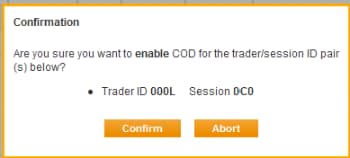
- Select Confirm.
An email is sent to the registered CME Group Login address after the COD changes are completed.
- Select OK.
COD will become effective as of the date and time in the confirmation message.
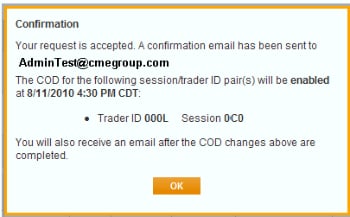
After selecting OK, results appear with the updated COD status.
- To enable a disabled Session / Trader ID, repeat the process and select Disable.

Enable COD for a Route through Session ID
A route through Session ID is a Session ID assigned to multiple Trader IDs. This function is available to clearing firm administrators only.
- To Enable Cancel on Disconnect for a Route through Session ID:
- Search for a Globex Firm.
- Select the Session IDs tab.
- Select the checkbox for the Session / Trader ID to update.
To update all Session / Trader IDs, select Select / Deselect All.
- Select Enable/Disable COD.
A confirmation dialog informs the user that the selection is a route through Session ID.
Note: A Route through Session ID can have multiple Trader IDs associated to it. Confirm the Trader IDs prior to enabling.
- Select additional Trader IDs to enable / disable COD.
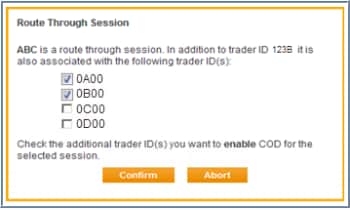
- Select Confirm.
A confirmation dialog asks to confirm the selected Trader ID / Session ID pairs.
- Select Confirm.
An email is sent to the registered CME Group Login address after the COD changes are completed.
- Select OK.
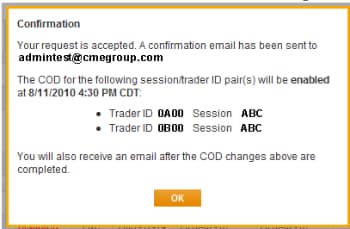
After selecting OK, results appear with updated COD status.
Note: Only the last 10 days of COD changes are available for search.
- Repeat the process to enable a disabled route through Session / Trader ID.
Cancel a Pending COD Change
This function is available to clearing firm administrators only. Any clearing firm administrator can cancel a pending COD change.
- To cancel a pending COD change:
- Search for a Globex Firm.
- Select the Session IDs tab.
- Select the checkbox for the Session / Trader ID to update.
- Select Enable/Disable COD.
A confirmation dialog appears.
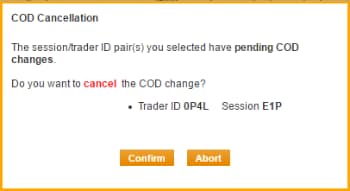
- To cancel the pending COD changes, select Confirm.
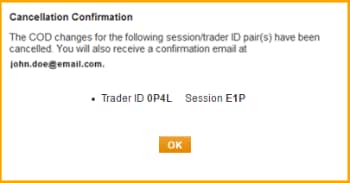
- Select OK.
A cancellation email is sent to the registered CME Group Login ID address.


