User Help System
Workspace Overview
In the Workspace, users set up functional elements known as Cards according to individual preference. The Workstation allows the addition of multiple cards as the available window space allows. Cards can be dragged and dropped to set up a preferred application layout.
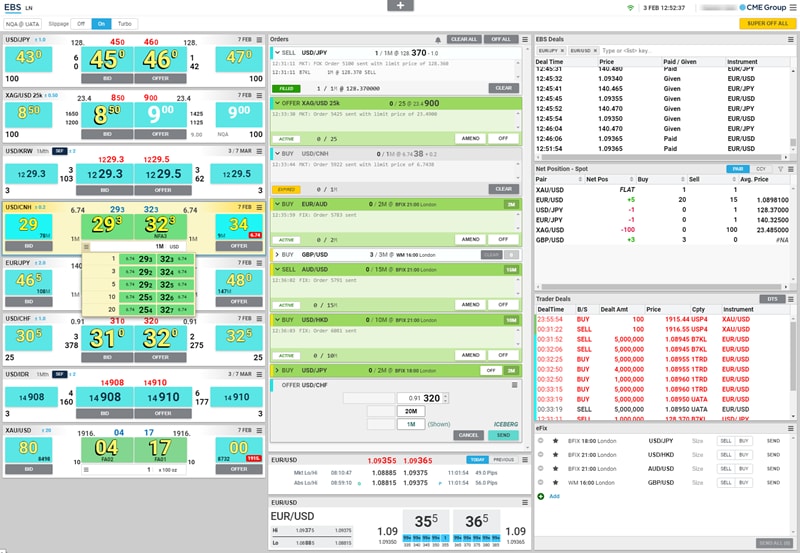
Note: By default, the Workspace always has an Orders Card in the container which cannot be removed.
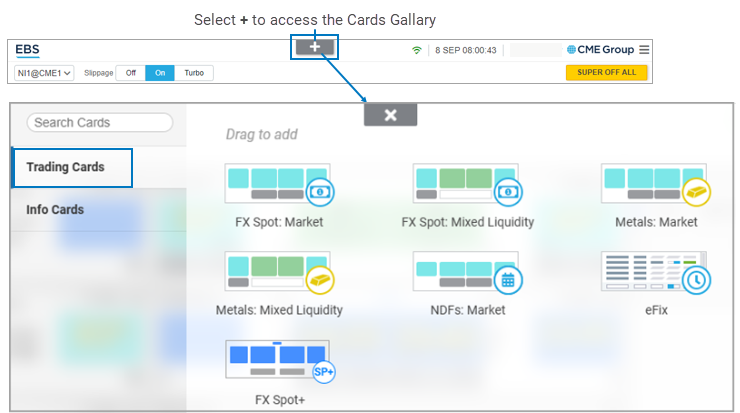
- Add Cards from the Cards Gallery, which can be accessed via the + button at the top of the application.
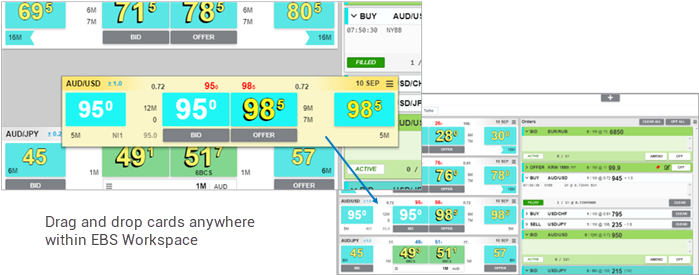
- Drag and drop Cards to set up a preferred application layout. For example, the Trader Deals card or Orders card can be placed anywhere in the application's Cards Container.
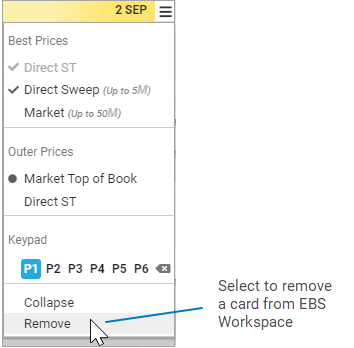
- Remove Cards by selecting the Remove option from the Card’s menu.
- Zoom in or out using the zoom settings of the browser or installed EBS Workstation application. For example zooming out from 100% to 90% zoom will potentially expand workspace by adding an extra column, while zooming in from 100% to 120% will increase sizes of all elements and fonts making it potentially easier to read.
Note: When using the installed EBS Workstation version of the application, press F9 on your Keyboard to reveal an advanced menu bar at the top of the application. Use the Zoom In or Zoom Out options, and after adjusting the zoom, press F9 again to hide advanced menu.
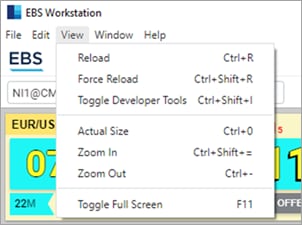
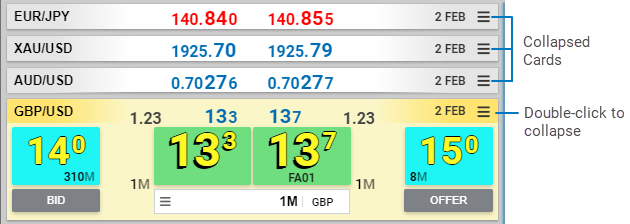
- Collapse some UI elements (e.g. Price Cards or Orders) to allow for more effective space management. This can be done either by double-clicking on the header Price Card or Order or using the <shift>+<-> key combination on the EBS Keypad.
Arranging Cards in the Workspace
Cards may be dragged and dropped in any column where sufficient space exists in the Workspace.
When attempting to add or move a card to a column which is already full, the column appears unavailable.
Some of the cards are fixed height (ex. Trading, Market Monitoring) while others will adjust their vertical height depending on available space (ex. Orders, Net Position).
Cards of a fixed height move within the workspace to make room for dragged cards, and the height of flexible cards also changes to make room for dragged cards.
When users expand a card in a workspace column that is full, the card above the expanded card collapses automatically.
Window Resizing & Column Adjustment
The number of card columns within a window adjusts as a user re-sizes the window and window space changes. When column width is too small, columns become hidden unless a column includes/accommodates an Orders Card. The number of columns depends on available width/minimum card width, and must be viewed at a minimum screen resolution of 1280 x 1024.
Note: Accessing EBS Workstation on a different computer screen may hide or reveal some of the columns and cards depending on the available screen space.
Fixed Height & Flexible Height Cards
Fixed height cards are expandable and collapsible, but users cannot change the card height (e.g. Price Cards).
Flexible height cards can change height, however they cannot be expanded or collapsed. When filled with elements, they support a scroll bar (e.g. Orders card, Trader Deals card).
Non-Draggable Elements
An Order Card is a card that hosts different types of Order-Views and forms (elements). Forms are used to create and submit orders. The Order View contains information about submitted orders. While cards can be dragged & dropped using the mouse, elements (forms or Order Views) in the Orders Card cannot.
Note: Any column containing an Orders Card always remains visible even when other columns are hidden because of insufficient screen space.
Header Bar
Located at the top of the Workspace, the header bar contains a number of options for the management of the Workspace within the Workstation.

Header Elements
- Slippage switch: On, Off, or Turbo
- Cards Gallery ('+' icon) access: add functional widgets called "Cards" to the Workspace by clicking the '+' icon and dragging and dropping the card in the Workspace area
- Time and Date: current date and time in GMT
- Application menu icon: link to User Preferences and Sign Out options
- SUPER OFF ALL: orders kill-switch, which immediately cancels ALL Active orders on the Orders Card (regardless of whether the order is pinned).
Note: See Using Cards and Setting User Preferences for more details on configuring the Workspace.


