User Help System
Ordering CME Datamine Products
CME Datamine provides easy access to CME Group historical, alternative, and analytic datasets to inform your trading strategies. Datasets can be ordered on cmegroup.com.
- To order CME Datamine products
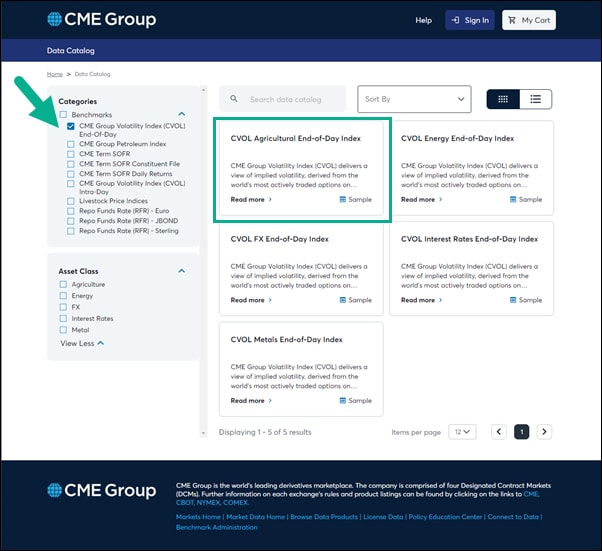
- Select a category and product on the Data Catalog page.
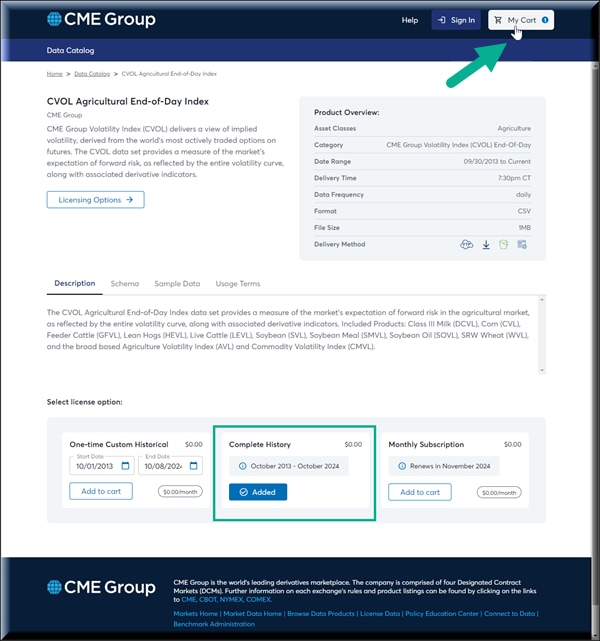
- Select ADD TO CART for a license option (for example, Complete History) then select My Cart.
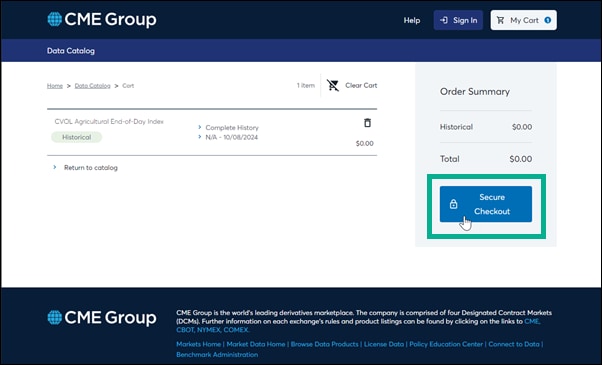
- Select Secure Checkout to submit the Datamine order.
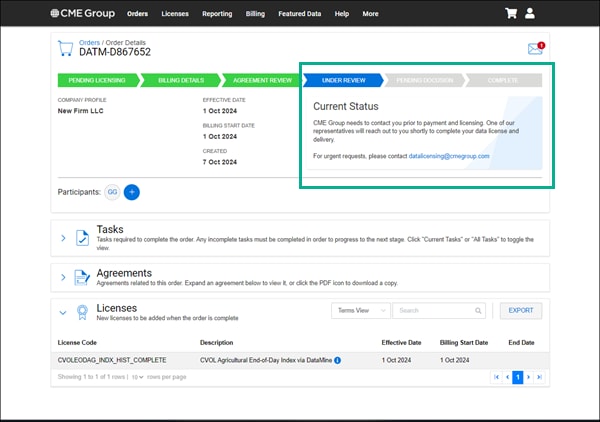
The order form is displayed. Orders are submitted and tracked using the Orders module (Orders / Order Details/ Order Form).
- Review the Welcome section of the order form and select SAVE & CONTINUE.

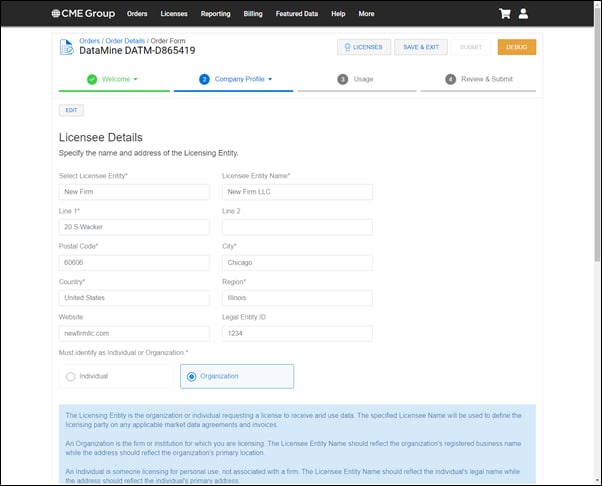
- Complete the Licensee Details section and select SAVE & CONTINUE.
- Complete the Company Contacts section. Select ADD CONTACT to create additional contacts types, then select SAVE & CONTINUE.
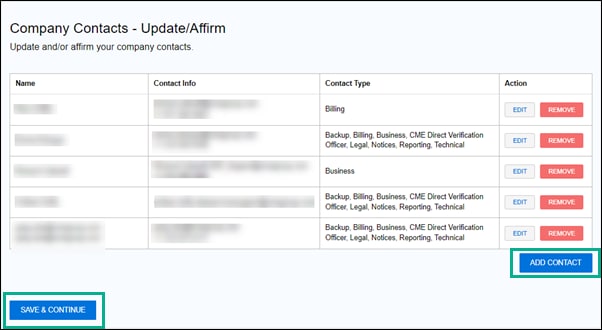
NoteYou must have at least one Primary, Technical, and Legal contact.
- Select how the market data will be used in the Use of Information section.

The following market data usage options may appear based on your order:
- Derived Products: CFDs, indexes, OTC products, quotes, spot prices, and other leveraged products.
- Distributed: Websites, data feeds.
- Display Devices: Monitors, phones, laptops, information boards, wall boards, etc.
- Non-viewable: Non-display applications, automated trading systems, internal order processing
- For Datamine orders, select ADD CME GROUP LOGIN ID EMAIL to add a CME Group login ID Email, then select SAVE & CONTINUE.
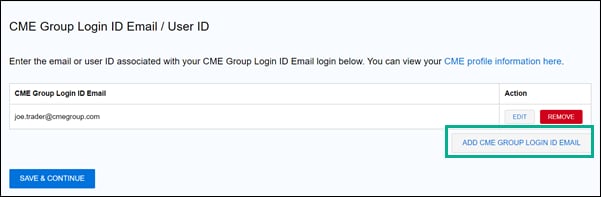
In the pop-up dialog box, Select "New" or "Existing" and select SAVE.

Note: Select New CME Group Login ID Email for a first-time purchase. If you used your CME Group Login ID Email for a previous purchase, select Existing CME Group Login ID Email.
- Optionally, add a new or existing CME Group API ID.
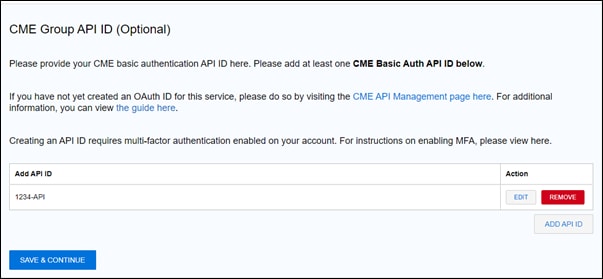
When entering an API ID, consider the following:
- New API ID: An API ID that is newly created or being used for the first time to order an API though the portal.
- Existing API ID: An API ID that was previously used for a different service with the same API type. However, an API ID that was onboarded for a different API type will be considered a "new" API ID for Datamine API.
Note This form does not create a CME API ID. To create an API ID for authentication, refer to the CME API Management page.
- Review your licenses and select Submit to confirm.
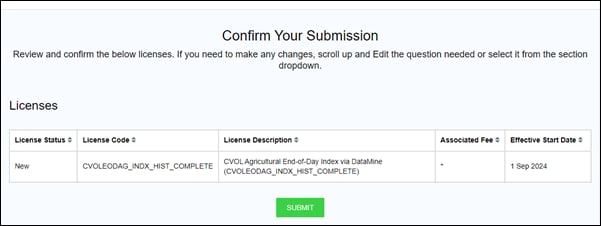
The order form questionnaire and licensing details are submitted in the Orders system and the BILLING DETAILS page is displayed.
- Select Tasks to complete any remaining tasks, then select Agreements and Licenses to review your license agreement(s) and verify your new license(s).

- Select SUBMIT PAYMENT INFORMATION at the top of the form and set the Billing Address. Select CONFIRM.

- Select REVIEW AGREEMENT to review the licensing agreement.
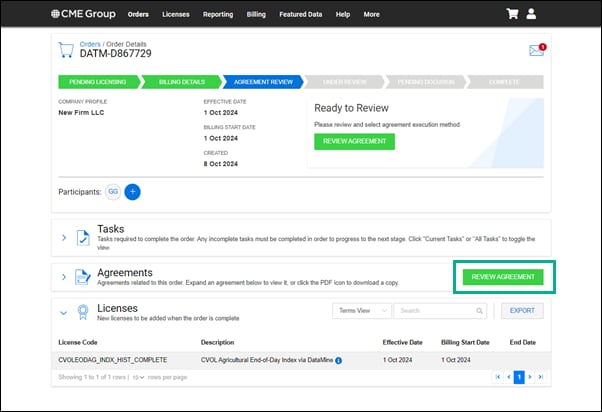
- On the pop-up Review Agreement form, review the licensing agreement, select Click-Through or Docusign to sign the agreement, then select SUBMIT.

The agreement is submitted to CME Group for data licensing review. You can check the order status using the Orders module. For urgent requests, please contact marketdata@cmegroup.com.