User Help System
Options
The Options grid displays options market data based on the ATM (or Mid Strike price) for the underlying future and expiration you select. Once populated, the grid allows users to view market activity and summary market data, as well as aggress and submit orders displayed in the grid. By default, the ATM price serves as the Mid Strike price from which the market data grid is centered.

Click the  to display selections:
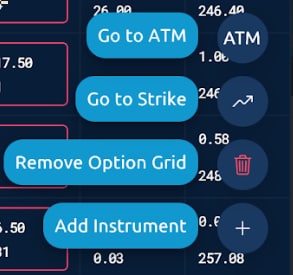
- Go to ATM re-centers the options grid to display the money strike.
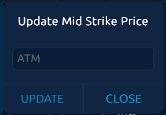
- Go to Strike re-centers the options grid to a specific strike.
- Remove Option Grid deletes the option from the grid.
- Add Instrument displays filters to select options to populate the grid (see details below).
Populate the Options Grid
The initial window that appears when adding an option to the grid allows users to select an underlying future, expiration date range, and Greeks display.
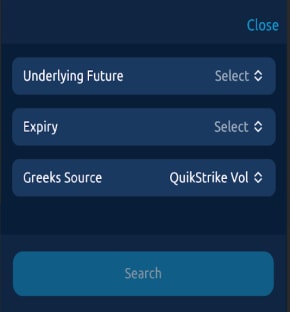
Underlying Future
To assign an underlying future, select one from the list or start typing in the search field to filter the list.
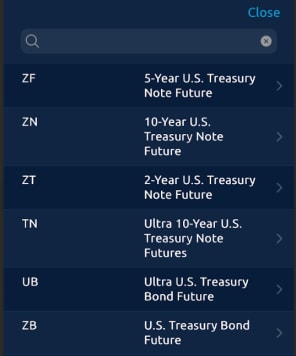
Expiry
To select an expiration date range choose from the following: 3 Months, 6 Months, 1 Year, 2 Years, 3 Years, 5 Years, 10 Years, 20 Years (or Cancel).

Options List
Once an underlying future is chosen, the Options Category displays:

Select Search to open the Options List. Select an option from the list and define the Mid Strike that will populate the Option Grid's market data display.

Options Market Data Grid
The Options Grid market data displays details pertaining to the underlying future prices, and real-time Options market depth centered around the ATM price or a specified Mid Strike price.
The top pane serves as a point of reference while navigating the market data grid, and identifies the selected Option, while providing details of the underlying Future.

Enter an Options Order
The Options Grid allows users to aggress and enter Options orders and take a position on an Option.
- To launch an order entry window and enter a new order
- Launch an order entry window by selecting a price directly from the options grid.
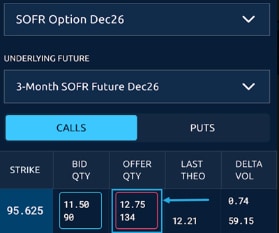
- On the order details window, fill out the Price, Quantity, Order Type, Time in Force,and Account fields prior to submitting the order.
- To view option contract details
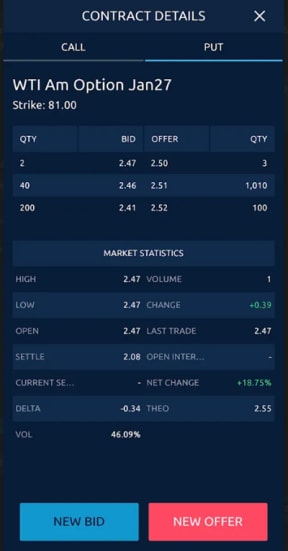
- Tap a price in the Strike column to display supplemental strike data, including Bid/Offer Options market depth, Volume, Last, Change, and tick direction.