User Help System
Entering a Trade
Using the Trade Entry function (Trade Entry & Blotter screen), authorized users can enter (allege to Single-sided trade / deal entry) proposed deals then submit to a counterparty, who will enter their market participant details before submitting to CME Group for matching and clearing.
For Single-Sided Trades:
- The submitter enters one side of the pre-negotiated deal trade and market participant identifiers.
- The opposite side trading participant accesses CME ClearPort to submit the corresponding single-sided trade; including unique trade identifier(s).
Submitted trades are validated for party, account, product and limits. After validations are complete, it is cleared by CME Clearing and acknowledgments are sent to submitters. If applicable, rejected trade acknowledgments are sent to submitters.
- To enter a trade:
- On the Trade Entry & Blotter screen, select the Enter Trade (
 ) icon.
See also: adding market components

- Specify trade type, strategy, product(s), and participants (Single-Side ):
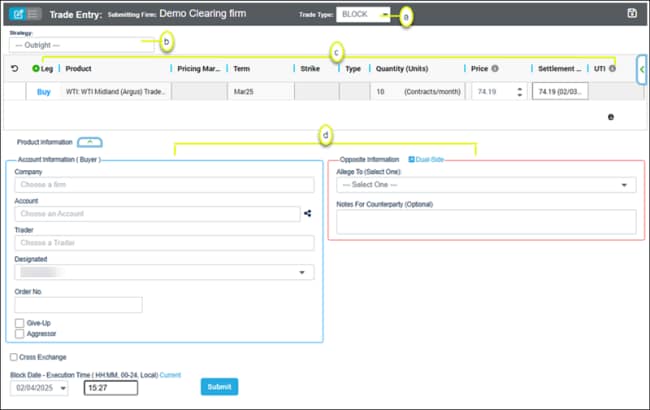
- Block - Privately negotiated futures, options or combination transactions that meet certain quantity thresholds; executed apart from the public market. Minimum order size requirements vary according to product and order type. Only negotiated with futures, options on futures, and CBOT swap trades (excludes all other basis trades).
- EFP - Exchange for Physical Trade. Privately negotiated and simultaneous exchange of a futures position for a cash position.
- EFR/EOO - Exchange for Risk / Exchange of Options for Options.
- EFR - Privately negotiated simultaneous exchange of a futures position for a corresponding OTC swap or other OTC instrument.
- EOO - Privately negotiated exchange of an option position for a corresponding OTC instrument or instrument with similar characteristics.
- OPNT - Over the Counter Privately Negotiated Trades. Reporting options include:
- Report to CME Group SDR
- Previously Reported to Other SDR (if Primary Economic Terms only is selected for Report to CME Group SDR)
Swap Data Repository is set to Off Facility.
- Primary Economic Terms only
- Primary Economic Terms/Real-Time Reporting
- SWBLK- Swap Block - A cleared swap trade above the CFTC prescribed Block limits of the Swap Execution Facility (SEF) / Designated Contract Market (DCM).
See also: Trading Services > Trade Types
Default is Outright. To use another strategy, select the cancel ( ) button then select from the list.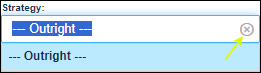
Also enter a strategy price (multi-leg transactions only).
Strategies will populate a trade template with product legs. Legs can be manually added [Add Leg ( )].
)].
Hedge / Delta: Optional (appears next to Strategy field) - Based on a given price, enter the ratio between the change in price of a contract and the underlying asset value. A corresponding leg, for the given delta, will be added to the trade.

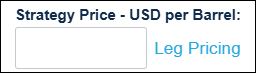
Leg Pricing: Optional (appears next to Strategy field) - Enter a price to buy/sell a Strategy, then select Leg Pricing to set the price for each outright leg.
Regulatory Report Type: Displayed for OPNT (appears next to Strategy field) - Select the type of Primary Reporting Terms data for the deal.

Bilateral Reported To: Displayed for OPNT (appears next to Strategy field) - Select the other party required to report the deal.

- Product and Order Details: Enter the instrument code / name. A list displays all items matching entered text. Select the product to view available instruments.
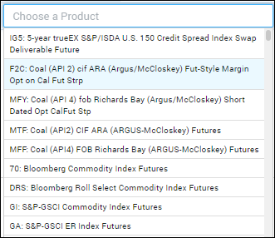
- Side - Select to toggle Buy / Sell for each leg (required).
- Term - Automatically entered (day, month, year) based on selected instrument / contract specifications; optionally select a different month / year.
Note: For OTC FX Forwards, Term is replaced with a text entry field that requires entry of the contract's Fixing Date.
- Strike Enabled for Options only - The strike price for the underlying instrument. Default values (Term and Strike) for Options Spreads vary; depending on the product groups involved in the trade.
For option spreads, default values will vary, depending on the product groups for the trades. Before submitting for clearing, review the term, default price and ensure entered prices are valid.
Method A
The Term drop-down is populated with available terms, and available strike prices appear in the drop-down.
Method B
The Term drop-down is populated with the term of the underlying instrument. The Strike Price field is blank and the drop-down is populated with any previously listed strike prices. Strike prices can also be manually entered in the Strike Price field.
Method C
The Term drop-down is populated with available terms. The Strike Price field is blank and the drop-down is populated with any previously listed strike prices. Strike prices can also be manually entered in the Strike Price field.
- Leg (
 ) - If applicable, enter additional legs and trade terms.
- Pricing Marker: A selection menu may appear based on selected product; update if applicable.
To ensure market integrity, product prices are subject to price banding, orders outside of a given band are restricted
- Type: Options type: Call or Put.
- Quantity (Units) (required) - Total number of units (e.g., contracts/month). Units are listed based on the contract specifications for the product.
- Price: (required) The price of the outright instrument. Entered for each leg of the strategy.
- Settlement: The date and settlement price is automatically entered after the trade is cleared. If unavailable, the previous day’s settlement price and date will appear.
- UTI: Universal Transaction Identifier - Up to 52 characters.[see also]
Multiple entries (separated with a comma) are permitted for side-level allocations; separated with a comma.
The number of UTIs must match the number of allocations.
See also - Universal Transaction Identifiers and CME ClearPort Trade Identifiers
 )
)For more information on trade submission models refer to Single--Sided Entry Types on the CME Group Client Systems wiki.
Single-Side Trade Entry: Account Information and Opposite (side) Information
Available account, trader / broker selections are previously setup on the Account Management Service application.
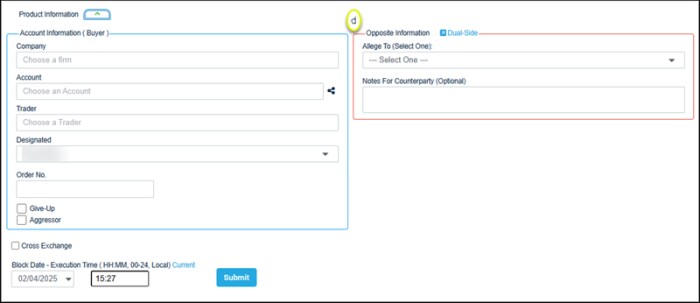
In the Account Information (Buyer) section, specify:
- Company Name: Upon selection a list of frequently used firms appears. Select from the list or enter a portion of the name to view a list of matching firms.
- Account: Trading Account Number. Accounts authorized for the selected Broker firm are displayed. Upon selection a list of frequently used accounts appears. Select from the list or enter a portion of the name to view a list of matching accounts.
- Allocations (
 ): Select, then enter allocation details, including Company, Account, Trader (for Carry, Claim)
information.
): Select, then enter allocation details, including Company, Account, Trader (for Carry, Claim)
information.
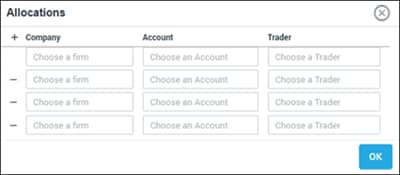
- Trader: Participant submitting the trade.
- Designated: When trading on behalf of someone else, select their name.
- Order No. Identifies the transaction. Numbers are provided by the Buyer.
- Give-Up: Indicates if the trade is given up to a different firm for clearing and processing.
- Aggressor: Indicates if Buyer is the aggressor in the transaction.
In the Seller Information section, specify:
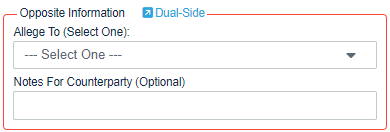
- Allege To: The type of participant to allege the trade to. Choices are Opposite Broker Firm or Asset Manager / Opposite Trading Firm (Counterparty). Upon selection, additional fields are displayed.
- Notes for Counterparty: Order instructions or other details related to the alleged trade.
In the Opposite Information section when Allege To is Opposite Broker Firm or Asset Manager, specify:
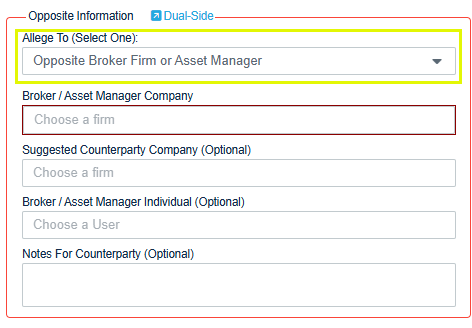
- Broker / Asset Manager Company: Upon selection a list of frequently used firms appears. Select from the list or enter a portion of the name to view a list of matching firms.
- Suggested Counterparty Company (Optional): Upon selection a list of frequently used counterparties appears. Select from the list or enter a portion of the name to view a list of matching firms.
- Broker / Asset Manager Individual (Optional): Enter a user name.
- Notes for Counterparty: Trade instructions or other details related to the alleged trade.
In the Opposite Information section when Allege To is Opposite Trading Firm (Counterparty), specify:
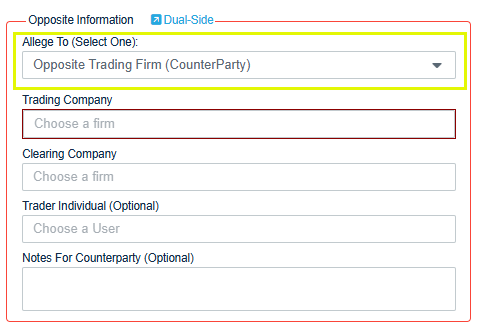
- Trading Company: Upon selection a list of frequently used counterparty firms appears. Select from the list or enter a portion of the name to view a list of matching firms.
- Clearing Company: Upon selection a list of frequently used counterparties appears. Select from the list or enter a portion of the name to view a list of matching firms.
- Trader Individual (Optional): Select a user name.
- Notes for Counterparty (Optional): Order instructions or other details related to the alleged trade.
The default is today's date and the current time.

Additional Submission options:
- Cross Exchange (for Block / EFP / EFR-EOO / SWBLK): Marks the trade for allocation to a firm that trades in another exchange and intends to claim the trade after submission.
- Inter-Affiliated (for OPNT): For swap transactions, this field specifies whether the trading counterparty is inter-affiliated.
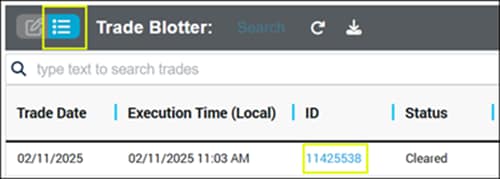
- After submitting the trade, select the Trade Blotter and record the Trade ID to send back to the customer.