User Help System
Block Trades
Use the Block Trades component to view a record of Block / Invoice Block trades reported to the market, and add a deal for the same or similar product and contract terms.
- To access Block Trades:
- From the home page, select Add a Market Component > Block Trades, then select the screen area for placement.
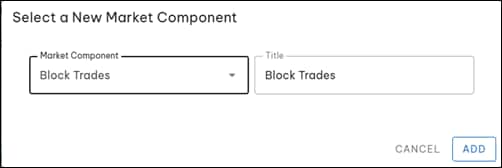
An optional Title can be used to identify the component.
- Select a screen panel.
Multiple instances appear can be placed in different screen panel or arranged in the same screen panel in a tabbed layout.
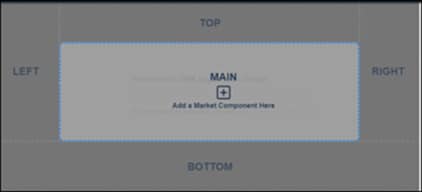
Block Trades Interface
From the Block Trades screen, the following functions are available:
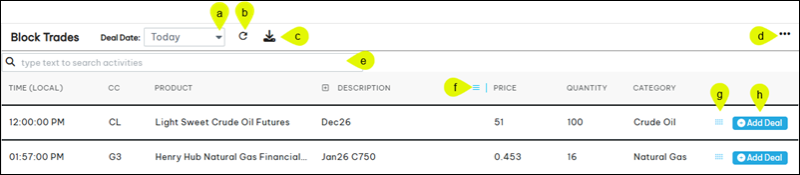
- Deal Date: To view activity for the selected date select the drop-down menu. Activity is available for the past 10 days.
- Refresh Activities: (
 ) Updates the screen with the latest deal activity.
 - Export / Download (
 ): Export (download) displayed market activity as a .csv format file.
 - Column Settings: Select additional columns to include in the layout.
- Search: Filter activity by search criteria. Partial entries will update the list as entered.
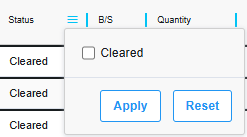
- Column Heading Filter (
 ): From the column heading, select to view specific activity or sorted data.
A filter funnel ( ) icon indicates user selected data is shown.
Search filter - Enter a value, then select an operator to apply to the entered value; Contains, Not Contains, Equals, Not Equal, Starts with, Ends with, Blank, Not Blank. An icon () indicates that filtered results are shown.
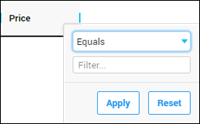
Selection filter
Sort: Select a heading to switch column sorting from descending to ascending order.
- Add to Trade (
 - Drag): To add an instrument from the list:
Select and drag () the instrument to the Trade Entry screen > Product field.
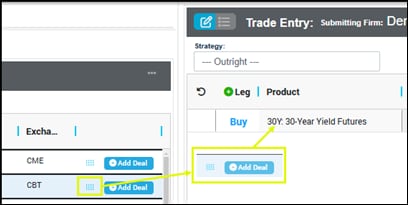
- Product fields will update with contract and settlement data.
- Add Deal: Select to add the deal to the Trade Entry screen with the selected product / instrument automatically entered.
Before selecting Add Deal, ensure the Trade Entry & Blotter function is open.
Note: Continue to enter Trade details; including trade type, strategy, additional products / product legs


