User Help System
Trade Entry & Blotter
Use the Trade Entry & Blotter function to view transactions submitted for clearing through the CME Group clearing house, claim / reject allocated trades and enter orders for multiple OTC asset classes.
Access the trade entry function to enter details of pre-negotiated transactions for matching and clearing.
- To access the Trade Entry & Blotter:
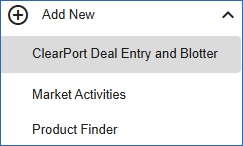
- From the top menu select Add a Market Component > Trade Entry & Blotter.
To identify the component, an optional Title can be entered.
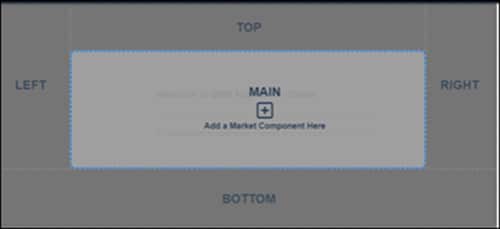
- Select a screen panel.
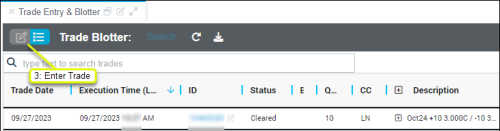
- To enter a trade, Select the Enter Trade (
 ) icon.
Trade Entry Interface
The Trade Entry market component consists of the following sections:
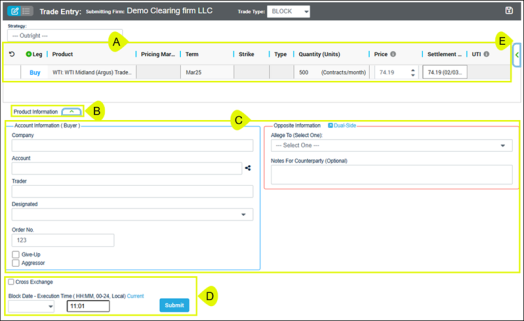
- Product Details: Product information and contract terms for entering an order.
- Product Information: Select the tab (
 ) to display the Product Code, Long Name, Minimum Quantity Increment, Outright Minimum Price Increment, Outright Minimum Block Threshold, Settlement Price (Date) / Currency, Low Price, and High Price for the product.
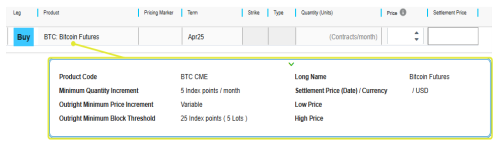
- Participants: The Counterparty and Allege To party entering the order.
- Execution Date / Time / Submit: The date and time the order was entered. Select Submit to enter the order.
 )].
)].Select the Show Trade Drafts button ( ) to open the dialog. From the trade drafts dialog, select the draft name to seed Trade Entry with the product information.
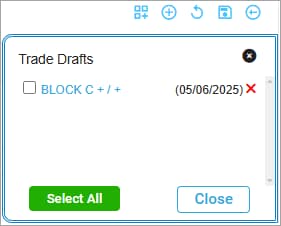
Trade Draft functions:
- Remove (
 ) from the Trade Drafts list.
 - Select All (
 ) / Deselect All (
 ): Selects / Deselects all drafts.
 - Delete (
 ): Deletes all selected drafts.
 - Close (
 ): Exit Trade Drafts without updates.
| Field | Conditions | Description |
|---|---|---|
|
The type of trade: BLOCK, EFP, EFR/EOO, OPNT, SWBLK |
||
|
Strategy Price appears when a second leg is added for the same product. It is in Clearing decimal format. The Strategy Price is ignored if all leg prices are entered. |


