User Help System
Trailing Stop Orders
Unlike a standard stop order, which is fixed, a Trailing Stop is a dynamic risk-management order that tracks the current last traded price by a user-defined interval and automatically adjusts as the market moves in your favor, helping you protect potential profits while keeping your trade open for further gain.
In a sell stop: The stop price trails below the market. If the market rises, your stop moves up with it. If the market falls, the stop remains stationary.
In a buy stop: The stop price trails above the market. If the market declines, your stop moves down with it. If the market rises, the stop remains stationary.
Example:
WTI future last traded at 75.00. Offer trailing stop with protection order with stop price 74.90
-
Price Rises: WTI future trades at 75.04. The trailing stop automatically moves up to 74.94
-
Price Dips Slightly: WTI future drops to 75.01. Your stop stays at 74.94. It does not move down, only moves in your favour
-
Price Rises Again: WTI future rises and trades at 75.06. The stop moves up to 74.96
-
Reversal: WTI future crashes to 74.96. The stop is triggered, and the order trades at market price
Summary
The Gap: Your Sell Stop is set a specific amount Below the last traded price.#
The Movement: If the market price rises, your sell Stop moves up with it, maintaining that gap.
The Freeze: If the market price falls, your sell stop stays frozen at its highest point.
Note: Same stop validation of no FAK or FOK orders also applied to trailing stops.
- To submit a trailing stop order
-
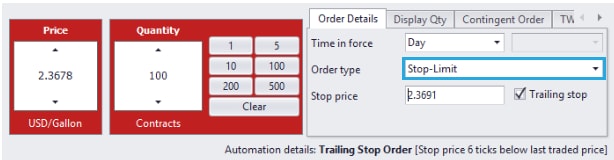
Select Stop-Limit or Stop with Protection in the Order type dropdown to enable the Trailing stop checkbox.
-
Complete the form and ensure the Stop price is valid and the Trailing stop checkbox is checked.
The Automation details in the form will show how many ticks above or below the last trade price the specified stop price is (number of ticks is dynamic and will keep changing as the last traded price changes)
-
Click Bid/Offer to submit the trailing stop order.
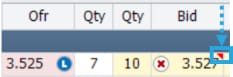
A red triangle appears in the Blotter's Bid/Ofr field indicating a stop order:
Order Book
Trailing stop order will be displayed in a parent/child structure. The Automation details column displays the trailing stop details:



