User Help System
Stop Orders
Stop orders allow users to enter an order with the condition that the order be filled at a predetermined exit price prior to surpassing that price point. CME Direct offers two types of stop orders:
- Stop-Limit - You set your stop price limit.
- Stop with Protection - The CME Globex engine applies a limit price to your stop trigger.
This topic illustrates how to enter stop orders and define a stop price.
In the following example, Trader A will open an Exchange Trading Grid, enter both a Stop-Limit and Stop with Protection order with a quantity of 10 for WTI Futures at a price of 93.37, and define the Stop Price at 93.40.
- To enter Stop-Limit and Stop with Protection orders:
- If not included in your default window, add a Trading Grid view
- In a Trading Grid, click in a Bid (or Ofr) cell
The Order Entry window appears.
- Enter a Quantity of 10 and a price of 93.37
- In the Order Type field, select Stop with Protection (or Stop-Limit).
The Order Entry window adds a Stop Price field, and remove the Display Quantity Order option.
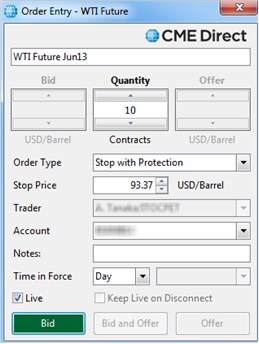
- Change the Stop Price to 93.40.
Note: Stop price must be greater than the Last traded price.
- Click Bid, Offer, or Bid and Offer.
A red triangle appears in the Blotter's Bid/Ofr field indicating a stop order
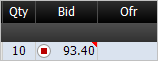
Note: The steps for entering a Stop-Limit order are identical to those for entering a Stop with Protection order.


