User Help System
Set up SSH Authentication / PGP Encryption
The following instructions illustrate the process to add Secure Shell Key (SSH) for SFTP ID authentication. SSH authentication provides enhanced security for files transfers that currently use default User ID and Password authentication.
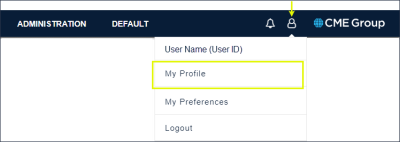
- Select the User icon > My Profile.
- From the My Account menu, select SFTP Management.
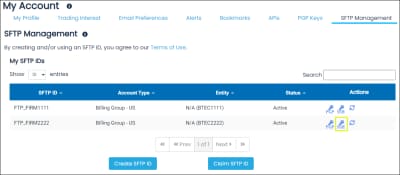
- In the Actions column, select the SSH icon (
 ) for the SFTP ID to manage.
- On the dialog that appears enter a valid (RFC4716 format) SSH Public Key, then select Submit.

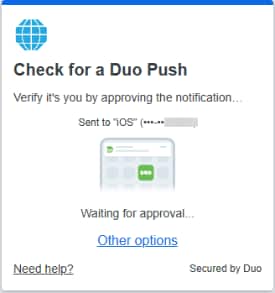
A security code is sent to the mobile phone registered to the Profile.
- Verify the multi-factor push on the mobile device.
Set up PGP Encryption from My Account page
The following instructions illustrate the process to create then enable a PGP Key for encryption. PGP encryption provides enhanced security for file transfers that currently use default User ID and Password authentication.
The key is used to encrypt files prior to sending to CME Group but is not uploaded as the encryption key for the SFTP ID.
- Select the User icon > My Profile.
- From the My Account menu, select SFTP Management.
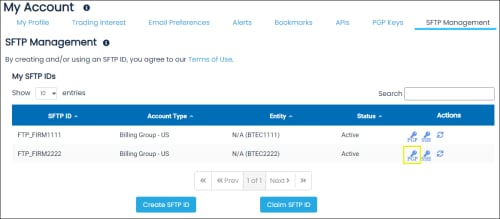
- In the Actions column, select the PGP icon (
 ) for the SFTP ID to manage.
This PGP key is used for the user created SFTP ID to enable encryption.
- On the dialog that appears enter a valid PGP Public Key, then select Submit.
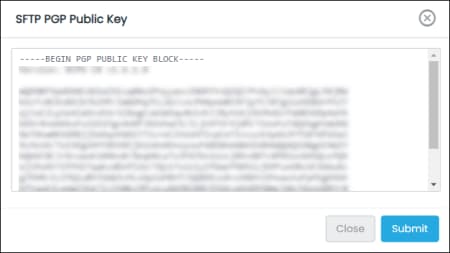
Note: To remove / clear the PGP public key, select Delete.
A confirmation message confirms the deletion.
- Select Submit.
The PGP key is enabled after SFTP ID creation.


