User Help System
/*]]>*/
Other Trade Grid Features
From the Trade Grid:
- Import Trades
- Manually Enter non-IRS Trades
- Manually Enter Interest Rate Swaps
- Add a Variable Notional Schedule (VNS)
- Edit / Remove / Export trades
- Save and Validate portfolio(s)
Import Trades
Import portfolios for any trade type. IRS trades may also require a Variable Notional Schedule (VNS).
Note: When adding Futures, denote the Margin Type as FUT to signify the future is in a Futures Segregated (SEG) account, or OTC to signify the future is in a Sequestered (SEQ) account.
- To import a portfolio:
- Select Add Portfolio to add a new portfolio OR select the box adjacent to an existing portfolio and select Load Trades to load an existing portfolio.
- Do one of the following:
- New Portfolio:
- Select Import Portfolio button in the appropriate trade grid.
- From the Import Items dialog box, select a file to import.
- Select Import. Trades appear in Trade Grid.
- Select Save.
- Existing Portfolio:
- Select Import.
- If the Import Trades dialog box displays, select an option:
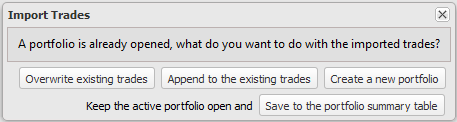
- In the Import Items dialog box, select a file and select Import.
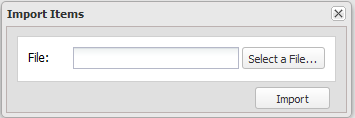
The Uploading message displays, and the trade grid populates.
- IRS Trades only: If trades with notional schedules are found, the Notional Schedule dialog box displays.

Do one of the following:
- Select Import Notional Schedule, select a file and select Import. The Variable Notional Schedule imports.
- Select Cancel. The dialog box closes.
Manually Enter non-IRS Trades
- To add non-IRS trades to a grid manually:
- Select Add Portfolio and select Enter Manually to add a new portfolio OR select the box adjacent to an existing portfolio and select Load Trades to load an existing portfolio.
- Select the [+]button, place cursor in the new row and enter all item information.
Manually Enter Interest Rate Swaps
A minimal amount of information is required to generate an IRS Portfolio for the selected swap. Leg information can be entered manually or generated automatically. Use the IRS Row Editor to enter this information.
Note: Using the Expanded Trade Editor for entering more complicated IRS swaps.

Displayed Fields vary by product type.
- Select the expand icon (
 ) to view the expanded trade editor.
 - The current row number displays at the top, in parentheses.
- Select Save to save changes.
- All Basic Swap fields are required when entering information directly into the trade grid.
- Variable Notional Swaps can be manually entered.
- Select Add Portfolio and select Enter Manually to add a new portfolio OR select the box adjacent to an existing portfolio and select Load Trades to load an existing portfolio.
- Do one of the following:
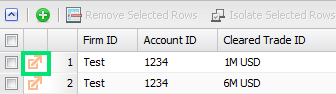
- From the IRS tab, select the
 icon on the left side of a trade row.
OR
- From the IRS tab, select Add Trade and select a Product Type.
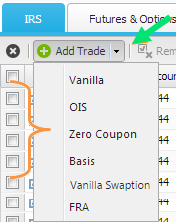
The IRS Basic Editor displays.
- Enter Firm ID, Account ID and Cleared Trade ID.
- Select a Product Type. Fields displayed may vary depending on product type selected.
- Select / enter remaining fields as required.
- Select Save when information is complete.
Add a Variable Notional Schedule
Import or manually add a VNS from the IRS trade grid when there are existing IRS Trades.
- To import a Variable Notional Schedule for IRS Trades:
- Select the Import arrow and select Import Variable Notional Schedule.
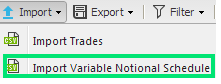
The Import Items dialog box displays.
- Select a file and select Import. The Variable Notional Schedule imports.
- To manually enter a Variable Notional Schedule for IRS Trades:
- In the Notional column, select the Schedule icon for a Variable Notional Swap.
Note: Notional Type for Variable Notional Swaps is SCHEDULE.
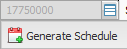
Generate Schedule displays.
- Do one of the following:
- Select Generate Schedule. Schedule generates and displays.
- Manually enter schedule amounts in Step Notional column.
- Select another section of the display. Schedule closes and schedule icon turns green.
Edit / Remove / Export Trades
The menu functionality on the Rates Calculator screen does not differ from the other non-Futures and Options screens.
- To edit, remove or export trades on any portfolio:
- Select the tab of the portfolio to edit.
- Follow instructions in corresponding section on the Trade Menu.
Save and Validate Portfolios
Save and Validate Portfolios prior to margining or optimization.
- To save and validate trades:
- Select Save. Trades are saved. Confirmation message displays. Margin fields in both the Trade Grid and the Portfolio section will indicate trade is saved.
Note: If a Portfolio with a different trade type is added, a new portfolio is created with a Margin Type that reflects this. For example, if IRS trades are added to a DL portfolio, a new portfolio is created with Margin Type IRS/DL.
Note: If the Cross-Margin boxes are checked for a futures position, this denotes that the trade is in a OTC Sequestered account and the margin type will be SEQ. If this box is selected for some of the future positions, but not all the futures, the margin type will be SEG-SEQ.
Note: If the Account / Firm information is not the same for both files, the Portfolio Name will be "Aggregate Aggregate," and Account and Firm values will both be "Aggregate."
- Select Validate. If Validation passes, confirmation message displays.

- If validation errors occur, correct and re-validate.


