User Help System
Editing Trades Grid for Rates
The Rates Calculator's Trade Entry (Grid) contains basic tools for managing trade information--basic editing, import/export and filtering tools.

The Trade Menu provides the following functionality:
- Copy, cut and paste trade information
- Add rows
- Remove or isolate rows
- Import and export portfolios
- Filter trades by specified criteria
- Hide / Show Portfolio Summary
Note: The Interest Rate Swap screen has an additional option to select between view types.
Copy, Cut and Paste Trade information
CME CORE provides basic editing capabilities to make it easier to enter, modify or remove trade information. Individual data cells or rows of data can be copied and pasted within a trade section.
- You cannot cut and paste between different portfolios.
- Short-cut keys CTRL-C, CRTL-V and CRTL-X can also be used to copy, paste and cut information.
- If the Paste, Copy and Cut options are grayed out in the trade menu, these options are not available on your browser. Use the Ctrl-C (Copy), Ctrl-X (Cut) and Ctrl-V (Paste) options only.
- Copying / pasting more than one row or column at a time is not recommended.
- CME CORE does not check that rows are pasted into a corresponding cell, for example, Firm ID into Firm ID. Verify that data has been posted into the correct row and column.
- To copy and paste trade information:
- Select one or more data cells or a row of trade data.
- Use Ctrl-C to copy the trade information or select Copy in the Trade menu.
- Select, from left to right or up to down, the cells into which to paste the data, and use Ctrl-V or Paste in the Trade menu to paste the information.
- To cut and paste trade information:
- Select one or more data cells or a row of trade data.
- Use Ctrl-X to cut the trade information or select Cut in the Trade menu.
- Select, from left to right or up to down, the cells into which to paste the data, and use Ctrl-V or Paste in the Trade menu to paste the information.
Add Rows
- To add a trade row:
Position the cursor in the section where the row is to be added and select the [+] symbol on the left of the menu. The new row shows in the trade list.
Note:View Manage Trades in the Rates Calculation section for adding IRS trades manually from the Trade Grid.
Remove or Isolate Rows
- To delete one or more rows:
- Check the box or boxes adjacent to the rows to delete.
- Select Removed Selected Rows.
- To isolate one or more rows:
- Select the box or boxes adjacent to the rows to isolate.
- Select Isolate Selected Rows.
Import or Export a Trade Portfolio
Import any type of portfolio from a .CSV file. Export trade data into Excel, PDF or XML (formatted for use with API) files. Use a file that was previously exported from CME CORE or create a file manually. Files exported from other applications can also be used, as long as they have the correct format.
See Add Trade Information to a Grid for importing trade information.
- To export a trade portfolio:
- Select the Export arrow. The export options display.
- Select a file option. The Opening Portfolio window displays.
Note: Export to API option is available for IRS, FX and Futures and Options trade data.
- Select Open with or Save File option.
Note: Files are saved to the Downloads directory.
Filter Trades
Trades can be filtered by various options, depending on which CME CORE product is being used. Only one filter type can be selected at a time.
- To filter trades:
Select the Filter arrow and select the appropriate filter.
Hide / Show Portfolio Summary
To view more trades in the Trade grid, the Portfolio section can be hidden, so that the Trade grid displays on a larger portion of the screen.
- To toggle between hiding and showing trades:
Select the  icon to hide the Portfolio section and the
  icon to make the Portfolio section visible when it is hidden.
Interest Rate View
Interest Rate Swaps have additional functionality to select between view types.
Note: This selection is for viewing trades. Product type can also be selected for individual trades.
- To select an IRS view:
Select the arrow to the right of Vanilla and select a Product view.
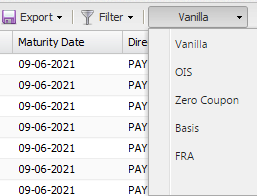
View displays:
- Vanilla: View only simple columns
- OIS: View only Overnight Index Swap columns
- Zero Coupon: View only Zero Coupon columns
- Basis: View only Basis columns
- FRA: View only Forward Rate Agreement columns
Note: To easily view / enter all fields for a single trade, use the IRS Basic Trade Editor.


