User Help System
Mobile Permissions
Use the Mobile Permissions feature to limit or prevent specific user accounts from viewing and managing orders.
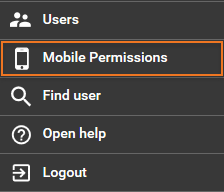
To access Mobile Permissions functions, select Mobile Permissions from the main Menu.
General Permissioning
Clearing Member View functionality allows for permissions to be set at the Company and User levels. The main window is divided into two panes; the top for Company-level permissions and the bottom for User-level. Company and user-level permissions may differ, in which case the more restrictive setting is applied (e.g. No Mobile Access is more restrictive than Read Only).
Mobile Permissions offer four settings:
- No Account Access- Users cannot view any orders placed in CME Direct, but can view market data.
- View Orders - Users can view their Order Book and market data, but cannot cancel or modify those orders.
- Can Kill Orders - Users can cancel, but not modify, their orders.
- Full Access - Users can enter, cancel, and modify orders.
- To set a permission:
- Select a Company or User, and click to expand the Mobile Permissions list for that Company or User.

- Select a permission from the list, and click Save to apply the permission.
Filter Company and User Display
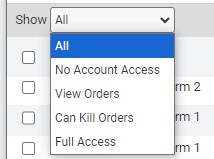
Use the Show field to filter the Company and User displays based on their specific permissioning.
Company-Level Permissions
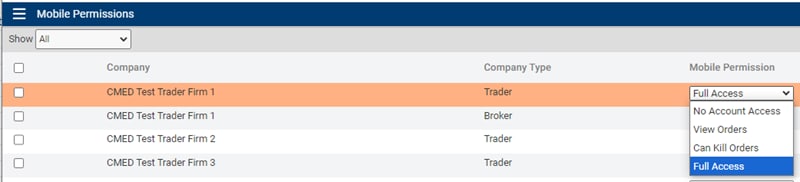
The Company-level pane lists trading companies that have accounts with the Clearing Member (CM) logged into the Clearing Member View, and allows that CM to apply permissions at the Company level.
- To manage company-level permissions:
- Use the Company search field to filter the trading companies displayed on the screen and to find a specific company.

Note: Searches return partial matches.
- Use the numeric Showing buttons or arrows to display the next or previous list of companies.

- Select a Company and choose a Mobile Permission from the available settings as needed.
Clicking a specific Company, highlights that Company and displays a list of Users in that company in the lower pane.
When a permission is selected for a Company, that same permission is applied automatically to the associated Users independent of their current permissions.
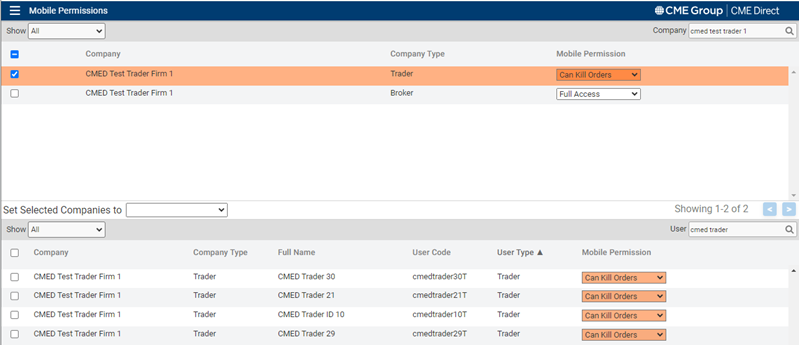
- Select a permission from the Set Selected Companies to field to apply permissions to multiple companies simultaneously. The selected permission will be applied to all the selected companies.
Note: The feature is disabled until one or more companies have been selected.
- Click Save.
User-Level Permissions
The User-level pane lists Users with accounts owned by the selected trading companies, and allows a CM to apply permissions at the User level.

Use the User search field to filter the users displayed on the screen and to find a specific user from the selected company.

Note: The search feature filters all user-related columns (e.g. Full Name, User Code, User Type, etc.) for matches.
Assign User-level permissions from the Mobile Permission column list.


