User Help System
Upload Entitlements
Use the Upload Entitlements screen to upload new entitlements to LP Manager and review previously uploaded entitlements.
Note: To modify LP GFID or Region see Edit Entitlements.
- To upload entitlements
- Click Sample Template.
The Excel template appears in the left corner of the browser window.
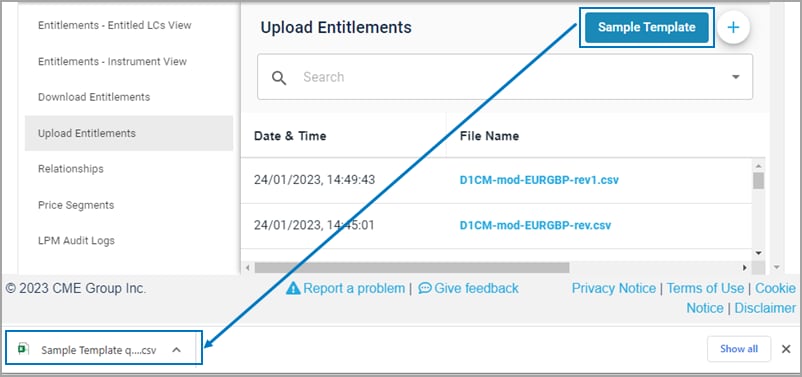
- Click the file to open and save it locally.

- Enter all information for each entitlement. Refer to the Data Format section for Download Entitlements for descriptions for the fields.
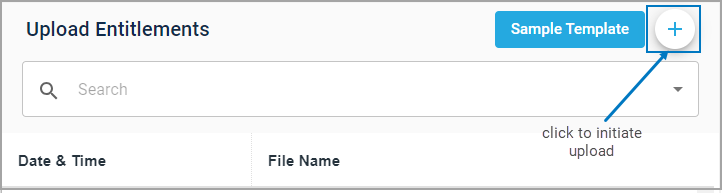
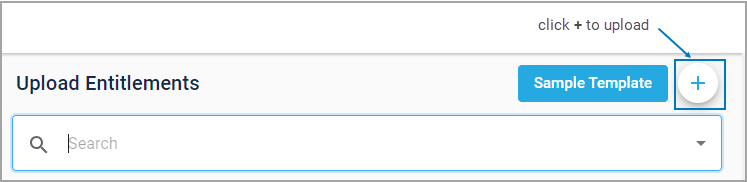
- Click the + sign.
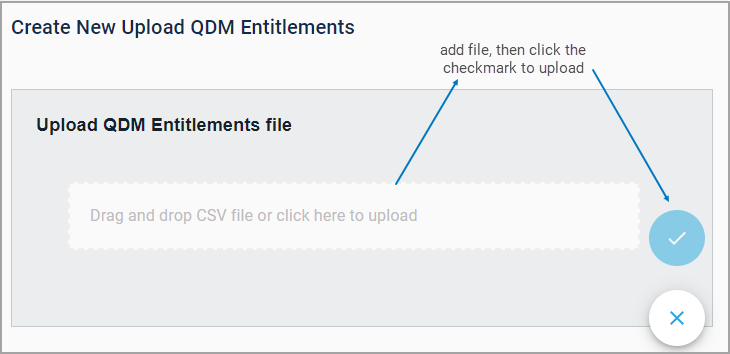
- Drag file from local directory or click in the space to navigate to file.
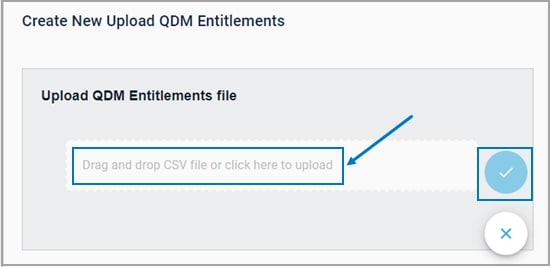
If any error messages appear, cancel upload by clicking X, correct then file, then try re-uploading.
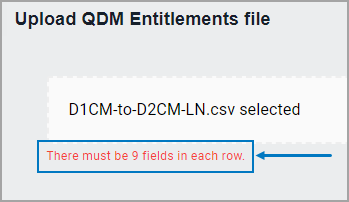
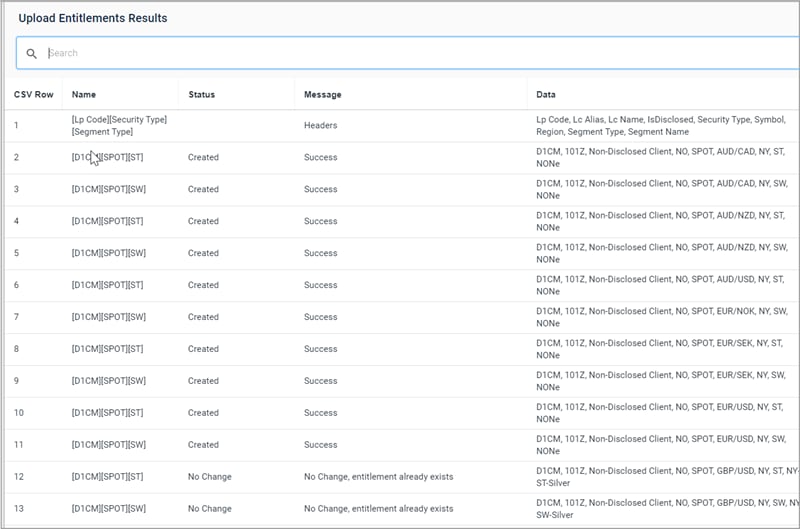
- Click the checkmark to confirm upload. The screen displays with a status for the upload.
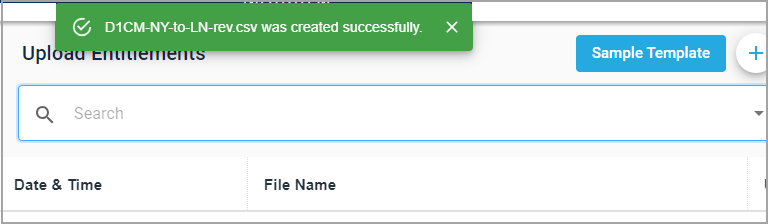
Edit Entitlements
The format of files obtained via the Download Entitlements feature is closely aligned to the format required for upload. Users can download the file, remove the Warnings column, make edits to Price Segment assignments as they see fit and then re-upload the file to enact those changes.
Note: Unchanged rows can either be uploaded as is or removed from the file - in either case those entitlements will not be affected.
- To edit entitlements
- Follow the steps in Download Entitlements to obtain a current file of entitlements. Save the file locally and open it.
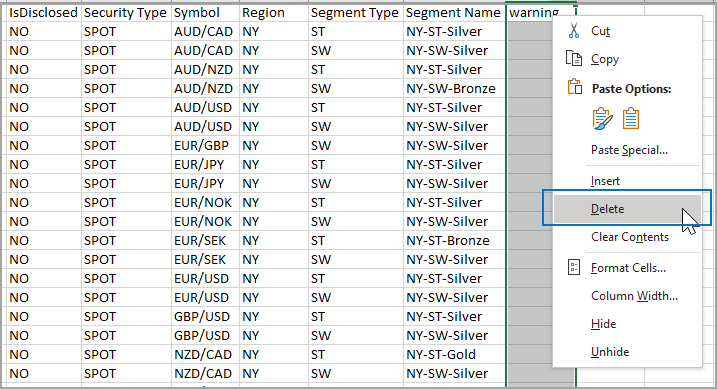
- Delete the Warning column.
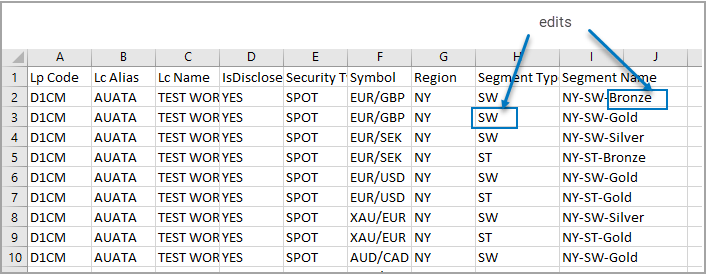
- Make edits to price segments as needed. Note: LP GFID and Region cannot be changed.
- Click the + sign.
- Click on the box and navigate to the file, then click the checkmark to upload.
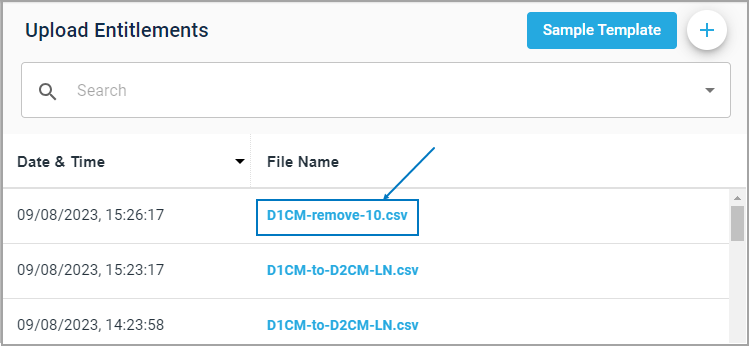
The file will appear on upload entitlements screen. Click the filename to review changes.
Removing Entitlements
- To remove an entitlement
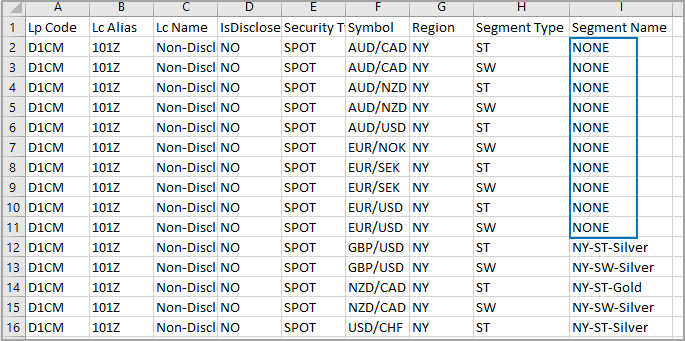
- Follow the Edit Entitlements procedure, entering "None" in the Segment Name field.
Historical Results
- How to read the historical results
- Click a filename to view details for the upload.
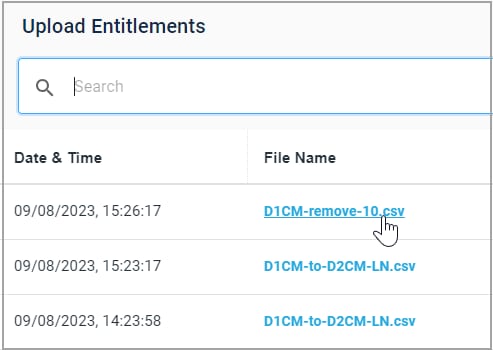
Details for each uploaded entitlement in the file, along with the status, appears.