User Help System
Entitlements - Entitled LCs View
Once Streams and Relationships have been created by CME administrators users can create/administer Entitlements. An Entitlement is where a user selects a Liquidity Consumer, an instrument and a Segment Type (Sweepable or Single Ticket) and chooses which Price Segment to assign. This will then grant the LC permission to view the corresponding Stream. In the example below,
- Our London GFID (D2CM) has a Price Segment named "LN-SW-Gold," representing our top-tier Sweepable pricing in London.
- Under this tier we have created Streams for the EUR/USD and USD/JPY FX instruments, creating market data subscriptions on our Liquidity Provider Interface.
- We also have a Relationship in place with LC "UATA."
- We can now go to the LP Manager tool, select the LC and assign this Price Segment for the given instruments:
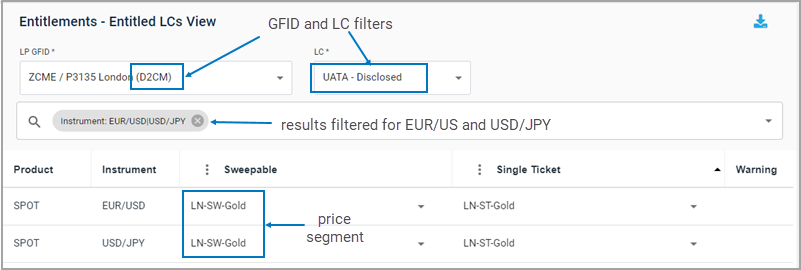
Use the Entitled LCs screen to review and configure pricing segments for the Liquidity Consumers (LCs) with which there is a relationship.
Note: See the Data Structure section for descriptions of the field names.
Selecting an LP GFID
The GFID (Globex Firm ID) is the primary entity representing the Liquidity Provider on the CME platform.
- To select an LP GFID
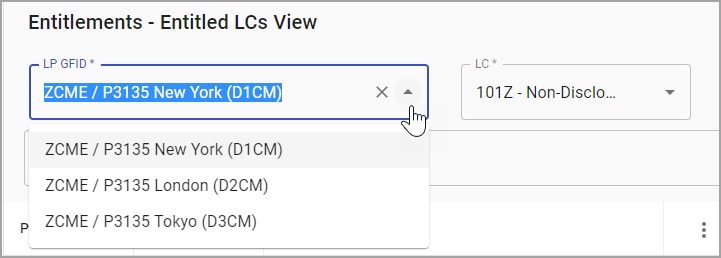
- From the LP GFID drop-down arrow, select an LP GFID.
Selecting an LC
An LC is identified by its disclosed alias if it is a disclosed client, and its non-disclosed alias for non-disclosed clients.
- To select an LC
- From the LC drop-down, select an LC.
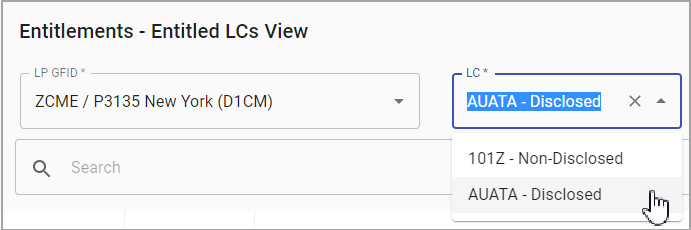
A list of entitlements for the selected LP GFID and LC appear.
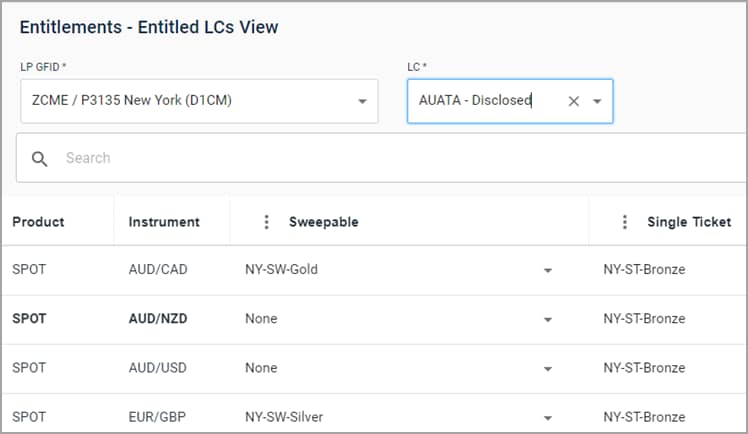
- To use the search bar
- Start typing a search term in the search box, or click the arrow in the search to scroll for search terms
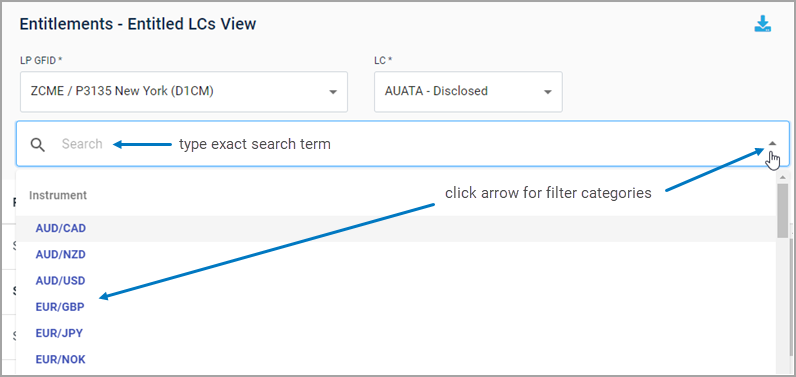
Editing Entitlements
- To edit a single entitlement
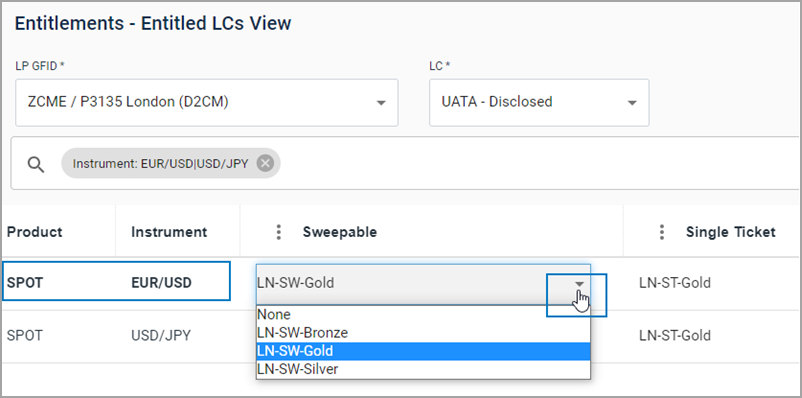
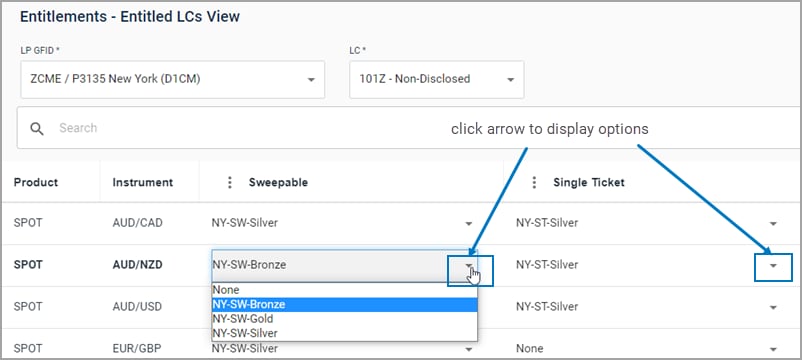
- Select an instrument.
- Click the arrows to right of the Sweepable and/or Single Ticket field to modify price segments.
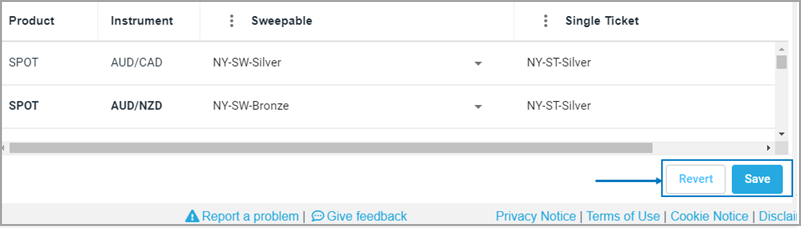
- Click Save to confirm changes or Revert to discard them.
Note: Any changes must be saved or discarded before continuing.
- To batch edit multiple entitlements
Users can filter first for specific products, instruments, and/or Price Segments, then apply edits to the batch at one time:
- Search for specific items.
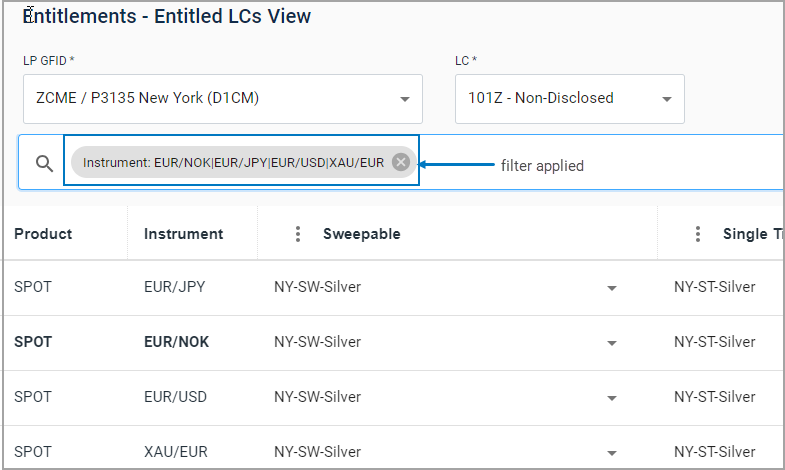
- Click the three dots to the left of Sweepable and/or Single Ticket column headings select a Price Segment to assign for all displayed entitlements.
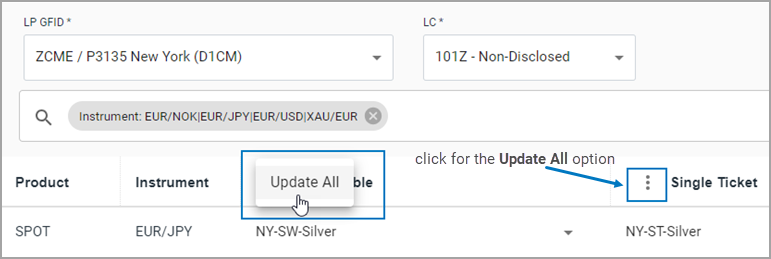
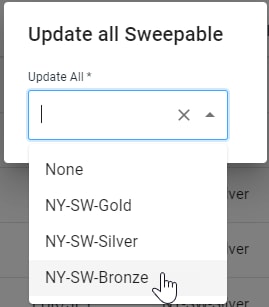
- Click Update All. In the box that appears, scroll to select a price segment.
- Click Save to confirm your changes (or Revert to discard them).
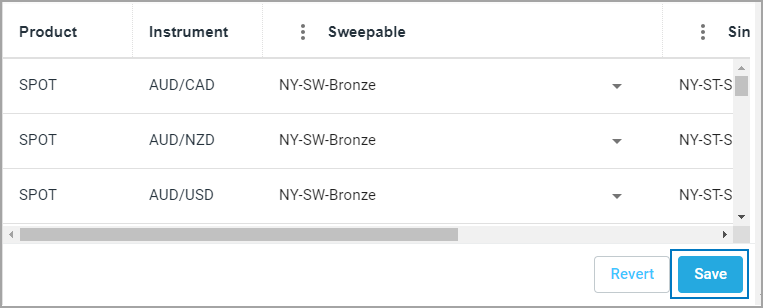
Note: If no stream (price segment) exists for a particular instrument under the selected Price Segment, Entitlements will not be updated.


