User Help System
Rate Details
You may perform the following tasks for rate details on the Rate Maintenance page:
- Add Rate Details (Executing Perspective Only)
- Edit Rate Details (Executing Perspective Only)
- Delete Rate Details (Executing Perspective Only)
Add Rate Details (Executing Perspective Only)
- To add rate details:
- Select Add
- Add details for the rate set.
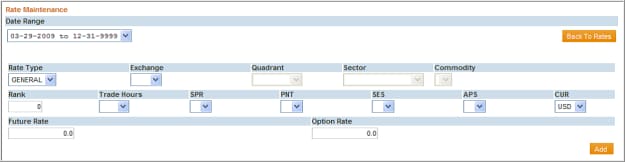
Rate Details Field Descriptions
|
Field |
Description / Valid Entry |
|
Rate Type |
General - used to set default rate for futures & options Specific - used to set individual rates for futures and options by |
|
Rank |
Sequence in which the rate is calculated. Specific Rate sets are calculated first then General. Rates with the highest "rank” number are the first to be calculated. |
|
Exchange |
|
|
Commodity |
For Rate Type ‘Specific’ only: You must first select an Exchange in order to be able to select from the pre-populated commodity codes in the drop-down list. |
|
Future Rate |
The dollar amount of the futures rate as a whole number. Includes a decimal point if cents are entered. (Field defaults to zero if left blank) |
|
Option Rate |
The dollar amount of the options rate as a whole number. Includes a decimal point if cents are entered. (Field defaults to zero if left blank) |
|
Order Handling Indicator |
Field is free-form. Current values / definitions as defined by the FIA are: A = Phone simple B = Phone complex C = FCM-provided screen D = Other-provided screen E = Client-provided platform controlled by FCM F = Client-provided platform direct to exchange G = FCM API or FIX H = Algo Engine J = Price at execution (price added at initial order entry, trading, middle office or time of give-up) W = Desk - Electronic X = Desk - Pit Y = Client - Electronic Z = Client - Pit |
|
SPR (Spread Type) |
Select the Spread indicator to set rate by the following spread types:
Blank = Any input value will provide a match. |
|
PNT |
Select the PNT Indicator to set rate by the following PNT types:
Note: RFCs are handled as a PNT for GPS pricing purposes only. Blank = Rates will be applied (match) on a blank value only. Please note that the Blank value denotes that this is not a PNT Transaction. An EFP refers to a privately negotiated and simultaneous exchange of a futures position for a corresponding cash position (i.e., a basis trade) apart from the public auction market in the context of a non-interest rate contract. |
|
SES (Session) |
Select the Session Indicator to set rate by the following Session types:
Blank = Rates will apply (match) on any value |
|
APS |
Select the APS Indicator to set rate by the following APS types: A: APS Trade (Average Price Trade) G: Give Up Trade (a.k.a. Allocated Claim System) Blank = Rates will apply (match) on any value |
|
Vol Quote |
Select "Y" or "N" to set rate for trades, volatility quoted or not. |
|
Exchange
|
CBT - CHICAGO BOARD OF TRADE CCE - CME CLEARING EUROPE CEU - CME EUROPE LTD. CME - CHICAGO MERCANTILE EXCHANGE CMX - NEW YORK MERCANTILE EXCHANGE: COMEX NYX - NEW YORK MERCANTILE EXCHANGE OCC - OPTIONS CLEARING CORPORATION Exchange can be used by itself for a generic rate or together with the commodity code for specific rates. |
|
CUR (currency) |
For all third-party agreements, any currency is valid. For a US non-third party agreement, only USD is valid. For a European non-third party agreement, USD, EUR and GBP are valid. Codes are as follows: AUD – Australian Dollar MXN – Mexican Peso CAD – Canadian Dollar NOK – Norwegian Krone CHF – Swiss Franc NZD – New Zealand$ EUR – Euro SEK – Swedish Krona GBP – British Pound USD – US Dollars JPY – Japanese Yen ZAR – S.A. Rand |
|
Trading Hours |
E = ETH: Electronic Trading Hours R = RTH: Regular Trading Hours (Open Outcry / Pit-traded) |
|
Quadrant |
If quadrant is selected, then individual commodities may not be selected and vice versa. Quadrants are: CBOT: AG, FIN, INDEX CME: AGS, CURR, INDX, INT CMX: AG, ENERGY, FIN, INDEX, METAL NYX: AG, ENERGY, FIN, GREEN, INDEX, METAL |
Edit Rate Details (Executing Perspective Only)
- To edit rate details:
- Select Edit
- Select the line item you wish to edit.
- Make the required modifications.
- Select Apply.
Delete Rate Details (Executing Perspective Only)
- To delete rate details:
- Select Delete
- Select the line item you wish to delete.
An alert message displays, asking, “Are you sure you want to delete the current rate?”
- Select OK.


