User Help System
Agreement Search
Executing firms can find, view, edit, copy and add agreements while Carrying firms can only find and view agreement information.
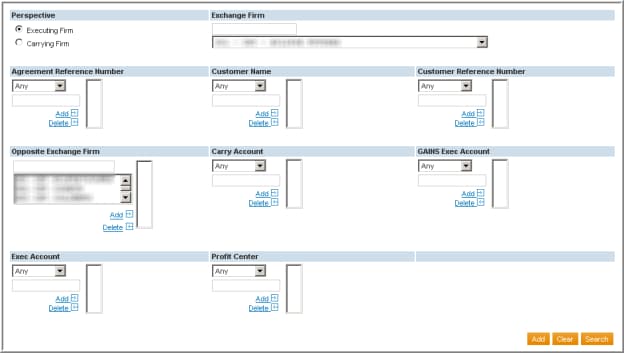
- To perform an Agreement Search
- Select Executing Firm or Carrying Firm under Perspective.
- Select the firm you would like to review.
Input the 3-digit firm id into the text box or make a selection in the drop-down list.
You can only access those firms for whom you have permission.
- Select Search.
Additional Search Criteria
Use the additional search criteria listed below to narrow your agreement search:
|
Field
|
Description
|
Valid Entry
|
|
|
Agreement Reference Number |
Unique alphanumeric identifier for each agreement within the executing firm that identifies all the accounts and rates that are associated with that agreement. |
|
|
|
Customer Name |
Customer’s name on the Agreement |
||
|
Customer Reference Number |
Assigned by the executing firm |
||
|
Carry Account |
Provides the ability to view agreements that contain the specified carry account
|
||
|
Account Memo Field |
This field is for informational purposes only. |
||
|
Opposite Exchange firm |
View only agreements by the opposite firm. |
Enter the 3-digit firm id in the text box or make a selection in the drop-down list. |
Search Parameters
- Any allows you to search for all items and is the default selection
- Begins With allows you to enter the first few numbers and / or letters of the item(s) on which you wish to search.
- Contains allows you to enter a string of numbers and / or letters and search for all items that contain that string
- Ends With allows you to enter the last few number and / or letters of the item(s) on which you wish to search.
- Equals allows you to enter the exact item on which you want to search; you can also use “equals” to enter multiple items so that it works as an “is in” option.
- Free text.


