User Help System
/*]]>*/
Add an Agreement (Executing Perspective Only)
You may add an agreement on the Agreement Search page.
- To add an agreement:
- On the Agreement Search page, select Add.
Note: The “add” agreement feature is only available from the Executing firm perspective.
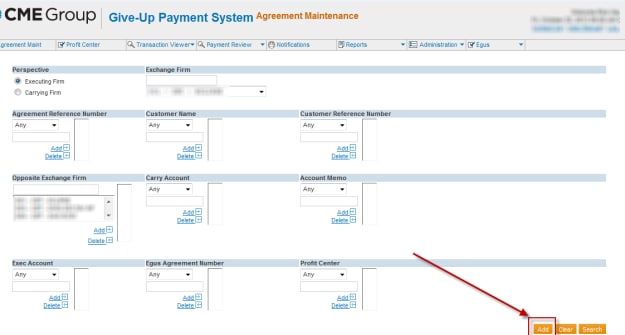
A template will display:
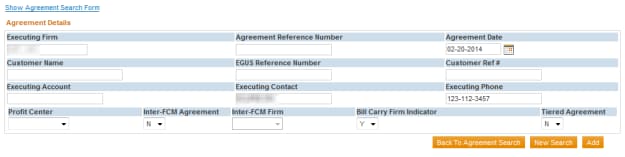
Note: Firms may only backdate an agreement up to 3 months.
- Enter the Agreement Details.
- Select Add.
The system displays a confirmation message.
- Continue to add rates to the agreement.
- Select View Rates from the drop-down list.
- Select the agreement.
- Enter the Agreement Details.
- Select Add.
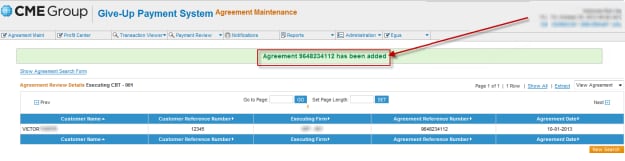
A confirmation message displays indicating that the new agreement has been added to the system.
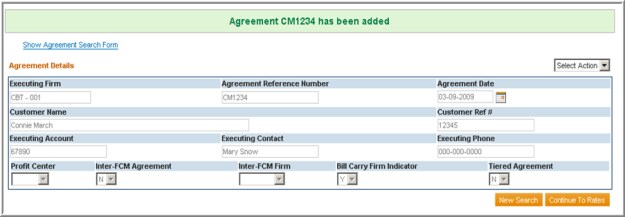
- Select Continue to Rates.
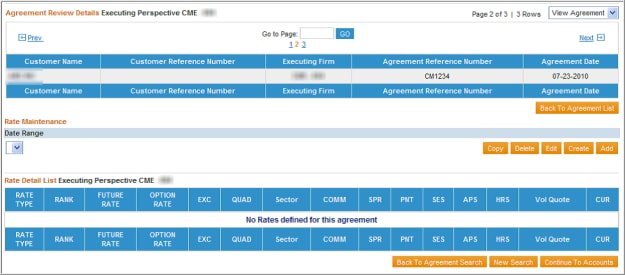
- Select Create to add a new rate set (Date Range) for the rates.
- Enter the Effective Date and Expiration Date.
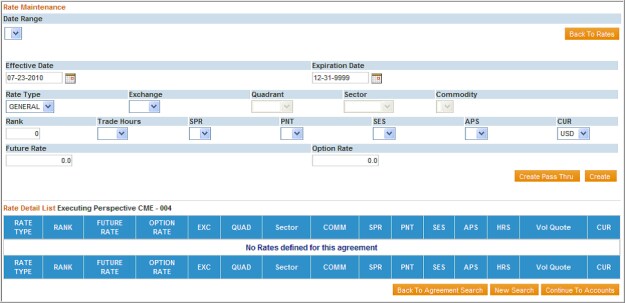
To add another rate with the same date range, select Add.
A confirmation message displays indicating that the new rate has been added to the system.
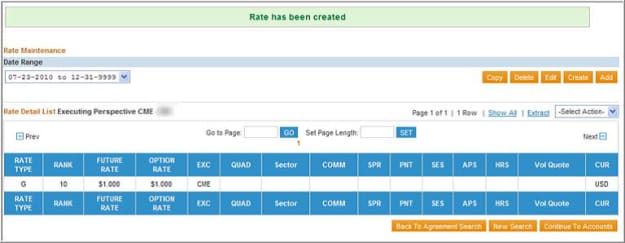
- Select Continue To Accounts.
- Enter Account Maintenance information to add accounts to the agreement.

- Select Add.
A confirmation message displays indicating that the new agreement has been added to the system.
Agreement Details Attributes
|
Field
|
Description
|
Entry Required
|
|---|---|---|
|
Executing Firm |
3-digit Firm id and its associated exchange. |
Y |
|
Agreement Reference Number |
Executing firm-assigned Agreement Reference Number. |
Y - Must be unique for executing firm |
|
Agreement Date |
Date the agreement was created, entered or updated. |
Y - Agreement date must be no more than three months prior to the current business date |
|
Customer Name |
Customer Name for this Agreement |
Y |
|
EGUS Reference Number |
Free-form text when field is updated through GPS. If agreement is downloaded from EGUS, this field will be populated automatically and is the EGUS identifying agreement number. |
N |
|
Customer Reference # |
Executing firm-assigned Customer Reference Number. |
Y |
|
Executing Account |
Executing firm account number for this customer / agreement. Note that this field is for informational purposes only. This field on the agreement record is not a pricing criterion. |
Y |
|
Profit Center |
Sales office / profit center to which this agreement is associated. Values within profit center drop-down list will be blank (by default) and contain the predefined in the profit center ids derived from the profit center maintenance screen. Note: Depending on your security access level, you may not have access to the profit center screen. |
N |
|
Inter-FCM Agreement |
Y=This is an Inter-FCM agreement which encompasses all accounts at a single carrying firm not defined in another agreement. Inter-FCM firm list will be disabled unless you select “Y”. N=Not an Inter-FCM agreement. Allows entry of multiple carrying firms and accounts under the agreement. |
N - Can only be changed to “Y” if there are no cash adjustments associated with it.
|
|
Bill Carry Firm Indicator |
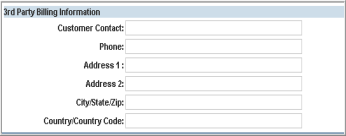
Y= Select “Y” if the Carry Firm should be automatically billed through GPS. N= Select “N”, to indicate this agreement is a Third Party agreement. There will be input fields for the Third Party billing address information. It is required to enter, at minimum, the Customer Contact Name when specifying a Third Party agreement. Note that these agreements will still need to be billed manually by the firms.
|
N-If editing an agreement that has an associated rate-set, then the bill carry firm indicator may not be changed.
|
|
Tiered Agreement Indicator |
Y= Select “Y” if the Agreement has tiered rates associated with it. N= Select “N” if the Agreement has a non-tiered rate structure associated with it. “N” is the default. |
Y- If selected, an agreement with a tiered rate set cannot be changed to a non-tiered agreement. |