User Help System
GC2 Reports
- To run a GC2 report:
From the CME Group Risk Management Tools window, point to Reports, then GC2.
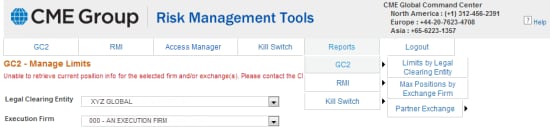
Select one of the following options:
Limits by Legal Clearing Entity
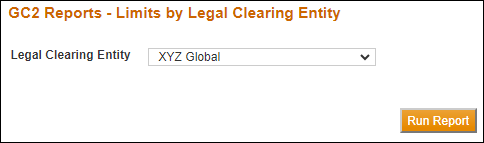
- To run a Limits by Legal Clearing Entity report:
- Select Reports >GC2> Limits by Legal Clearing Entity.
- From the Legal Clearing Entity drop-down box, select a firm.
- Select Run Report.
- Depending on the browser being used, the file either automatically downloads or a dialog box displays with open / save file options. If dialog box displays, take actions as appropriate.
Max Positions by Exchange Firm
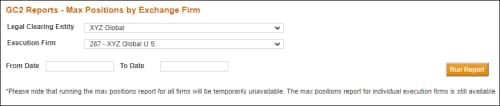
- To run a Max Positions by Exchange Firm report:
- Select Reports > GC2 > Max Positions by Exchange Firm.
- Select the Legal Clearing Entity and the Execution Firm.
- Enter the From Date and To Date.
- Select Run Report.
- Depending on the browser being used, the file either automatically downloads or a dialog box displays with open / save file options. If dialog box displays, take actions as appropriate.
Partner Exchange
Generates the partner exchange limits that have been set.

- To run a Partner Exchange report:
- Select Reports >GC2> Partner Exchange >, and then select one of the following:
- BMD (Bursa Malaysia™)
- KRX [Korea Exchange™ (한국거래소)]
- GME (Gulf Mercantile Exchange)
- Select Run Report.
- Depending on the browser being used, the file either automatically downloads or a dialog box displays with open / save file options. If dialog box displays, take actions as appropriate.


