User Help System
Report Subscriptions
The Report Subscription function allows users to select reports, for a given exchange, to be generated and delivered automatically via a schedule. This time saving feature reduces the effort required to search the Report List. When reports are available, users are notified by an email to the address associated with their CME Group Login.
Search Report Subscriptions
Use the Search function users can view a list of reports which are currently available.
- To view current subscriptions:
- Select the Report Subscriptions - Search Report Subscriptions menu.
- Enter criteria in the fields, then select Search.
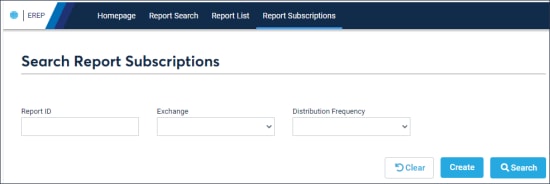
- Report ID: Enter the Report Name / ID. For a list of available reports, refer to:
- BrokerTec: BrokerTec Reporting - New CME Report Name field on the BrokerTec Support Portal.
- EBS: EBS Reporting - Report ID field on the Client Systems wiki.
- Exchange: CME / BrokerTec / EBS
- Distribution Frequency: Search all reports that are distributed via the selected schedule.
Additional Functions
- Clear: Delete criteria to enter a new search.
- Create: See Add Report Subscriptions (below).
Add Report Subscriptions
- To add / create subscriptions:
- Select the Report Subscriptions - Add Report Subscriptions menu
or
Select Create on the Search Report Subscriptions
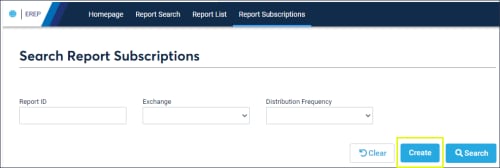 page.
page.
- Enter criteria in the fields, then select Submit.
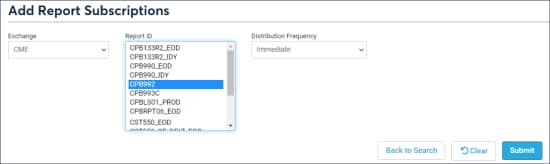
- Exchange: Available reports are based on the selected exchange - CME / BrokerTec / EBS.
- Report ID: At least one report must be selected. For multiple selections, press CTRL + select multiple report IDs.
- Distribution Frequency: When to deliver reports - Immediateor Batch 5 / 15 / 30 minutes.
Note: Users will be notified when reports are available by email; with the report ID and name.


