User Help System
Report Search
The Report Search function is available to authorized users to access details of their firm / user configuration, trade and billing activity.
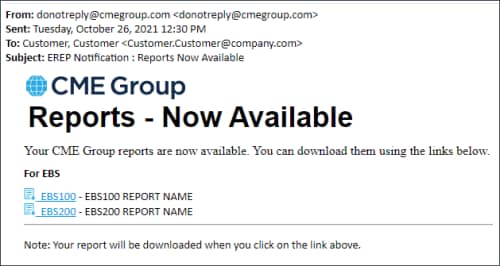
Users are notified of report availability via an email and includes a link directly to the report.
View sample email:
- To perform a report search:
- From the EREP application screen, select Report Search.
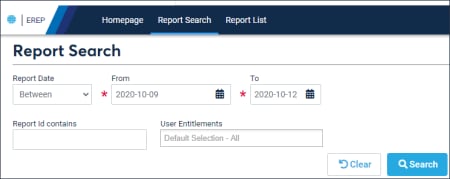
- Enter report search criteria:
- Report Date
- Equals: View reports for the selected trading day.
- Between: Enter the date range to search.
- Month to Date: View reports for the first day of the current month and the end date as the current trading day.
- Last Month: Search the beginning and ending dates of the previous month.
- Date Range - From / To: see Report date (above)
- Report Id contains: (optional) Searches report ID that matched the entered string.
For a list of Report IDs, see Report List.
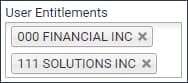
- User Entitlements: Select one or more entities.
Available selections are based on assigned entitlements.
- Select Search.
To download a report, select from the list of results.
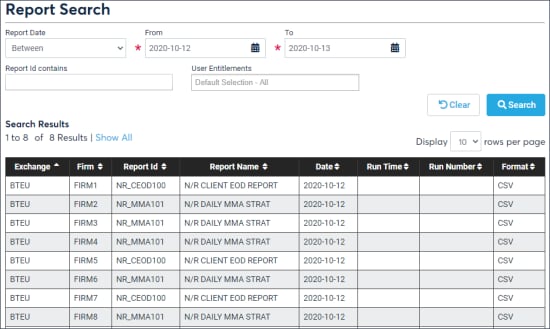
A download dialog appears and the file is downloaded to the default browser download directory.
Example: Accusers/your username/Downloads
To filter results, enter additional search criteria, then click Search.
To sort results, by ascending / descending order, select the column heading arrows  .
.
Clear ( ): Reset default values for all search fields.


