User Help System
Globex Registration Search
To view the details for previously registered electronic traders and their associated Globex Operator IDs, the User may select a Basic or Advanced Search. To begin a search, select Search from the Globex Registration navigation menu. The User will be directed to the Basic Search screen.
 : For an overview of Globex Registration - Search functions, view this tutorial.
Performing a Basic Search
Basic search offers four different fields by which the search results may be retrieved. Users may enter search criteria for one or more of the basic search fields which include Guaranteeing Firm, Operator ID, First Name or Last Name.

Searching by Guaranteeing Firm
- Select the Guaranteeing Firm from the drop-down.
- If the User leaves the other Basic Search fields blank, the search results will contain all Operator IDs for the selected Guaranteeing Firm.
- If the User selects a Guaranteeing Firm and enters a string of characters in any of the other Basic Search fields, the list will contain only Operator IDs which match that string of characters.
- To include expired Operator IDs in the search, check the Show Expired box.
- To view operator details, select View Operator from the Mode drop-down.
- Click Search to retrieve the registered Operator IDs.
Searching by Operator ID, First or Last Name
- Select the Guaranteeing Firm from the drop-down.
- In the Operator ID field input in the string of characters contained in the Operator ID. The string of characters entered does not have to be an exact match; it will retrieve all items that contain that string.
- To include expired Operator IDs in the search, check the Show Expired box.
- To view operator details, select View Operator from the Mode drop-down.
- Click Search to retrieve the registered Operator IDs.
Basic Search Results
The search results will be displayed in a section below the search criteria and will contain all field values associated with the ID.
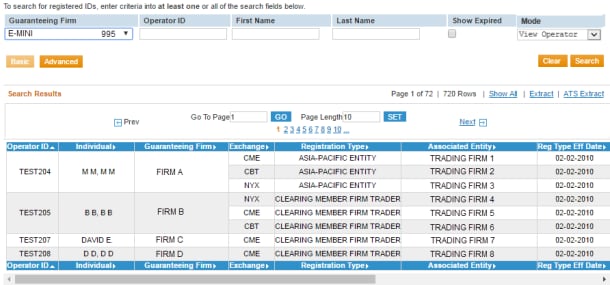
- To start a new search:
Go back to the search fields at the top of the page, change the search parameters as needed and then click Search.
OR
Click Clear to clear the Search fields.
Performing an Advanced Search
Advanced Search offers additional fields by which the registered Operator IDs may be retrieved. To start an Advanced Search, select Search from the Globex Registration Navigation Menu and click Advanced.
There are five different categories which contain a variety of values by which information for the electronic trader and the associated Operator IDs may be retrieved.
Refer to Advanced Search Screen for detailed field definitions.
- Guaranteeing Firm
- Operator ID Details
- Individual Information
- Registration Attributes
- ATS Details
- To build an advanced search:
- Select view operator from the Mode drop-down.
- Select a field from the drop-down of one of the five categories
- Select an operand (Note that in some instances, the operand will be pre-populated).
- contains, equals, begins with, ends with
- equals, before, after, between
- Input a value into the field.
Note: In some instances, the value will be pre-populated.
Advanced Search
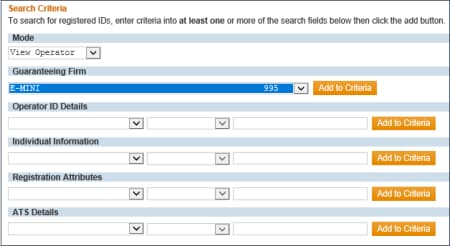
- Select Add to Criteria o Search criteria will be added to the Selected Search Criteria.
When using the “equals” operand, multiple values can be added to the search criteria one at a time.
- Continue to add additional criteria to create a more specific search.
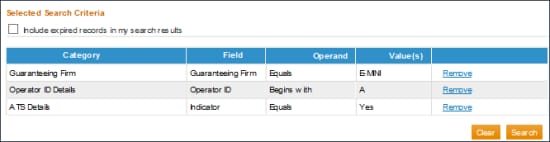
- To remove an item from Selected Search Criteria, select the Remove hyperlink in the corresponding row.
- To include expired Operator IDs in the search, check the Include expired records in my search results checkbox
- Click Search to retrieve the registered Operator IDs. Selected Search Criteria Advanced Search
Advanced Search Results
The search results will be displayed in a section below the search criteria and will contain all field values associated with the ID.
- To start a new search:
Go back to the Search Criteria to add fields or to the Selected Search Criteria to remove fields
OR
Select Clear to completely clear the search screen
OR
Select Basic to return to a Basic Search


