User Help System
Report Viewing
To access a report submitted, select Viewing from the Reports sub-menu. The Report Viewer window will appear displaying all the reports that have been submitted during the current day. The Report Viewer screen lets the User execute the following action items:
- View Report
- View Report Criteria
- Extract Report
- Delete Report
Report Viewing: Report Viewer Screen

Report Viewer Column Descriptions
The columns can be sorted in ascending or descending order by clicking the sorting arrow to the right of the column header. Data can only be sorted by one column at a time.
|
COLUMN NAME |
DESCRIPTION |
|---|---|
|
Report Status |
Displays the status of the reports submitted:
|
|
Requested By |
Displays the User ID of the individual who requested the report. |
|
Report Pos (If applicable) |
This will display the order in which the report was submitted in the queue, if there are several reports pending. |
|
Exchange |
Displays the Exchange for which the report was submitted. |
|
Firm(s) |
Displays the Firm(s) for which the report was submitted. |
|
Report Type |
Displays the Report Type for the report submitted. |
|
Report Name |
Displays the Report name. |
|
Time Requested |
Displays the date and time the report is requested. |
View Report
- To view a report in the Report Viewer:
- Select View Report from the drop-down list in the top right corner of the Report Viewer.
- Select the line item corresponding to the report to be viewed. Note: a report will not be viewable unless the Report Status is “Ready or “Reviewed”.
Report Viewer: Report Action Items

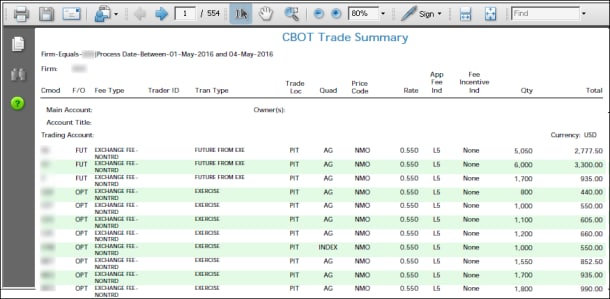
After selecting the line item for the appropriate report, a new window will open to display the report.
Once Adobe Acrobat has completed loading the PDF format, the report will be displayed. If the report is not being displayed, make sure that the most recent version of Adobe Acrobat is available.
Report Viewer: PDF Report Sample
Adobe PDF Functions
Within the PDF document, the following functions can be accessed by clicking the associated icon.
|
Functions that can be accessed ABOVE the report |
Functions that can be accessed BELOW the report |
|---|---|
|
|
|
|
|
|
|
|
|
|
|
|
 - Save the report as a .pdf file View the first page of the report
 - View the first page of the report
 - Print the report View the previous page of the report
 - View the previous page of the report
 - Search for items within the report View the next page of the report
 - View the next page of the report
 - View the last page of the report
View Report Criteria
- To view the criteria entered for a report in the Report Viewer:
- Select View Report Criteria from the drop-down list in the top right corner of the Report Viewer.
- Select the line item corresponding to the report to view the criteria.
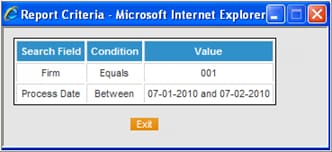
- The Report Criteria window will appear, displaying the criteria submitted for that report.
- To close the Report Criteria window, select the Exit button or the close icon.
Report Viewer: View Report Criterion
Delete Report
- To delete a report from the Report Viewer:
- Select Delete Report from the drop-down list in the top right corner of the Report Viewer.
- Select the line item corresponding to the report to delete.
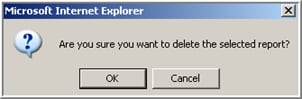
- An alert message will appear requesting confirmation of the report deletion - click OK to confirm or Cancel to exit.
Report Viewer: Delete Report Alert Message
Extract Report
To extract a report from the Report Viewer
- Select Extract Report from the drop-down list in the top right corner of the Report Viewer.
- Select the line item corresponding to the report to be extracted.
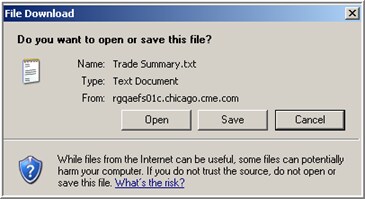
- A File Download message box will appear - click OPEN to open the file and the data will display in Notepad; click SAVE to save the report; or click CANCEL to exit.
Report Viewer: File Download Message Dialog Box
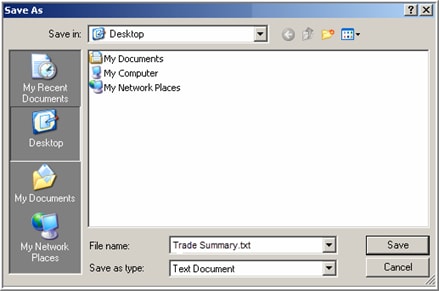
- If the user selects SAVE, a Save As box will appear to indicate where to save the file. Once indicating the location and File name, click Save. The file is saved in a tab delimited format and may be imported into any machine readable format such as MS Excel or MS Access.
Report Viewer: Save As Message Dialog Box
Other Report Viewing Features
Report Display
The Report Viewer will default to showing only reports requested during the current day. To view reports requested prior to the current day, click the Show All Reports hyperlink in the upper right corner of the Report Viewer. The Report Viewer will retain two weeks of reports.
To go back to only viewing the current day’s report requests, click the Today’s Reports hyperlink.
Other Report Features: Report Display

All Users Reports
To display a report request by another EFS User, click All Users Reports.

Refresh Reports
When the report is in the Requested status, to refresh the Report Viewer to see if the Report Status has changed the user may:
- Select the Refresh Icon button
 at the top of the browser or
 - Select the F5 key from the keyboard.
The Report Status will automatically refresh every 45 seconds.
New Report
To submit a new report request when in the Report Viewer window, click Reports and select the Request sub-menu to navigate back to the Report Request screen.


