User Help System
Recalculate
In the Edit Trades Mode of Transaction Viewer, the User can recalculate a single item, or a group of items, at one time. This feature should be used to manually submit trades for recalculation when the associated operator ID has been added or modified in the Globex Registration screen.
- To Submit an Item for Recalculation
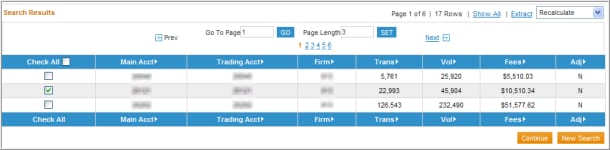
- Select Recalculate from the drop-down list.
- Click the check box in the row of the line item that is to be recalculated.
Recalculating a Trade within Edit Trades Mode of the Transaction Summary
- To Select Multiple Items for Recalculation
Click the check boxes in front of all line items to be submitted for recalculation.
- To Select All Items on the Screen for Recalculation
- Click the Check All box in the column header to highlight all the items displayed on the screen.
NOTE: The Check All option will only select the accounts that are displayed on the current screen. If more than one screen of data exists, select the accounts on all pages by first clicking the ‘Show All’ hyperlink next to the drop-down list and then click on the Check All box.
- After selecting the appropriate item(s), select the Continue button.
- A message window will appear asking for confirmation to recalculate the trades - click OK to confirm or Cancel.
- If OK is selected, a confirmation message will be displayed stating that the request has been submitted for recalculation.
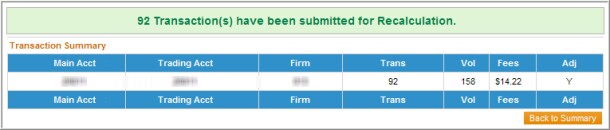
- The Adj column at the right will change from N to Y to indicate that this item has been submitted to be reprocessed during that night’s batch cycle. After submitting a request to edit trades, the User will receive a message indicating that the resubmission is in progress.


