User Help System
View Non-Trades Mode
The View Non-Trades mode allows the User to view allocated and unallocated Exercises, Assignments and Deliveries, plus other non trade activity such as Cash Settlements, Futures from Exercise, Futures from Assignments and Expirations.
NOTE: Account numbers are not attached to these transaction types and as a result, non-trade exchange fees are applied at the NON-MEMBER RATE. Therefore, it is important to utilize this mode to determine which activity should be allocated to member accounts in order to receive the reduced non-trade exchange fee rate.
Transaction Summary
After executing a search in the View Non-Trades Mode, the Transaction Summary will be displayed. The non-trade activity will be summarized to either a blank account (denoting unallocated activity) or to previously allocated accounts. Simply click on one of the summary line items in order to obtain the details.
View Non-Trade Transaction Summary Screen

Transaction Details
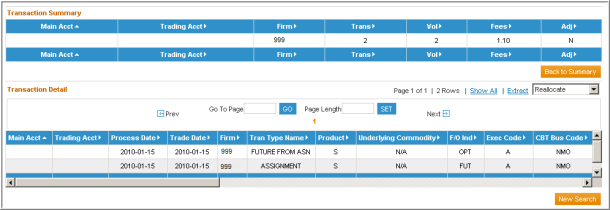
After selecting one of the line items from the Transaction Summary screen, the screen will display all the associated non-trade activity Transaction Details. From the Transaction Details section the User may execute the following action items:
Reallocate – This feature will redirect the User to the Allocation screen with the fields pre-populated based on the line item selected in the Transaction viewer.
- For instance if a User selects a single transaction of Firm ID = 999, Transaction Type = Assignment, Product = C, then upon redirection to the allocation screen the user will have those fields pre-populated. Plus, within the allocation screen, the month will automatically obtain month-to-date activity (even though one-date may have been selected in the transaction viewer).
- For CBOT and CME, this feature is not available on transaction types Futures from Exercise and Futures from Assignment as the allocations for these transactions are systematically performed when the corresponding Exercises and Assignments are allocated.
View Non-Trades Transaction Detail Screen
NOTE: If the User goes to the Allocation Screen and then back to the Transaction Viewer, the search results will be in the same state; therefore in order to refresh the result set the User must re-perform the search. To do this, select the NEW SEARCH button below the transaction detail section.


