User Help System
Modifying Trading Accounts
When viewing an existing Main Account, the associated trading accounts are displayed under the Trading Accounts section. Note: The User may use the Across Exchange Mode to edit Trading Account(s) at multiple Exchanges simultaneously, as long as the Trading Account(s) exist at each selected Exchange.
The User can perform the following with respect to Trading Accounts:
- Delete Trading Account
- Update Trading Account Number and/or Effective/ Expiration Dates
- Mass Update Trading Account Effective and/or Expiration Dates
Modifying Trading Account: Action Items
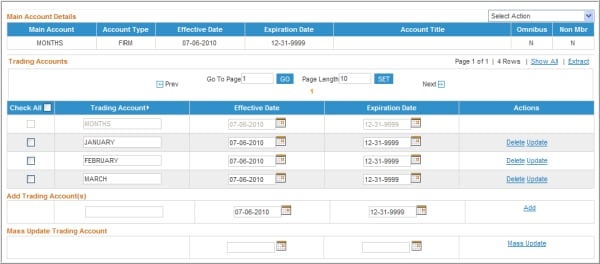
- To Delete a Trading Account:
- Identify the appropriate row containing the trading account to be deleted. Select the Delete hyperlink in the Actions column for that row.
- A Message Box will display asking the User to confirm the deletion of the trading account. Select OK to continue, or select Cancel.
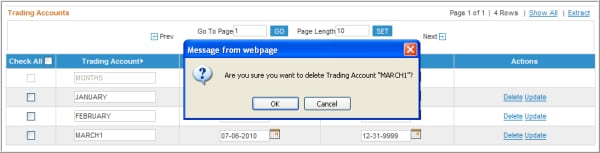
- If OK was selected then a confirmation message will display above the Account Details section noting the trading account has been deleted.
Deleting Trading Account: Confirmation Message

- To Update Trading Account Number and/or Effective / Expiration Dates:
- Identify the appropriate row containing the trading account to be updated.
- The following may be updated: Trading Account Number, Effective Date and/or Expiration Date.
- If an existing Trading Account Number needs to be updated, simply type over what is listed in the textbox.
- If the Effective Date needs to be updated, the User may manually type over the date (MM-DD-YYYY) or select the calendar icon to select the effective date. Note that the effective date must be equal to or greater than the main account’s effective date.
- If the Expiration Date needs to be updated, the User may manually type over the date (MM-DD-YYYY) or select the calendar icon to select the expiration date. Note that the expiration date must be equal to or less than the main account‘s expiration date.
- Click on the Update hyperlink in the Actions column for that row.
- A Message Box will display asking the User to confirm the modification(s). Select OK to continue, or select Cancel.
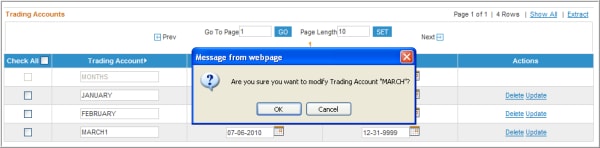
- If OK was selected then a confirmation message will display above the Account Details section noting the trading account has been updated.
Modifying Trading Account: Confirmation Message

- To perform a Mass Update of Trading Account Effective and/or Expiration Dates:
This feature allows the Effective Date and/or Expiration Date to be updated on multiple Trading Accounts simultaneously.
- The User can either designate individual Trading Accounts to be updated by selecting the check box in front of each account, or the User may designate all the Trading Accounts displayed on the screen to be updated by selecting the Check All box.
- If the Trading Account list is paginated, the user must first select the Show All hyperlink at the top right of the Trading Accounts section in order to update the entire list of accounts at once using the Check All feature. Otherwise, only the Trading Accounts displayed on the current page will be updated.
- Enter the new Effective Date and/or Expiration Date in the Mass Update Trading Account section. If updating only one of these dates, leave the other date field blank.
- Select the Mass Update hyperlink in the Actions column.
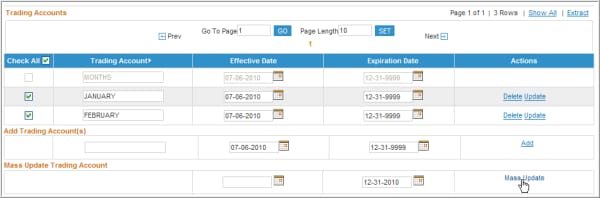
A confirmation message appears.



